Table of Contents
- Overview
- Prerequisites
- Add an S3 Filestore
- Browse, link and download S3 storage
- Move (or copy) Gallery Files to S3
- Transfer between S3 filestores
- Create a folder in an S3 filestore
- Move files within an S3 filestore
- Delete previously created files and folders in an S3 filestore
- Generate a metadata record for an S3 folder
S3 Filestore Integration
To configure sending HTML or XML archive exports to an AWS S3 bucket, see Storing RSpace archives on S3. Overview. RSpace can connect to external object storage that supports the S3 protocol (Amazon…
Table of Contents
- Overview
- Prerequisites
- Add an S3 Filestore
- Browse, link and download S3 storage
- Move (or copy) Gallery Files to S3
- Transfer between S3 filestores
- Create a folder in an S3 filestore
- Move files within an S3 filestore
- Delete previously created files and folders in an S3 filestore
- Generate a metadata record for an S3 folder
- Overview
- Prerequisites
- Add an S3 Filestore
- Browse, link and download S3 storage
- Move (or copy) Gallery Files to S3
- Transfer between S3 filestores
- Create a folder in an S3 filestore
- Move files within an S3 filestore
- Delete previously created files and folders in an S3 filestore
- Generate a metadata record for an S3 folder
Overview
RSpace can connect to external object storage that supports the S3 protocol (Amazon S3 and S3-compatible providers). S3 authentication is handled by the RSpace server, so you never enter S3 credentials yourself.
Once your system administrator has configured an S3 file system and gave you access to it, you can:
- browse, link and download S3 files from the Gallery (since RSpace 2.22/1.122)
- move, copy or transfer files into S3 (since RSpace 2.23/1.123)
- create folders or delete previously created items (since RSpace 2.24/1.124)
- generate a DataCite-style metadata record for the contents of an S3 folder and save it as a sidecar file (since RSpace 2.25/1.125)
Prerequisites
Your system administrator must enable the S3 file system (see Sysadmin S3 Configuration guide) and add your username to its read and/or write allowlist. If nothing is configured, the S3 options below will not appear.
Admin-configurable access and permissions
Your administrator controls access per file system with two allowlists: a read list (browse, link, download) and a read + write list (move, copy, transfer, create folder, delete). Write access always includes read access. If you need access you don't have, contact your system administrator.
Add an S3 Filestore
A Filestore is your entry point into a configured S3 file system, rooted at a folder you choose.
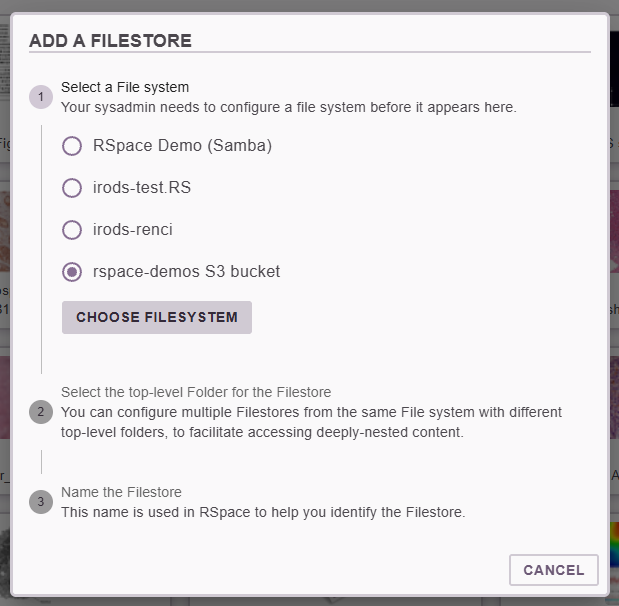
- In the Gallery, click on the Create button and choose Add a Filestore.
- Select a File system, then select Choose Filesystem. File systems you cannot read are disabled and marked
(no read access; contact your sysadmin). - Select the folder that you want to be the starting point (top-level folder) for your Filestore, then select Choose Folder. You can set up several Filestores from the same File system, with different top-level folders, as a way to set up "shortcuts" to your most used areas.
- Name the Filestore, then choose Add Filestore.
Browse, link and download S3 storage
- To browse: open your filestore from the Filestores section of the Gallery to browse the bucket.
- To link an S3 resource (file or folder) inside a document: in the document editor choose Insert → From RSpace Gallery, open your S3 Filestore, select the file, and choose Add. The file stays in S3; RSpace only stores a reference. The S3 links display with a distinct S3 icon in the document.
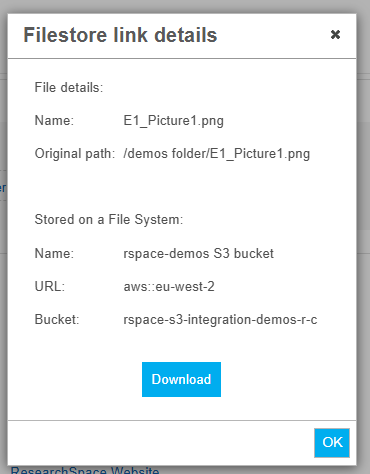
- To download a file: when in the Gallery, select the file and choose Download from the Actions menu. You can also download the file after clicking on the link inserted in a document:
Move (or copy) Gallery Files to S3
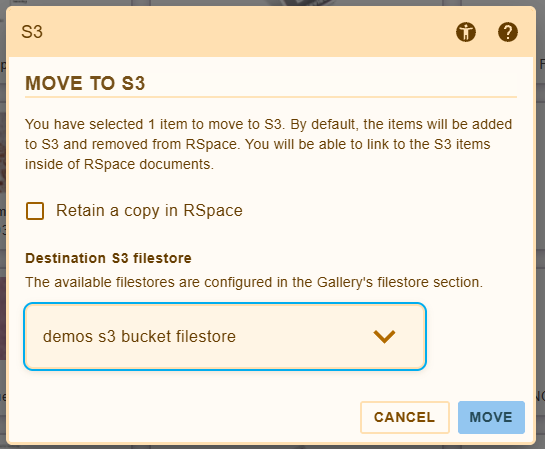
- In the Gallery, select one or more items, open the Actions menu, and choose Move to S3.
- Pick the Destination S3 filestore. Filestores you cannot write to are disabled and marked "No write access".
- To keep the original in RSpace, tick Retain a copy in RSpace (the button then reads Copy); leave it unticked to move (button reads Move).
Same-name files at the destination are reported as already existing and are not overwritten. If no S3 filestore is configured, or you have no write access to any, the dialog indicates this and instructs you to contact your administrator.
Transfer between S3 filestores
When you select a file that is already inside an S3 Filestore and choose 'Move to S3', the dialog opens in transfer mode (titled 'Transfer to S3'): the source filestore is excluded from the destination list. There is a checkbox allowing to retain a copy on the source bucket (i.e. doing a 'copy' rather than 'move'). The transfer runs server-side on S3, so it is fast. Single files larger than 5 GB cannot be transferred this way and will fail with a clear error.
Create a folder in an S3 filestore
While browsing inside an S3 filestore, open the Create menu and choose New Folder. The dialog is titled 'New Filestore Folder', as the folder will be created on the external S3 bucket rather than in RSpace. Give the new folder a name, and confirm.
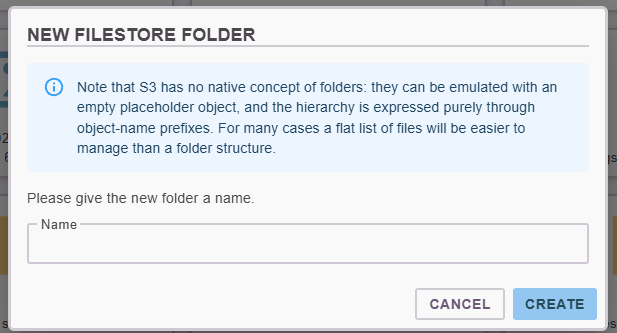
Keep in mind that, as described by the note on 'New Filestore Folder' dialog, S3 has no native concept of folders. There are subtle consequences, e.g. it's not easy to implement operations on a folder level, because (by S3 design) they'd need to modify every element inside the folder. This is a reason why some RSpace operations are only allowed for empty S3 folders.
The "Create a filestore folder" action requires write access to the S3 file system.
Move files within an S3 filestore
Inside an S3 filestore you can move items to any folder within the same bucket, using the regular Gallery Move action. The move happens inside S3 (technically, the object is copied to its new location and the original removed). You can move individual files and empty folders. Moving a folder that contains items is not supported.
To move items within an S3 filestore, select one or more items and choose Move from the Actions menu. The dialog shows the filestore's own folder tree. Either pick a destination folder and choose Move, or choose Move to top level to move to the filestore root. A folder cannot be moved into itself, so source folders appear greyed out in the tree.
The "Move" action requires write access to the S3 file system.
Delete previously created files and folders in an S3 filestore
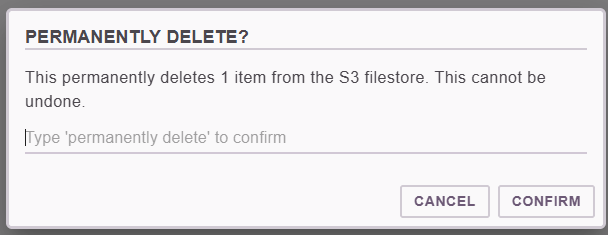
A Delete action is available in the Actions menu for items you've previously created (or uploaded) through the RSpace UI. Deletion from S3 is permanent, and the Delete action asks you to type a confirmation before proceeding.
Deletion is subject to safeguards enforced by the RSpace server:
- You can only delete items you added yourself (when you upload or create an item, RSpace saves your username on it, and only that user can delete it later).
- You can only delete items created recently, within a time window set by your system administrator (15 minutes by default).
- You can delete individual files and empty folders. A folder that contains items cannot be deleted until it is empty.
If an item does not meet these rules (it is older, was created by someone else, or is a non-empty folder), the delete attempt is rejected.
Generate a metadata record for an S3 folder
gallery.actions.metadata.sidecarFile.enabled deployment property. If you do not see the Generate Data Record action, contact your system administrator to have it enabled.RSpace can generate a metadata record that describes an S3 folder and the files it contains, and save that record alongside the files as a sidecar file. The record follows a DataCite-style structure, written as YAML. This is useful when you want the folder's contents to travel with a portable, standards-based description of who created the data, which organisation it belongs to, and what files it holds.
The action is only available inside a writeable S3 filestore (it's disabled if you are viewing a read-only filestore). For the richest record, your administrator can set the organisation's ROR identifier under System > Settings, and you can add your ORCID iD to your profile. Both are included automatically when available.
To generate and save a metadata sidecar file:
- Browse into the S3 folder you want to describe. You do not need to select any files; the record describes the whole folder.
- Open the Actions menu and choose Generate Data Record.
- A dialog opens and shows a read-only preview of the composed record.
- Review the preview, then choose Save to S3.
RSpace writes the record into the folder as <folder-name>.sidecar.yaml (or <bucket-name>.sidecar.yaml when you are at the filestore root), and it appears in the folder listing. Saving the record is recorded in the filestore's activity history.
The record is composed automatically from:
- the folder's file listing (file name, size, and storage details reported by S3)
- your details, as the creator of the metadata file, including your ORCID iD (if configured)
- your organisation's name, and its ROR identifier (if configured)
How did we do?
DMPonline Integration
Working with DMPs