Table of Contents
Relationship Linking in Inventory 🧪
Overview. You can explicitly record a relationship link between two items, using the DataCite relationType vocabulary to specify the type of relationship. This is useful for keeping track of provenan…
Table of Contents
Overview
You can explicitly record a relationship link between two items, using the DataCite relationType vocabulary to specify the type of relationship. This is useful for keeping track of provenance, e.g. what sample has been obtained from processing a sample, or what instrument was used to collect a specific sample. You can link both to ELN items and other Inventory items. You can also easily view a list of all the items that reference a specific item in its info panel.
Adding a link as a custom field
- Open the Inventory item you want to add a link to.
- Go to its Custom fields section and choose to add a new field.
- Give the field a name, and choose Link in the field type dropdown.
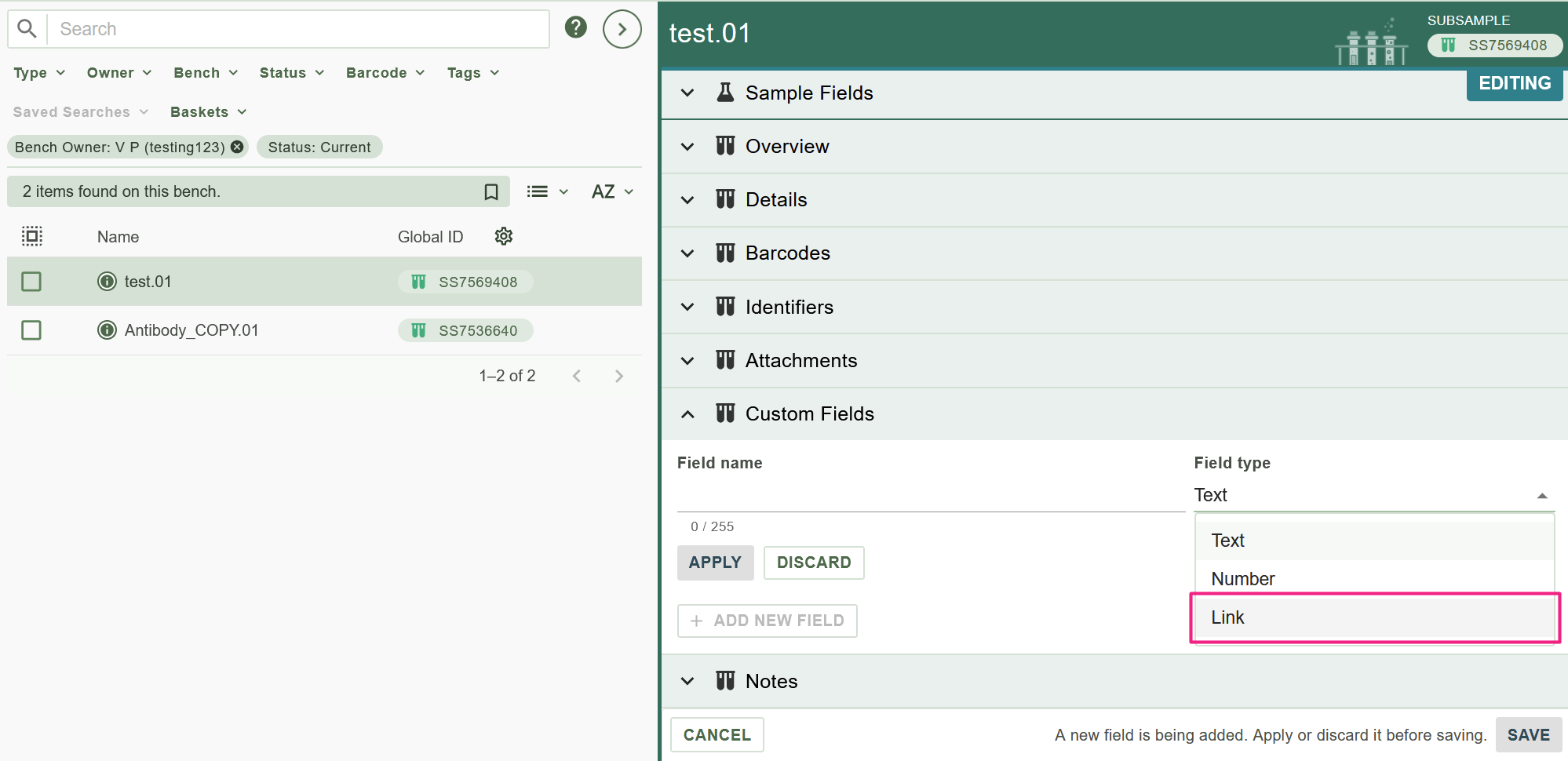
- Pick a relationship type. RSpace uses the standard DataCite relationType vocabulary to consistently record a relationship type for each link. The field will offer suggestions as you type.
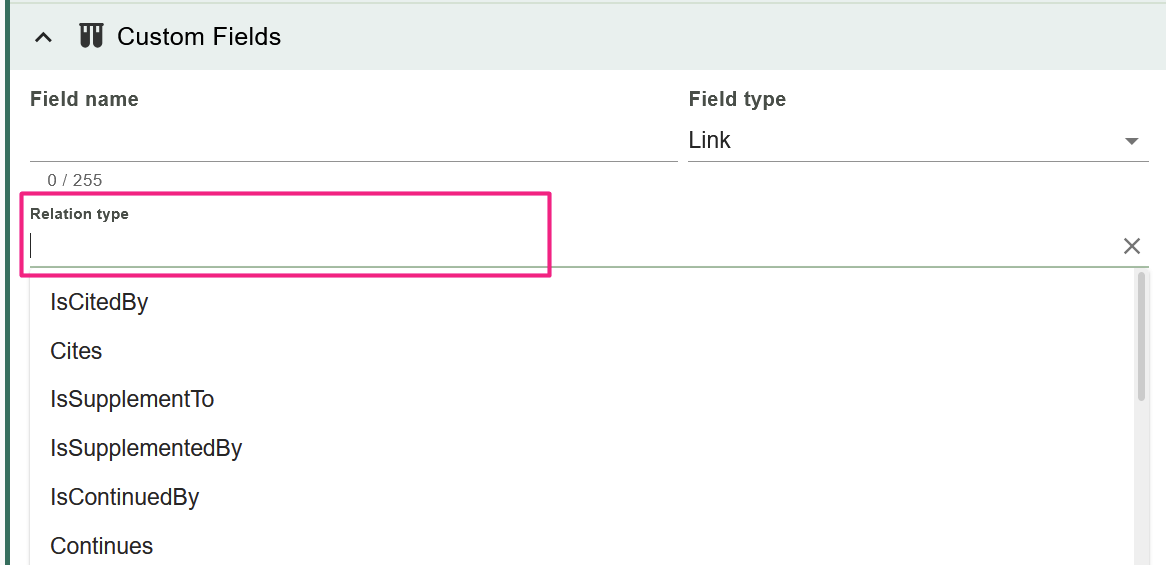
- Choose a target, either by browsing the ELN or Inventory, or by typing a Global ID directly. See below for a detailed description of each of these options.
- Click Apply to confirm the field.
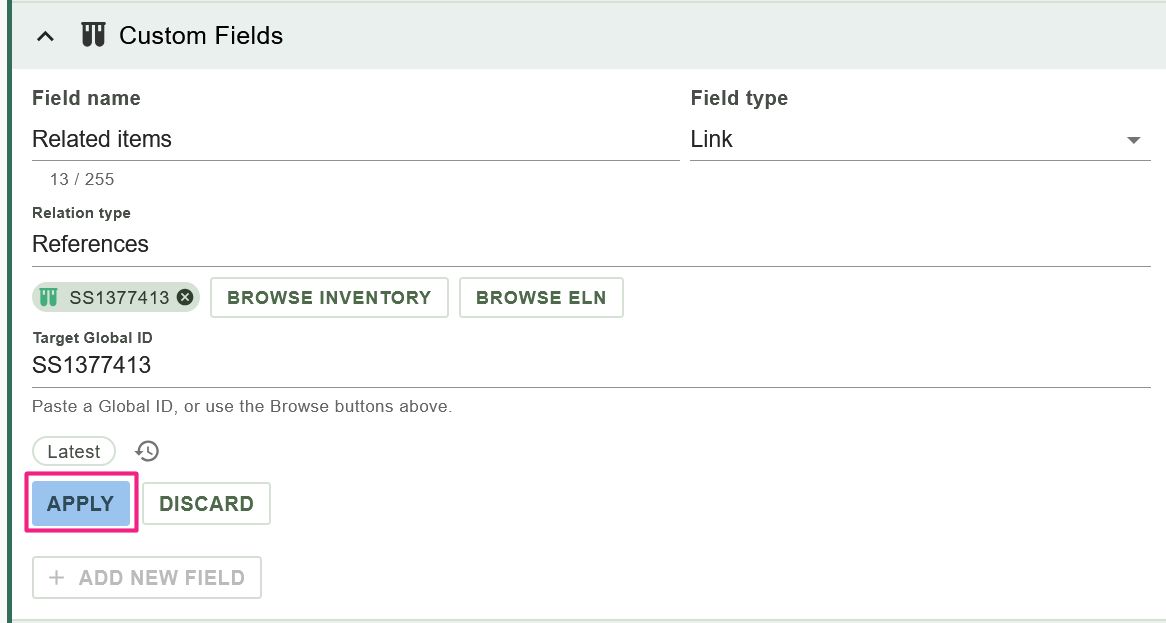
- Click Save on the item to store your changes.
Browse Inventory
Use this option to link to another Inventory Item.
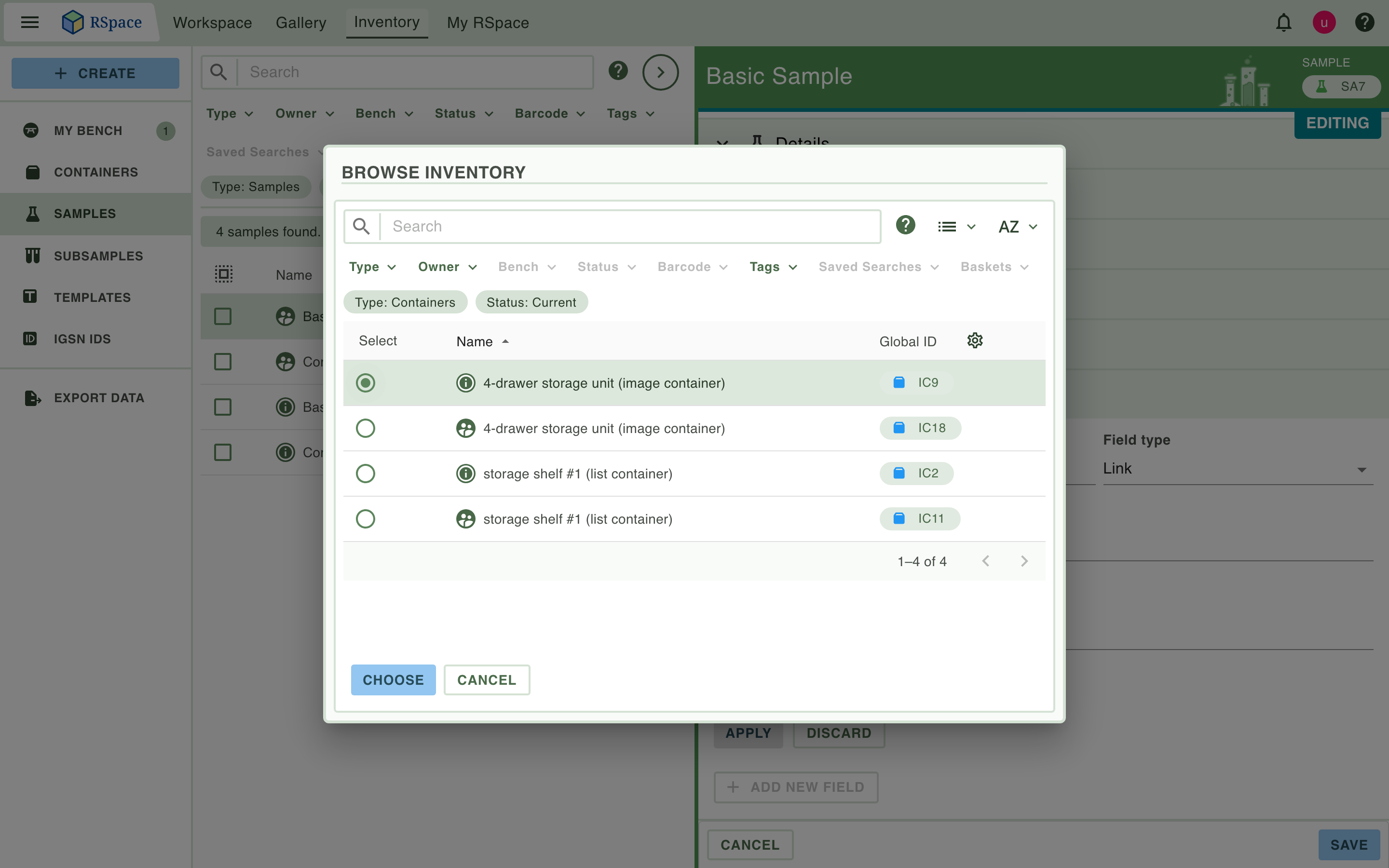
- In the Link editor, click Browse Inventory.
- Use the type filter if you wish to narrow the list. Select an item, then click Choose to confirm your selection. The chosen item's Global ID and name will fill the target box in the editor.
Browse the ELN
Use this option to link to items in the ELN. After selecting an item, click Choose. The chosen item's Global ID and name will fill the target box in the editor.
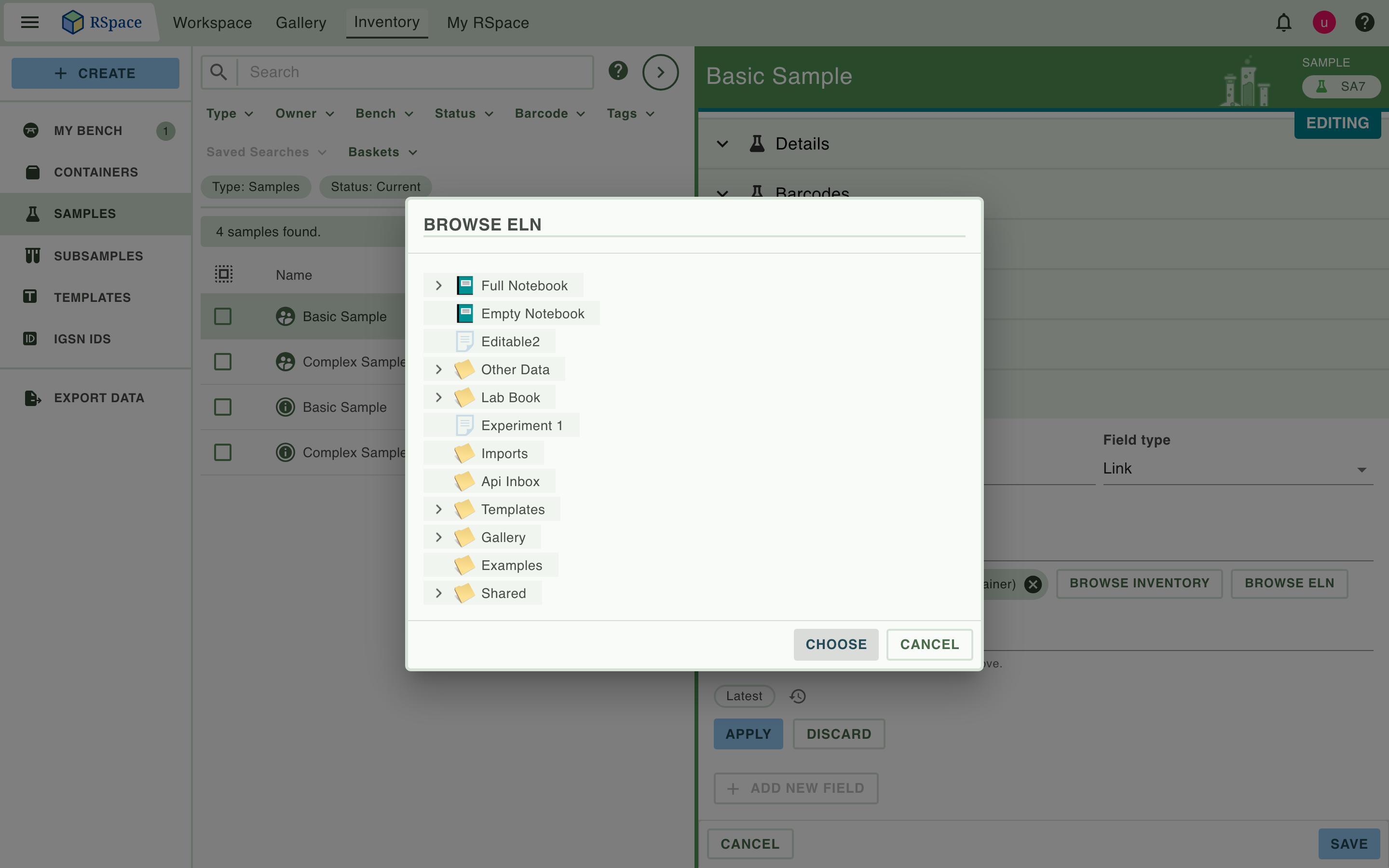
Type a Global ID directly
If you already know the Global ID, you can type or paste it into the Target Global ID box instead of browsing. Enter the Global ID without any version suffix, for example SD789(not SD789v2). To point at a specific version, use the clock dialog described in "Pinning a link to a specific version" below.
Viewing links to an item
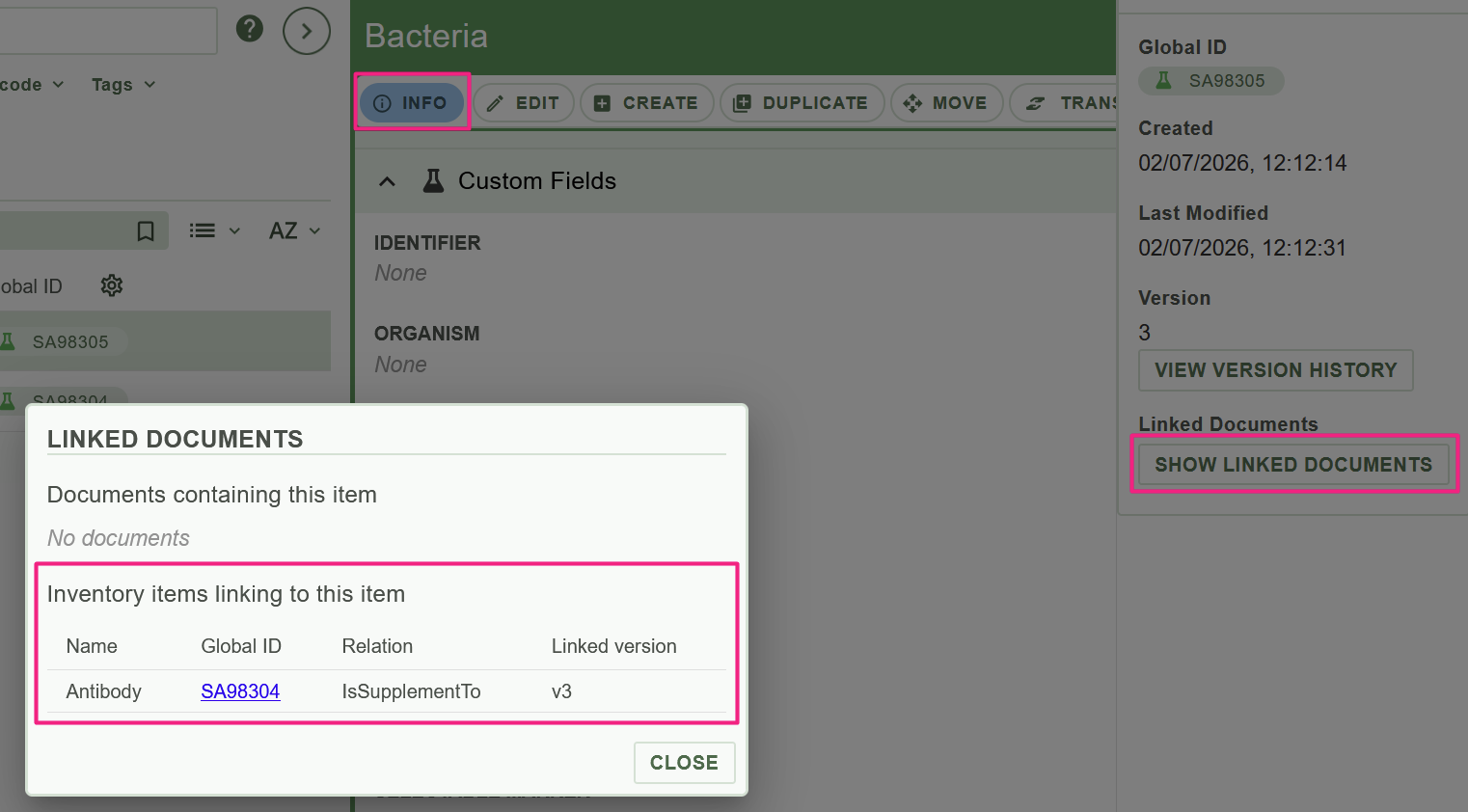
To view which items link to a specific Inventory or ELN item, open the item's info panel. The table will show you the name, global ID, relationship type, and the version number of the item that links to the item you're viewing.
In Inventory:
In the ELN
Applying, updating and saving your changes
Links have a small two-stage save process, and this is worth understanding because it is what keeps your edits safe.
- Apply (when adding a brand-new field) confirms the new field so it becomes part of the item.
- Update (when editing an existing link) confirms your changes to that link.
- Discard / Cancel throws away the change you were making and leaves things as they were.
- Save (on the item as a whole) writes everything to the database. (Note any 'backlinks' on a target item showing the origin Inventory Item will not show up until you actually save the item).
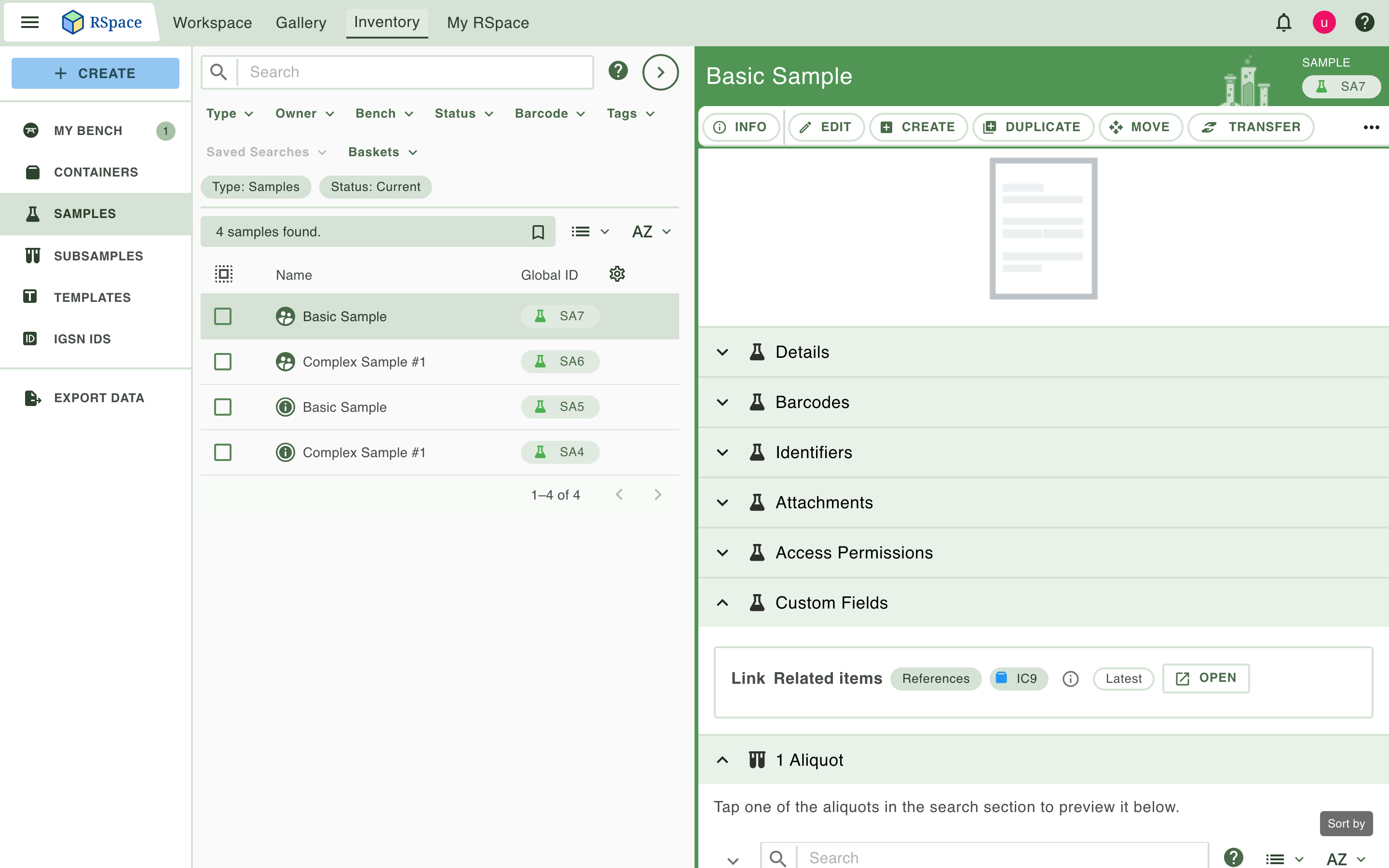
A saved link card: the Link heading, field name, relationship chip, target chip, info button, version pill and Open button on one row.
Pinning a link to a specific version
Targets that can be pinned to a specific version include: instruments, instruments templates, samples, sample templates, subsamples, containers, ELN documents and Gallery items. Notebooks cannot be pinned to a specific version.
On a saved link card, the clock icon is greyed out and not interactable. Pinning is done inside edit mode.
- Click Edit on the Inventory item.
- Click the settings gear on the link.

- In the editor, the version row shows the current pill (Latest or Pinned to a version) and an enabled clock. Click the clock.
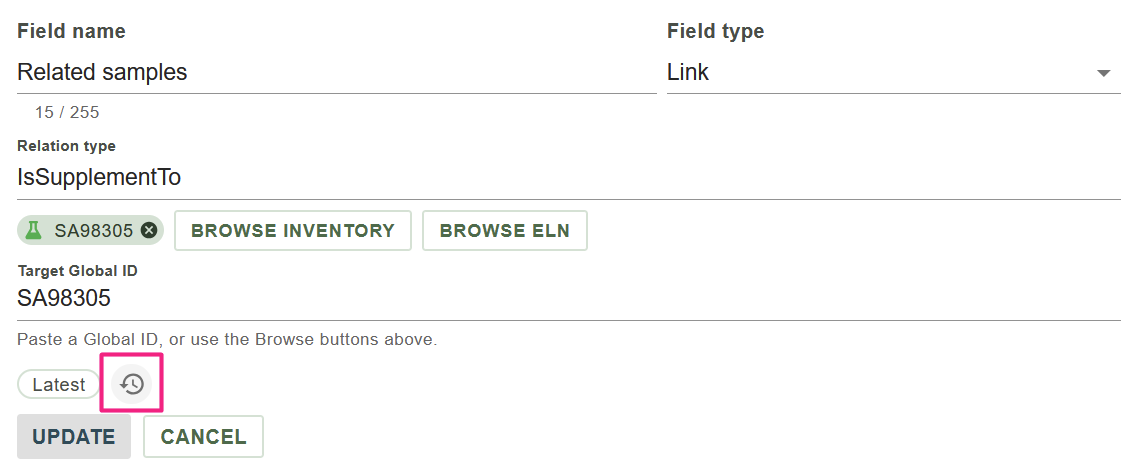
- A dialog lists the target's versions (v1, v2, and so on), plus a Latest option. Multiple small edits are collapsed into one entry per version. Select the version you want and select Lock to selected version.To remove the pin to a specific version and have the link point to the latest version of the item, choose Latest.
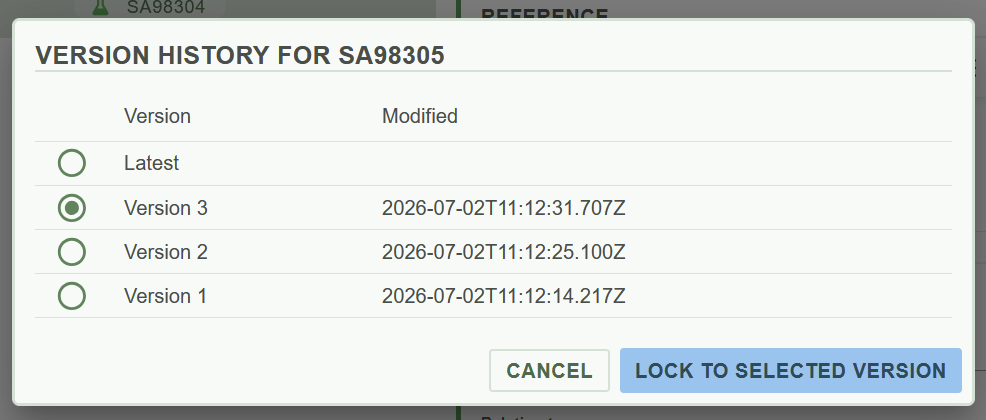
- The editor's pill now reads Pinned to [version], but the saved card does not change yet.
- Click Update to confirm the change, then Save the item.
Subtle effects of version pinning in links when clicking the info button:
- You can see info for a link to a pinned version of a deleted target
- You cannot see info for a link to a pinned version of an unshared target

Link fields on Sample Templates
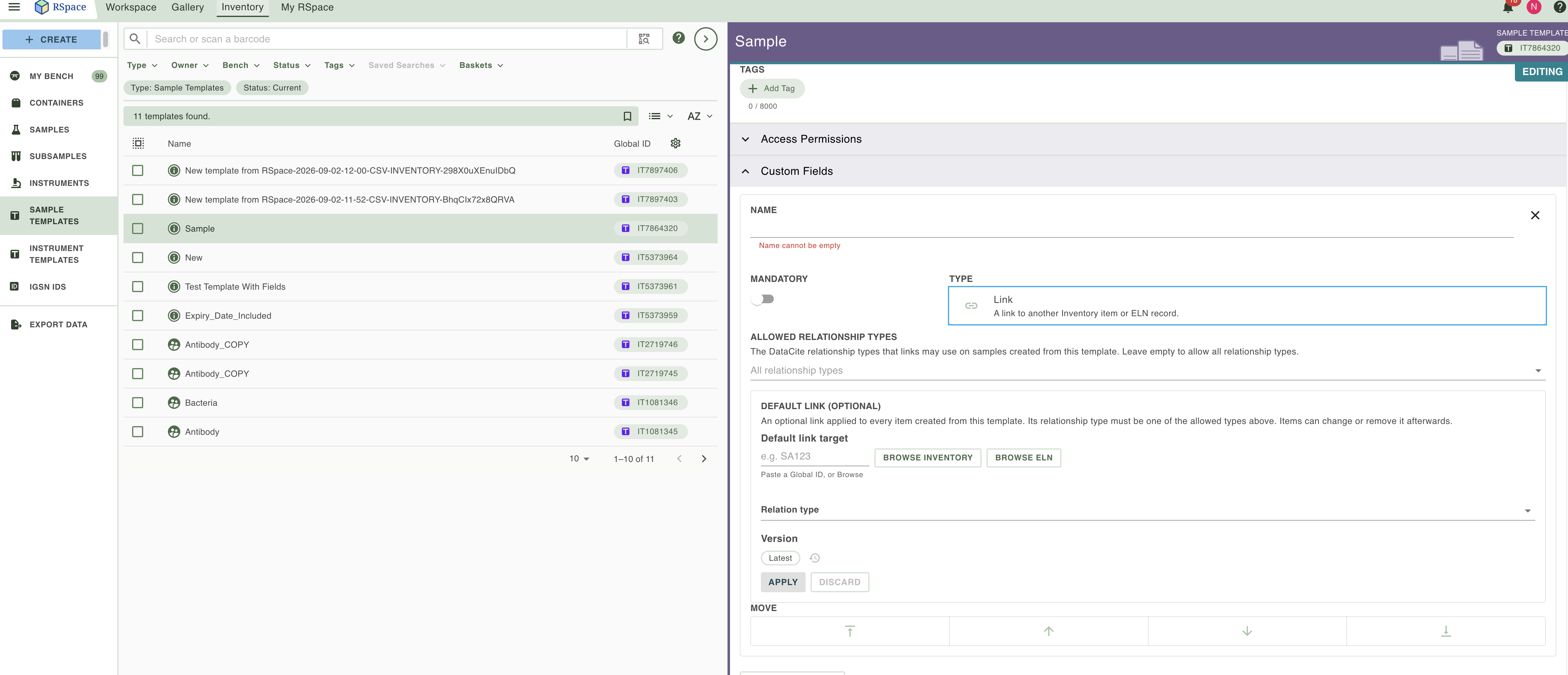
Adding a Link field to a Sample Template lets every sample made from that template start with the same kind of link, and lets you control which relationship types are allowed. You can also set a default target for the link.
- Edit a Sample Template and add a field of type Link.
- Choose if the link is mandatory. If it is, Samples created from the template must have a link target before they can be saved.
- Optionally, set the Allowed relationship types, which consists of a multi-select of DataCite relationType values. Items created from this template will have a restricted subset of allowed relationship types that only includes the ones you choose here. Leave Allowed relationship types empty if you wish created items to have the full range of allowed DataCite types.
- In addition, you can optionally set a target for the link. All samples created from the template will start with that target in the link.
- Save the template.
Updating existing samples with a new link field
If you add a Link field to a template after samples have already been made from it, use Update all samples to push the change out. The existing samples gain the new Link field. This works even when the new Link field is marked mandatory and the existing samples do not have a value for it yet; they are updated successfully, and you can fill in the link afterwards.
You can also remove a Link field from existing samples by deleting it from the template and updating the samples.
See Create and Use Sample and Instrument Templates for more information.
When a linked item is deleted or you lose access
- When a linked item is deleted you will see a
target deletedpill in the link. You can still obtain info about previous versions, or open the latest item in the trash if it is an Inventory item. - When the target of the link was a shared item that is unshared, you will see a
no accesspill. You can no longer obtain info about, or open, this target.
How did we do?
Add IGSN IDs to your Inventory Items 🧪
RSpace Inventory (RSINV) Glossary 🧪