DMP Assistant Integration
Overview. The DMP Assistant integration was added in RSpace 2.24/1.124. It requires a deployment properties configuration to be set by System Admin. RSpace provides an integration with the DMP Assist…
Overview
The DMP Assistant integration was added in RSpace 2.24/1.124. It requires a deployment properties configuration to be set by System Admin.
RSpace provides an integration with the DMP Assistant service: a national, online, bilingual data management planning tool developed by the Digital Research Alliance of Canada.
The integration enables researchers to import their DMPs into the RSpace Gallery and reference them when writing up their research in the Workspace.
Connecting to DMP Assistant
- Ensure you have an account on DMP Assistant.
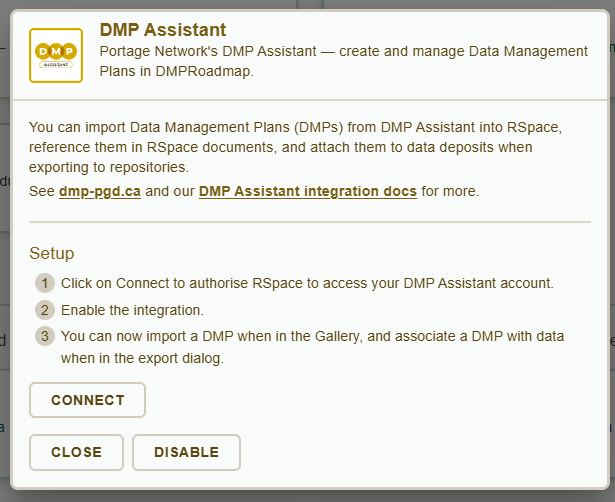
- In RSpace, go to the Apps page, choose the DMP Assistant App, Enable it and click on the 'Connect' button, then follow the authorization flow on DMP Assistant's side.
Importing DMPs into RSpace
- Navigate to the Gallery and click on Create. You will now see an option to import a DMP from DMP Assistant.
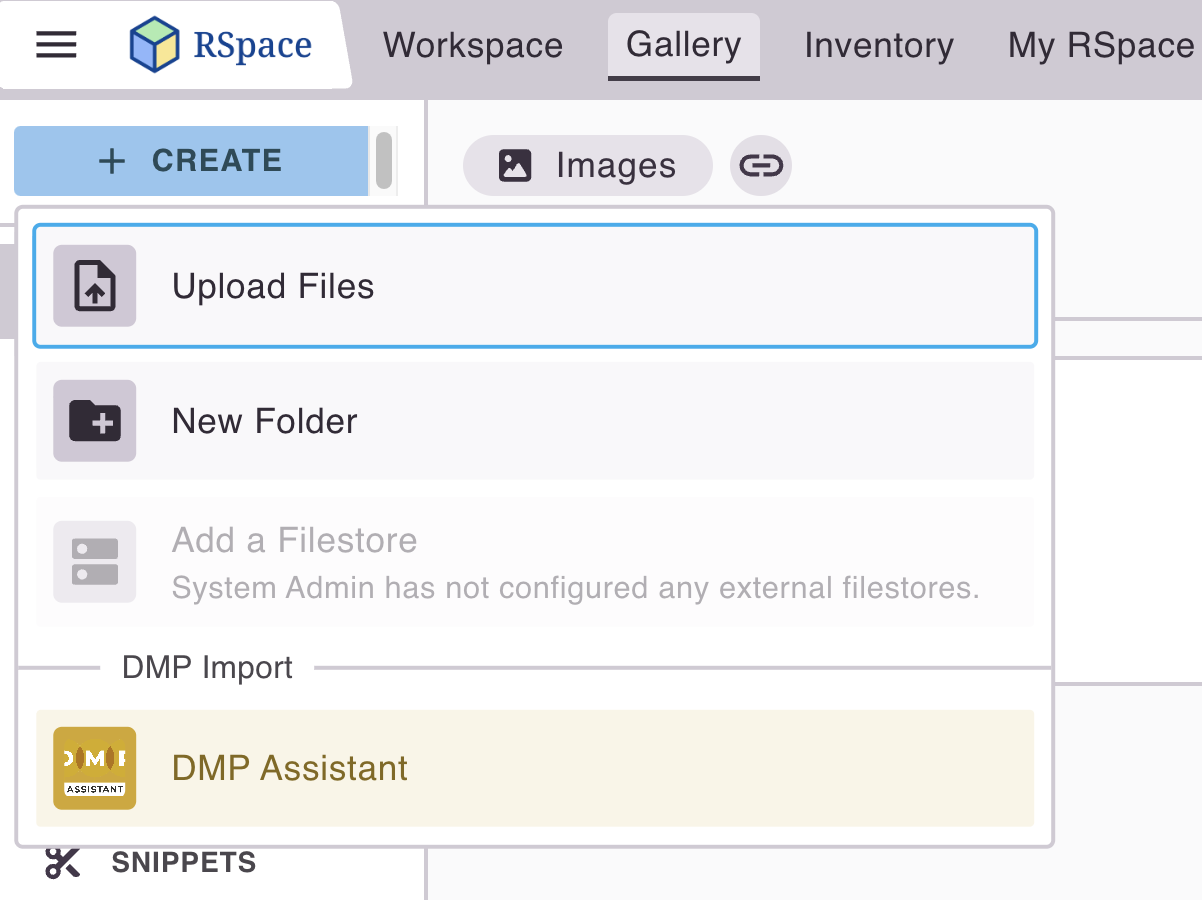
- Click on DMP Assistant. You will see a listing of your DMPs.
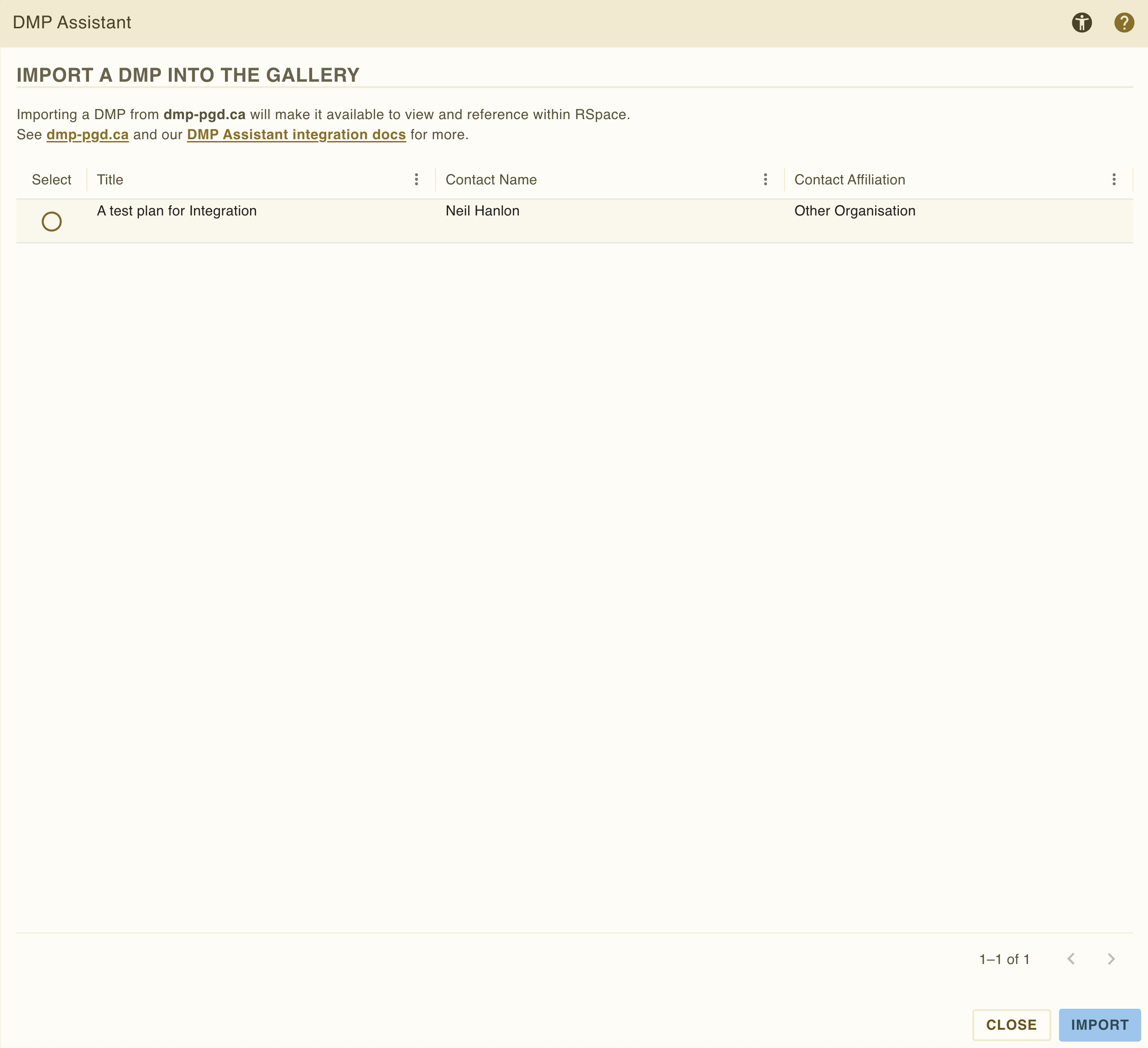
- Select the radio button for a DMP you wish to import and click Import. That DMP will now be visible in the DMPs section of the Gallery.
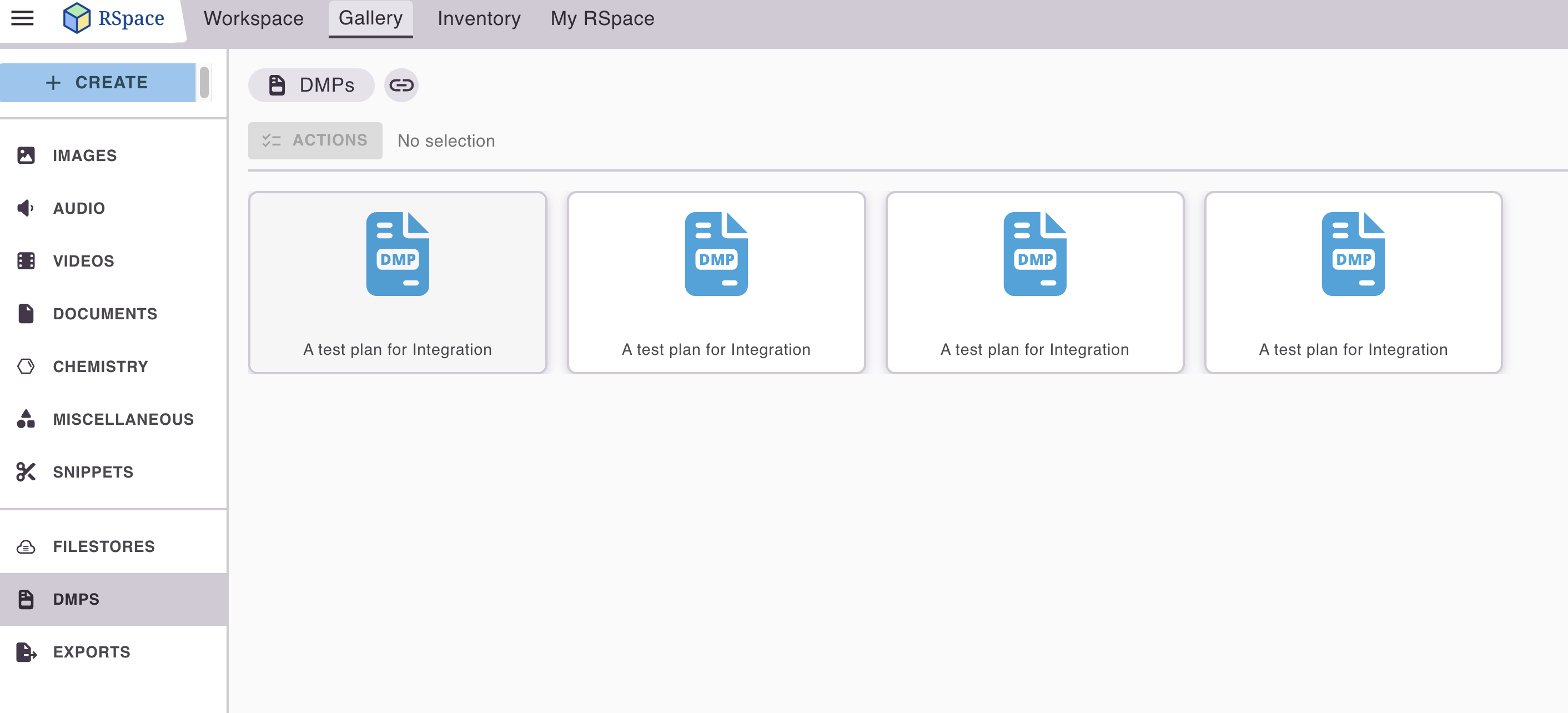
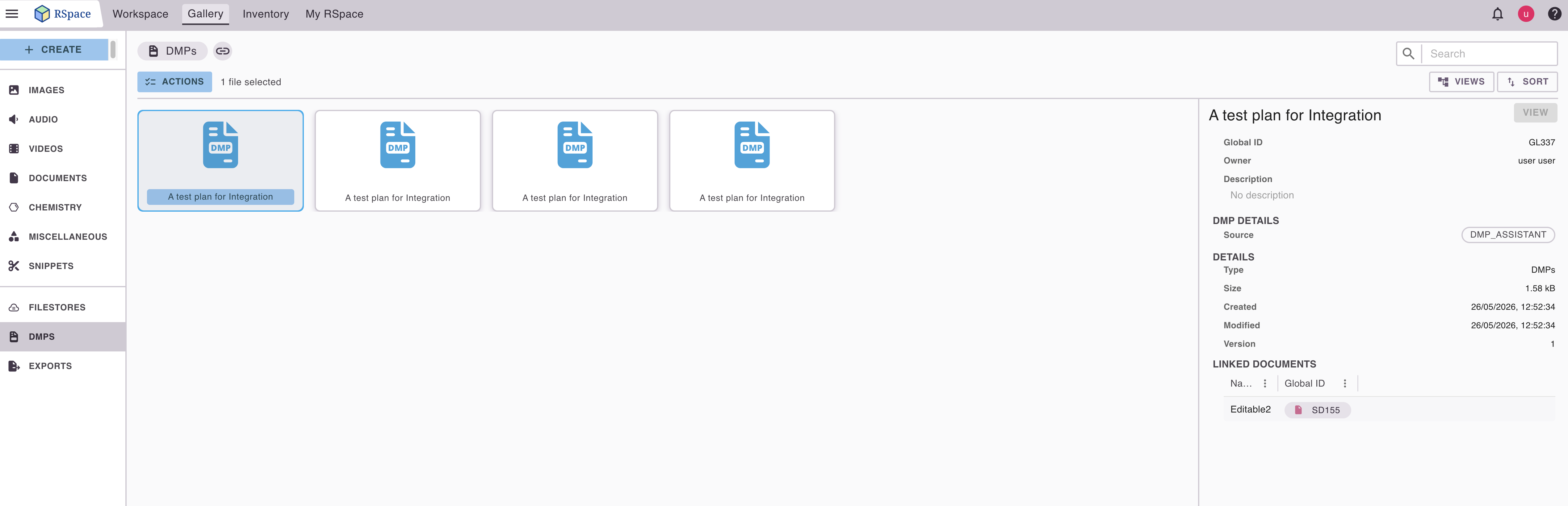
- Clicking on a DMP plan in the Gallery shows additional information, including links to any documents that have inserted that DMP:
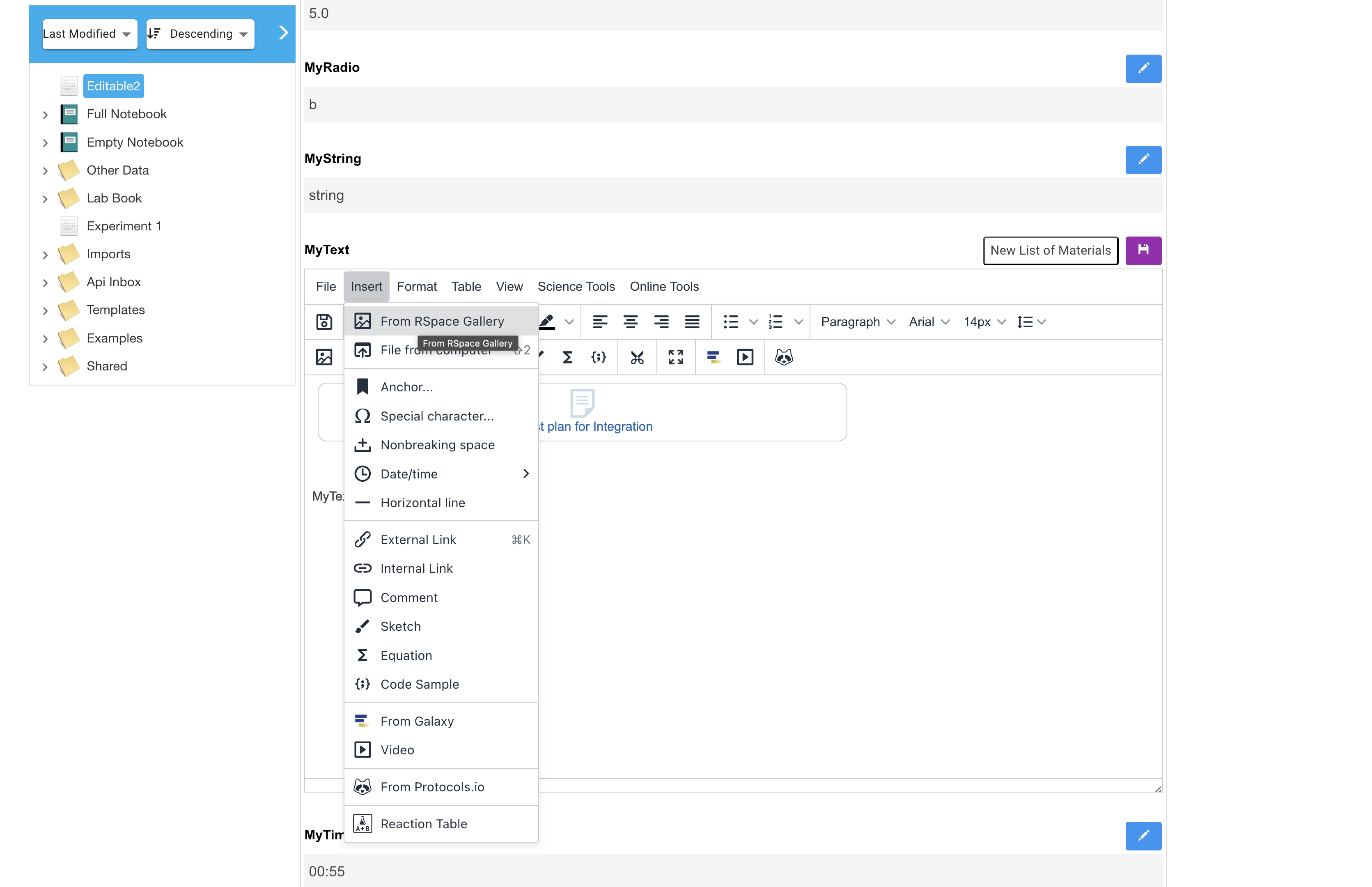
- In an RSpace document, select Insert -> From RSpace Gallery, and navigate to your DMP to reference it in the document.
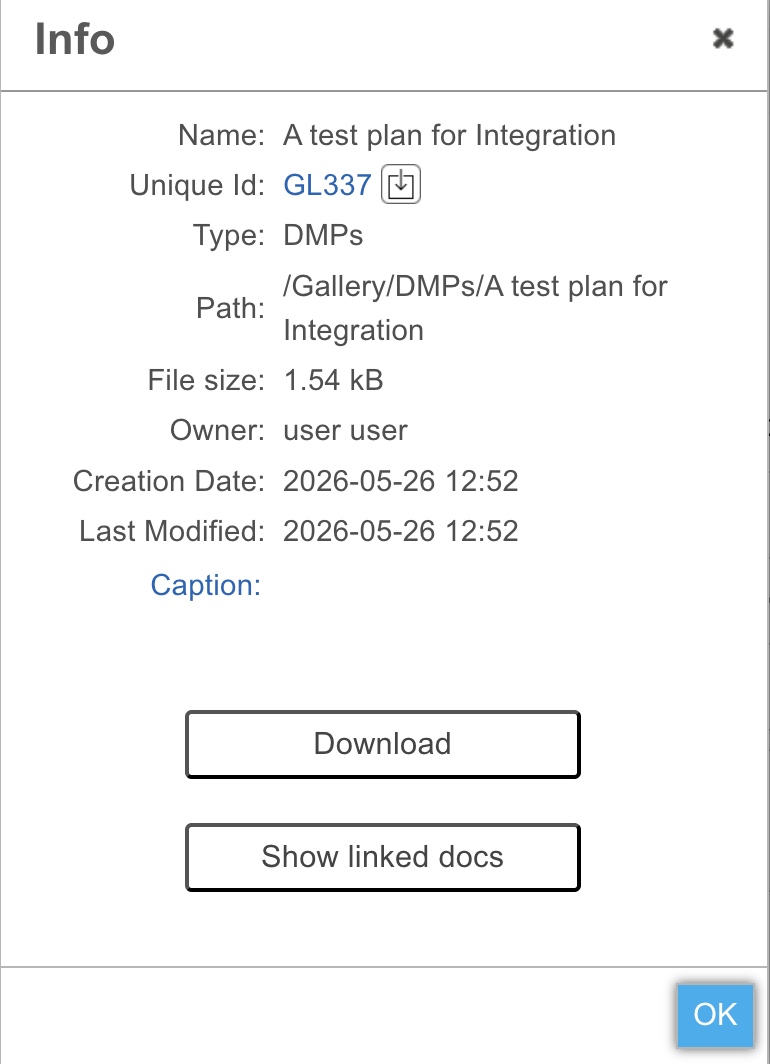
- Double clicking on a DMP in a document shows an info dialog with information, including any linked documents that have inserted that DMP.
How did we do?
SnapGene integration
Nextcloud