ownCloud Integration
You can now easily link to, or import content from, an ownCloud server. This integration is only available to users on an Enterprise instance of RSpace. This section is for end-users. If you are look…
You can now easily link to, or import content from, an ownCloud server.
This integration is only available to users on an Enterprise instance of RSpace.
This section is for end-users. If you are looking for help on making OwnCloud available as a System Administrator of RSpace, please check Setting up an ownCloud Integration page.
Connecting to ownCloud
- First, ensure ownCloud is enabled within the Apps section. If you can’t see this button then please ask your RSpace administrator if you would like this service enabled.
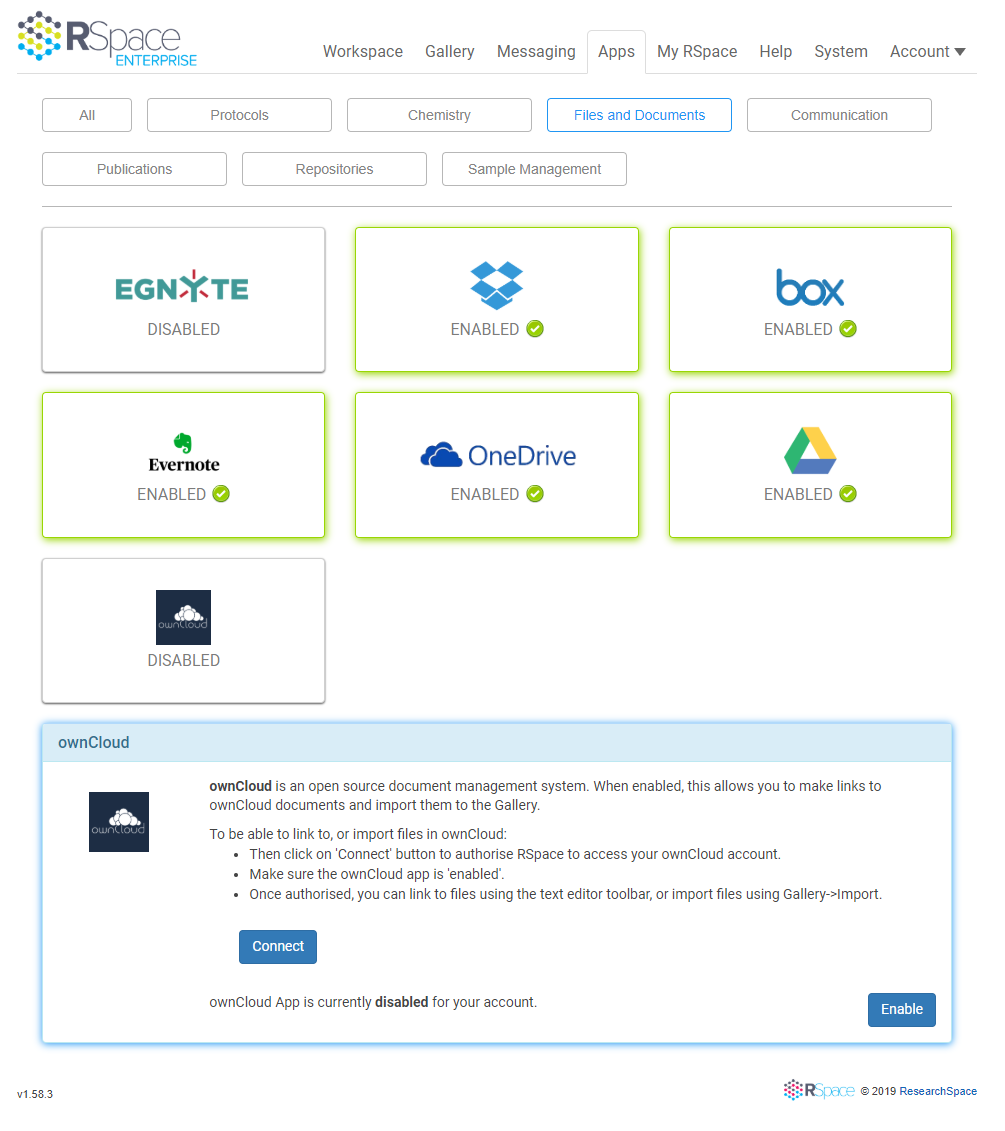
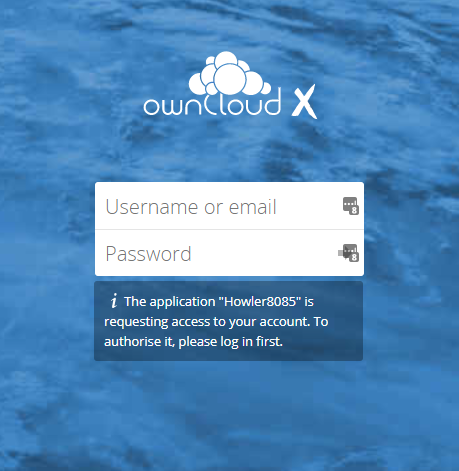
- Then click on the Connect button which send you across to ownCloud's login system for you to validate your ownCloud account.
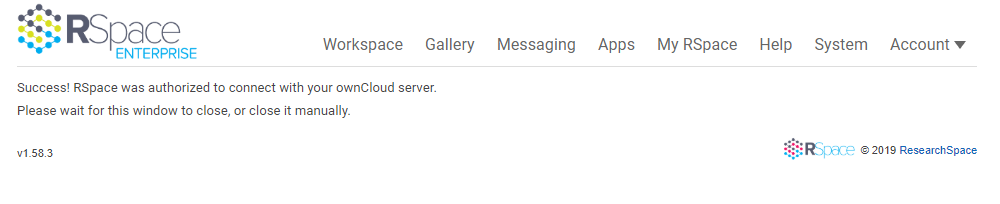
- After validation is complete you will be returned to RSpace and ready to insert items from your ownCloud into a document. Please note that if your organisation is using a custom variant of ownCloud, the integration will not work out-of-the-box (see the note at the top of this article).
Having trouble with getting the app to work? Check out the apps troubleshooting section.
Inserting an ownCloud file into a Document
- Click on the Insert from ownCloud button within the editor.

- After choosing this option and authenticating, you can insert one or more links to files or folders.
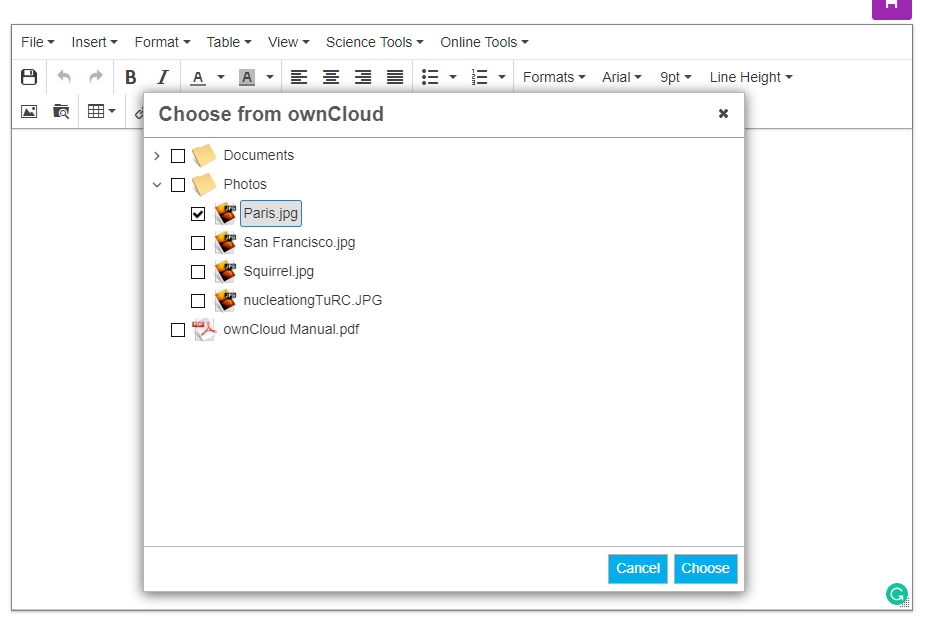
- You should now see your ownCloud file attached to your RSpace document.
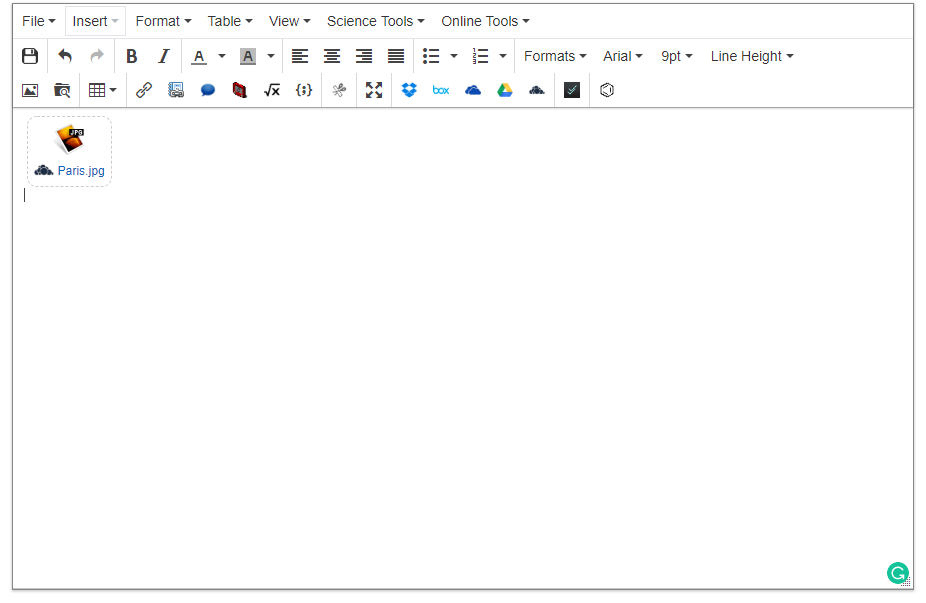
- If you then want to review the item, clicking on it within the RSpace document will open up the ownCloud file location within a new tab. If you have since logged out from ownCloud, you will be asked to login first before you can see the file.
Having trouble with getting the app to work? Check out the apps troubleshooting section.
How did we do?
Cloud Storage Integrations (Google Drive, Dropbox, Box, OneDrive, Egnyte)
GitHub Integration