Data Stewardship Wizard (DSW) / FAIR Wizard Integration
This is the first release of the DSW / FAIR Wizard integration. If you have any feedback on additional functionality or general improvements, please get in touch at support@researchspace.com ! RSpace…
RSpace provides an integration with Data Stewardship Wizard (DSW) and FAIR Wizard, which allows researchers to import their DSW and FAIR Wizard projects into the RSpace Gallery, and reference them as DMPs when writing up their research in the Workspace.
Before starting
- In order to connect your project to your RSpace account you'll need an account on DSW, FAIR Wizard, or another DSW / FAIR Wizard instance.
- Currently the integration is not installed by default. Please ask us if you want it enabled on your RSpace server and we will do this.
Connecting to DSW / FAIR Wizard
You will need the API key from your DSW / FAIR Wizard account in order to access your projects from within RSpace. To generate an API key, in DSW / FAIR Wizard go to 'User Settings' -> 'API Keys', and Create a new API key (if you don't have one already). Make a note of the generated key.
In RSpace, go to the 'Apps' page, choose 'DSW / FAIR Wizard'. If it is not already enabled, click 'Enable'.
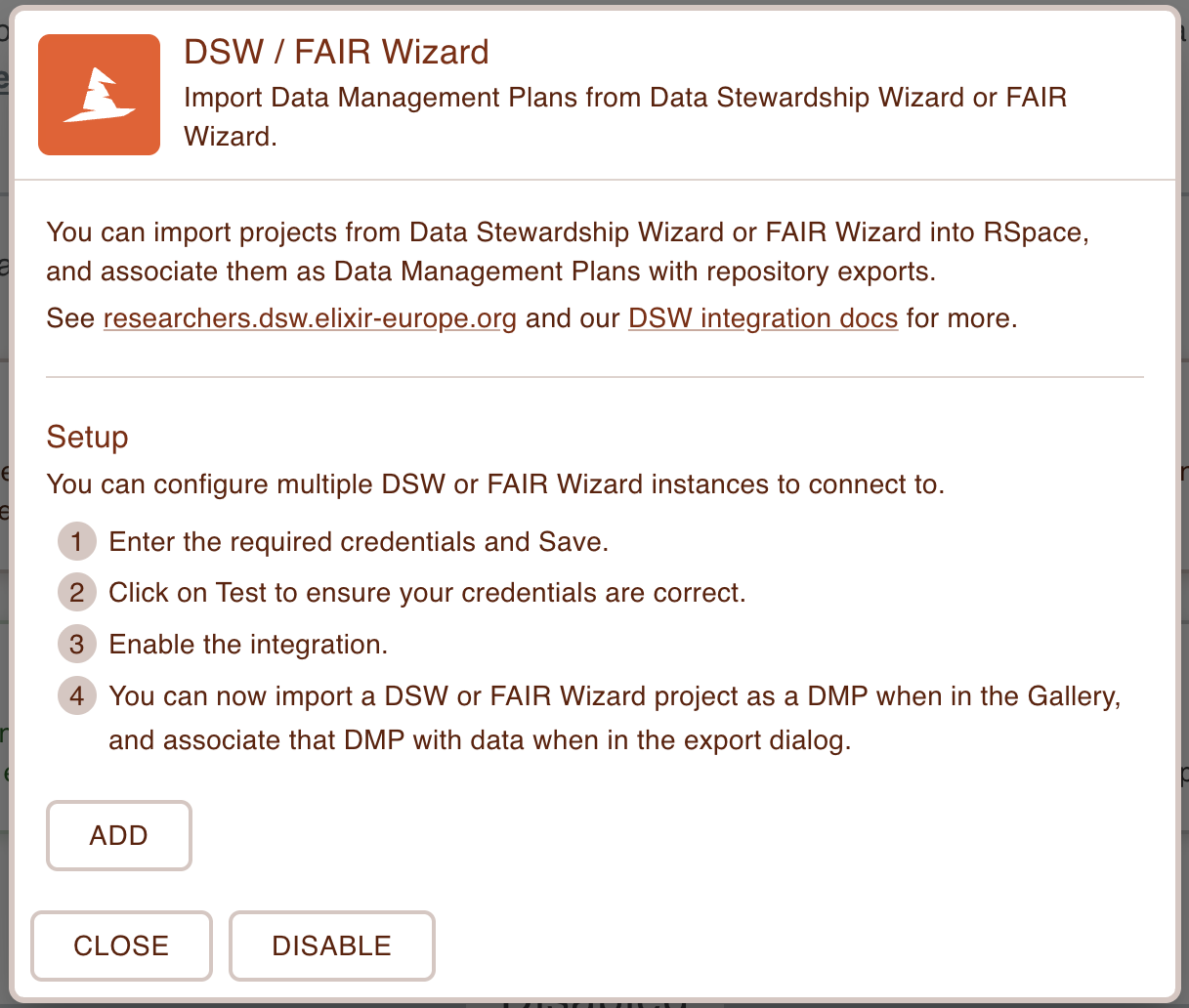
Once enabled, you will then need to add a connection for each DSW / FAIR Wizard account that you want to connect to. It is possible to connect to multiple DSW and/or FAIR Wizard accounts from RSpace. To connect to an account, select Add.
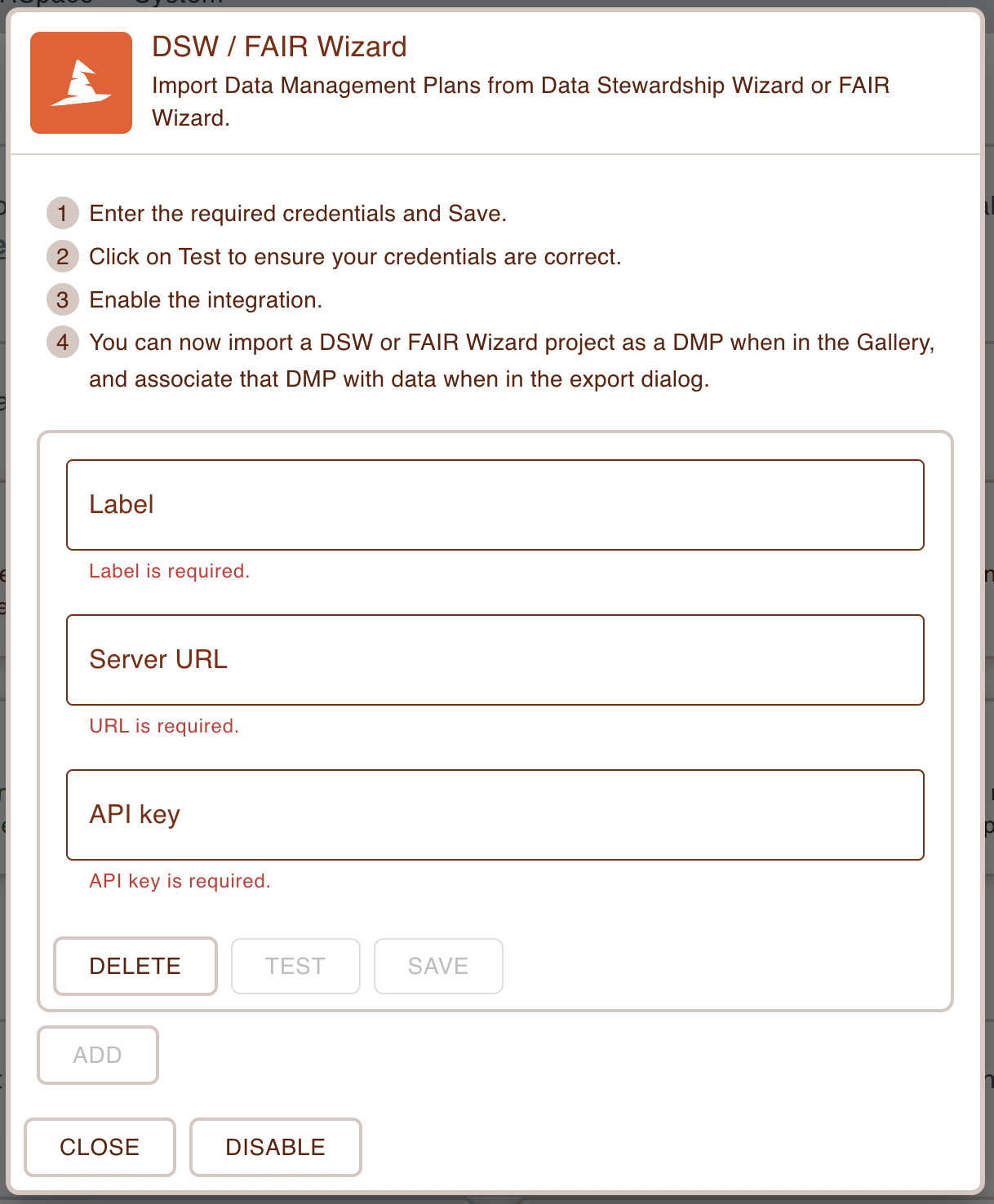
The following information is required:
Label- This is a name that you can give this connection to reference it when it is used elsewhere in RSpace. This name can be any value you want.Server URL- The URL for the DSW or FAIR Wizard instance that you're connecting to.API Key- The API key for your account that you created earlier.
For example:
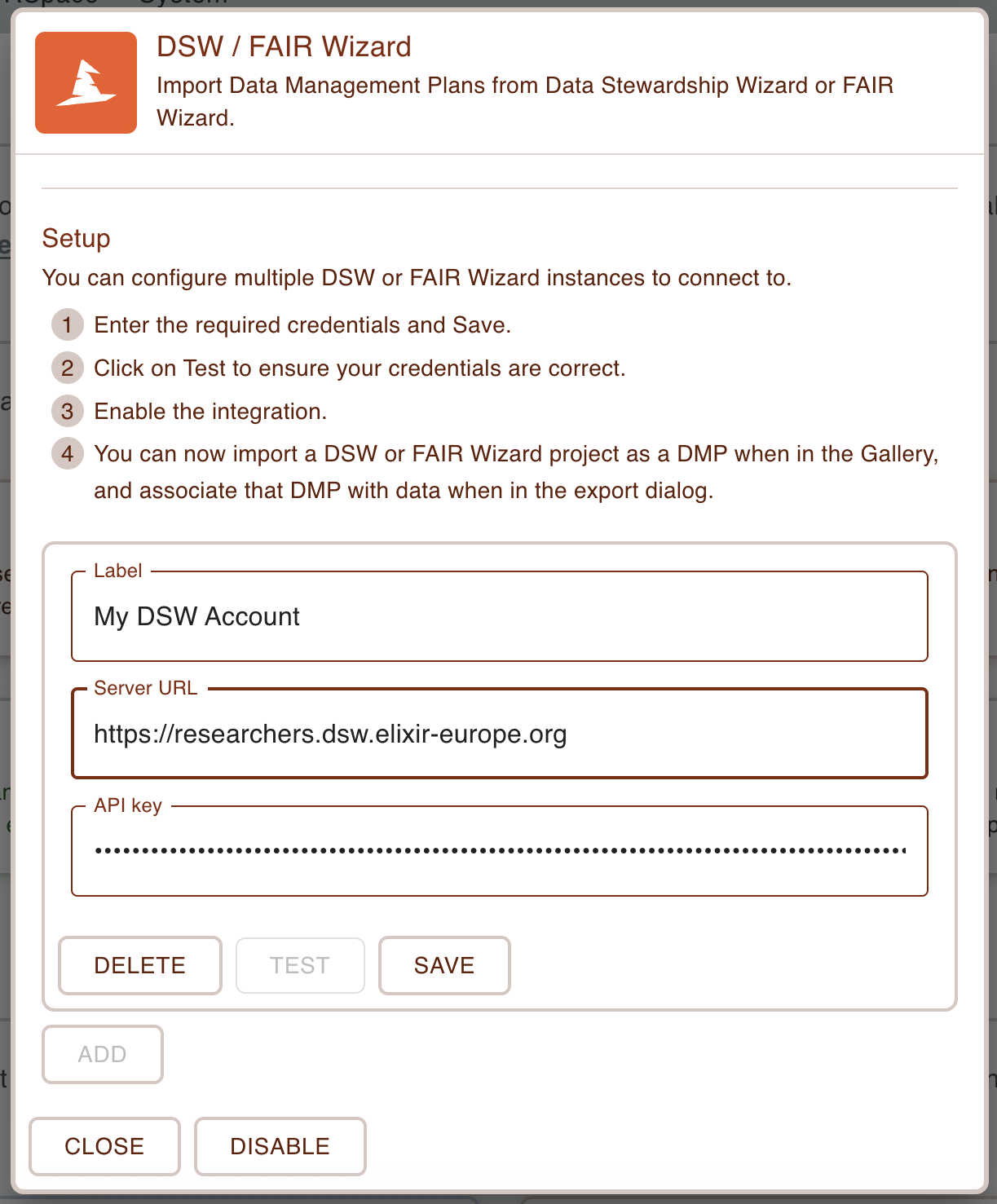
Once you have entered the information, choose 'Save'. Ensure that you have entered valid information by choosing the 'Test' button to test the connection.
Importing DSW / FAIR Wizard projects into RSpace
Navigate to the Gallery and click on 'Create'. You will now see an option to import a project as a DMP from the DSW / FAIR Wizard connection you made earlier. If you have multiple connections then these will all show up in the 'Create' menu.
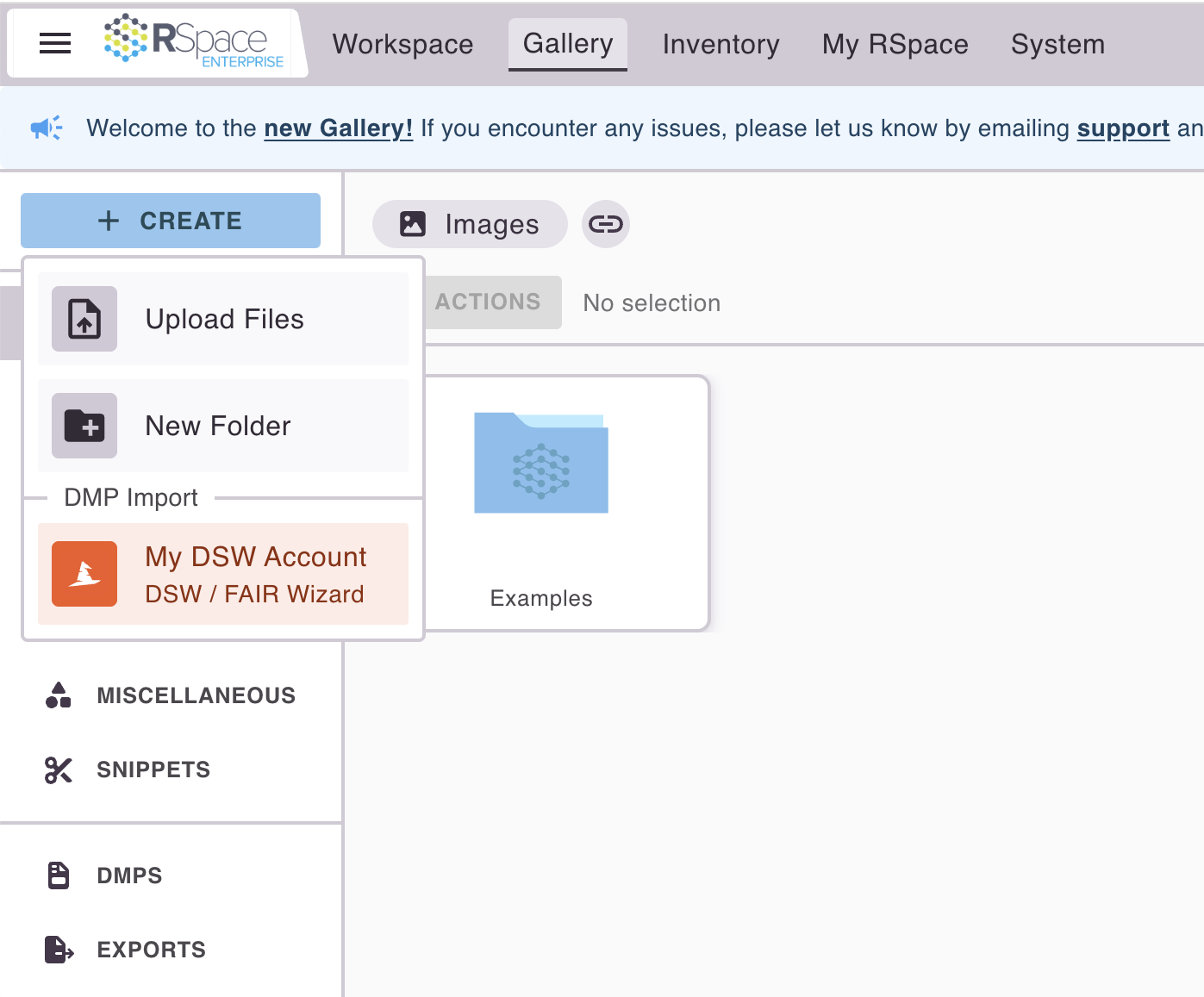
Select the DSW / FAIR Wizard option, and the following dialog opens which will display a list of all projects that are available for the configured user.
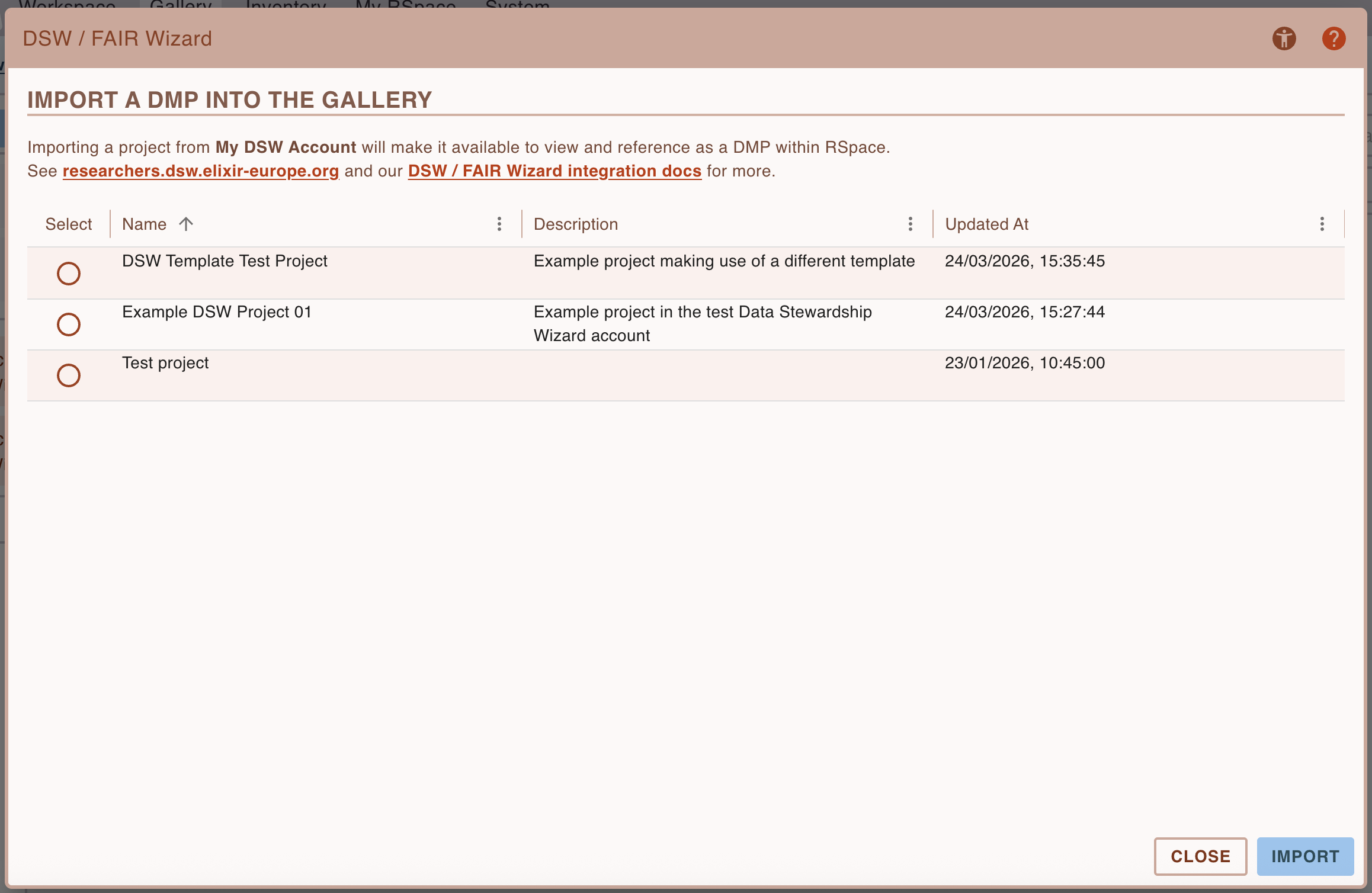
Select the appropriate project, and press 'Import'.
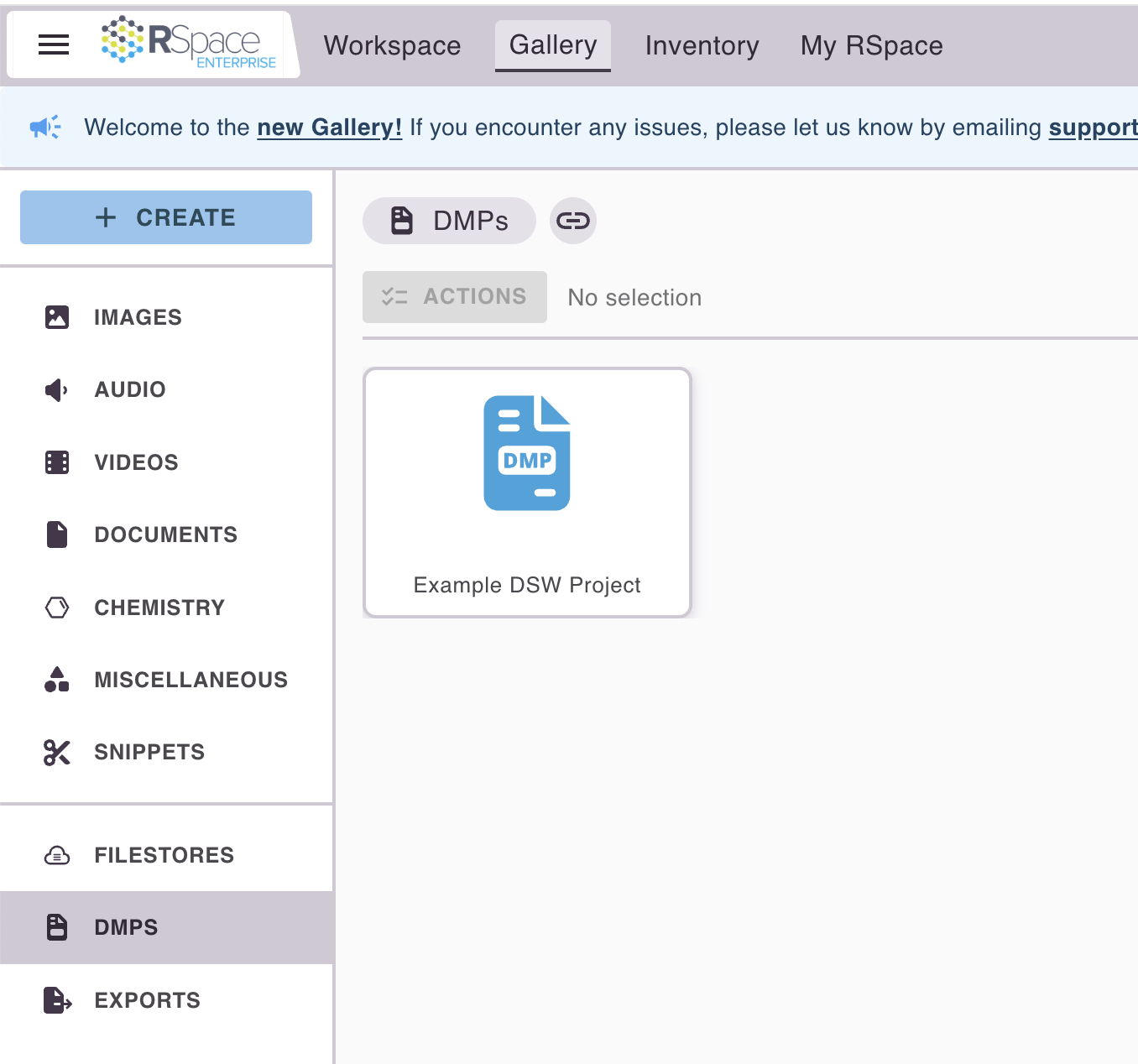
Once the project has been imported as a DMP, you will be able to see it in the DMP section of the Gallery
Working with DMPs
For more information on how to use DMPs in RSpace, see Working with DMPs.
How did we do?
Custom round trip data analysis using Jupyter notebook and the RSpace API
Zenodo Integration