Slack Integration
With the Slack integration you can: post links to RSpace documents to your Slack channels. search RSpace from Slack with /rs-search. save a Slack conversation as an RSpace document with /rs-save-conv…
With the Slack integration you can:
- post links to RSpace documents to your Slack channels
- search RSpace from Slack with
/rs-search - save a Slack conversation as an RSpace document with
/rs-save-conversation
Your System Admin must set up Slack first. If Slack isn’t available on the Apps page, ask them to follow Setting up the Slack integration.
Connect a Slack channel
- In RSpace, open the Apps page and click the Slack card.
- If the card says Slack is disabled, click Enable.
- Click Add. A Slack window opens. Log in to Slack if asked.
- Slack lists the permissions RSpace asks for. Choose a Channel for webhook and click Allow.
- The window closes and RSpace shows “Successfully added channel.” The Slack card lists the channel’s Workspace, Channel name and RSpace Label.
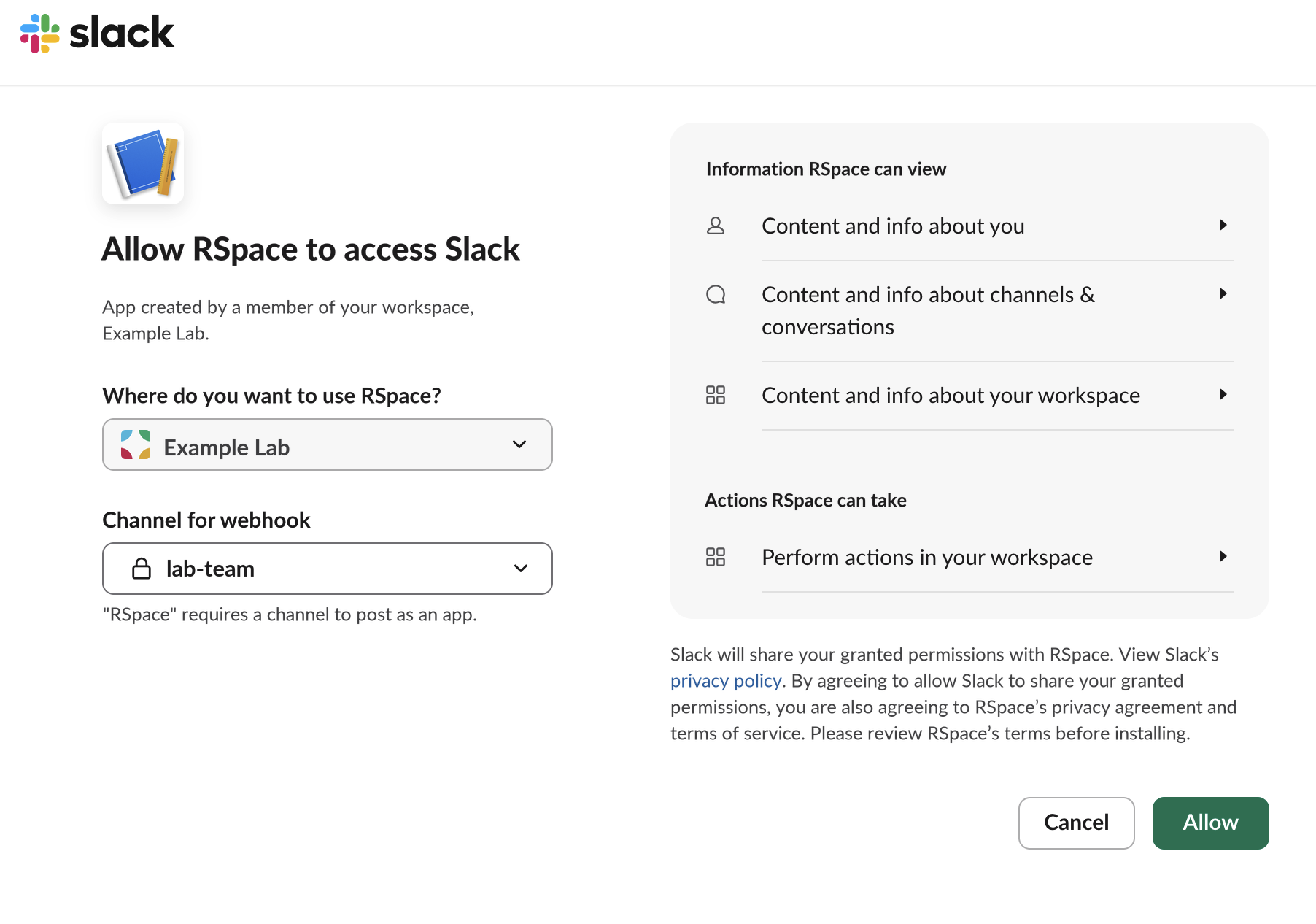
The Slack permission page, with a Channel for webhook chosen.
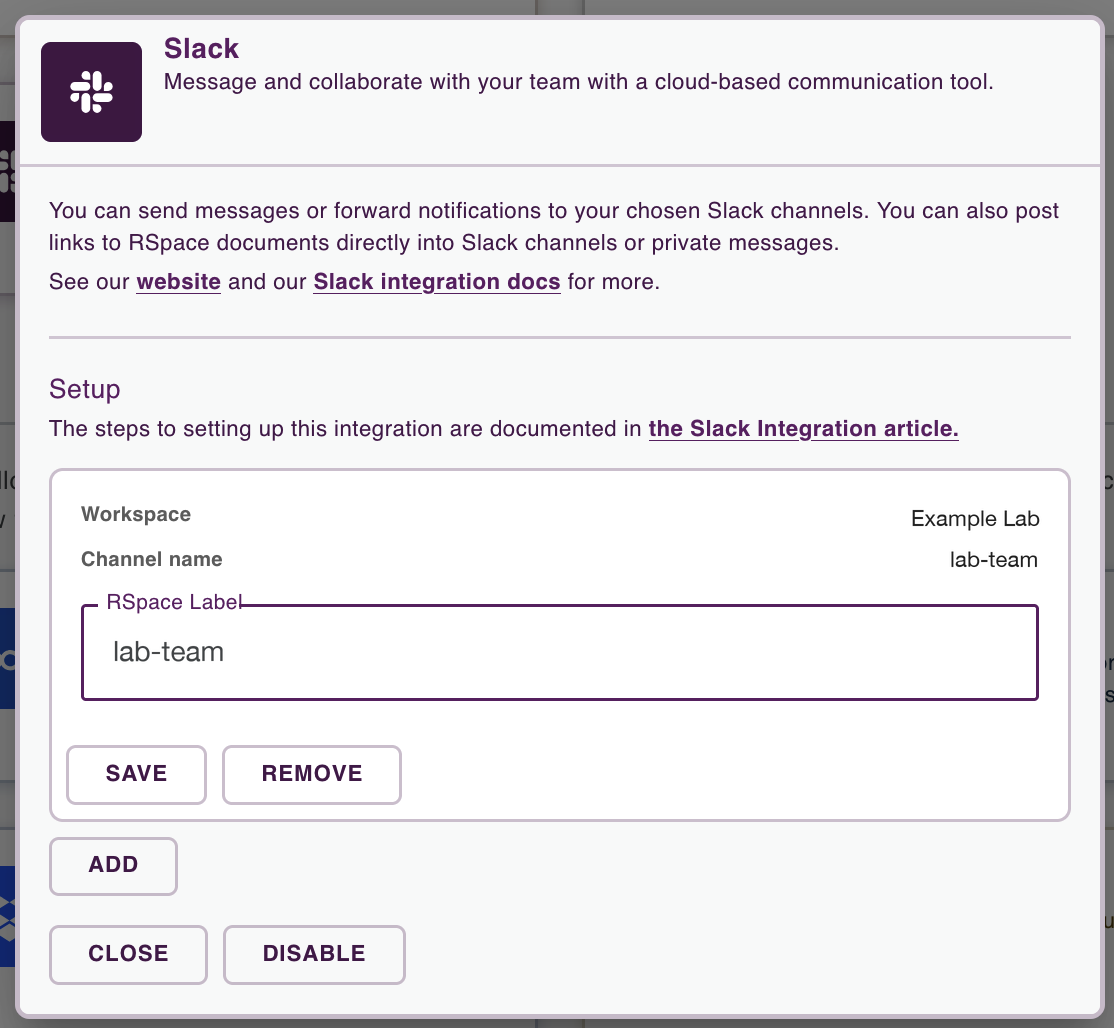
The Slack card on the Apps page, with one connected channel.
To connect another channel, click Add again. Connecting a channel also turns on the RSpace slash commands for you in that Slack workspace.
Rename or remove a channel
RSpace shows the RSpace Label when you choose a channel to send to. It starts as the channel name.
- To rename it, change the RSpace Label and click Save.
- To remove it, click Remove. RSpace stops posting to that channel and deletes its stored Slack credentials.
Post a document to Slack
- Open the document in RSpace.
- In the toolbar, click Send message on Slack (the Slack icon).
- Choose the channel, type a message if you like, and click Send.
The channel gets your message with a link to the document. Only RSpace users with access to the document can open the link.
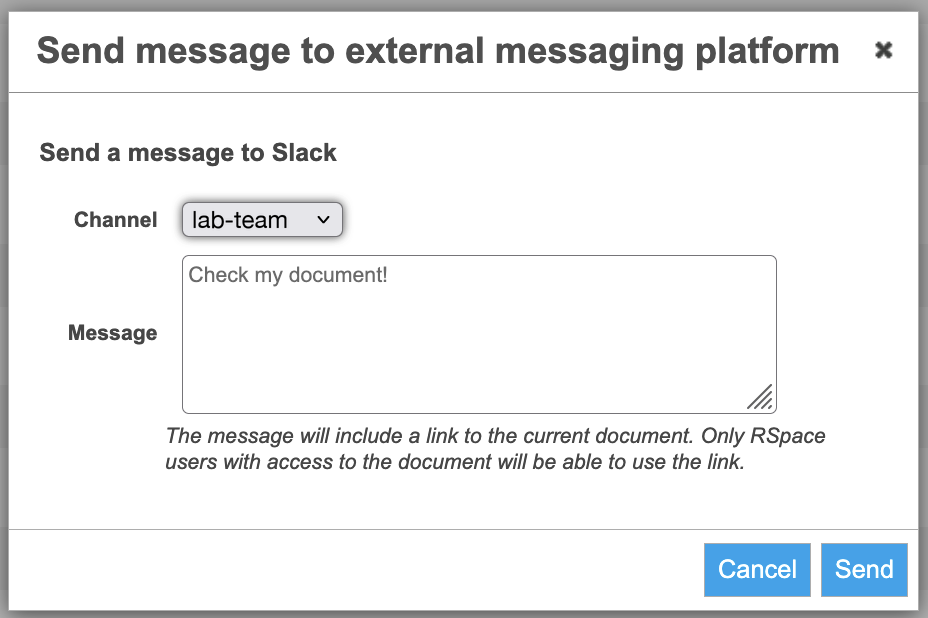
The Send message to Slack dialog, with a channel chosen and a message typed.
Post several documents at once
- In your Workspace, select up to 20 documents.
- Click Send to Slack in the action bar.
- Choose the channel and send, as for a single document.
Send to Slack only appears once you have connected a channel.
Search RSpace from Slack
Type /rs-search and a search term in any Slack message box. RSpace posts the first five results. You can search by document name, tag or global ID, for example /rs-search Example*.
Save a Slack conversation to RSpace
Type /rs-save-conversation and a time period in a Slack channel. RSpace saves the channel’s messages from that period as a new document, “Exported Slack Messages”, in your Workspace home folder.
For example, /rs-save-conversation 5 days saves the last five days of messages. Other formats:
Format | Example |
Days, hours and minutes |
|
A start and end date |
|
From a date until now |
|
The 90 days before a date |
|
The time period can’t be longer than 90 days. Type /rs-save-conversation help to see these formats in Slack.
Troubleshooting
Message | What to do |
“There are no RSpace users associated with this Slack account!” | Connect a channel from the RSpace Apps page first. |
“There is more than 1 RSpace user associated with this Slack account!” | Your Slack account is connected from more than one RSpace account. Remove your Slack channels from one of them. |
“…add this Slack channel again on RSpace” | Remove the channel from the Slack card on the Apps page, then add it again. |
An error from Slack instead of a reply from RSpace | Ask your System Admin to check the Slack setup. |
Related articles
- Setting up the Slack integration (for System Admins)
How did we do?
ORCID Integration
Microsoft Teams Integration