Setting up the Slack integration
For System Admins. This guide sets up Slack once for everyone on your RSpace server. If Slack is already set up and you want to connect your own channels, see Slack Integration. Upgrading from an ear…
For System Admins. This guide sets up Slack once for everyone on your RSpace server. If Slack is already set up and you want to connect your own channels, see Slack Integration.
Upgrading from an earlier RSpace version? See Upgrading from an earlier version.
Register a Slack app for your RSpace server so users can post RSpace documents to Slack channels and use the /rs-search and /rs-save-conversation slash commands.
Before you start
- You need a Slack account that can create and install apps in your Slack workspace. A shared admin account is better, so the app doesn’t depend on one person’s account.
- Your RSpace server must be reachable from the internet over HTTPS, because Slack sends slash commands to it.
- You need to edit the RSpace property file on the server, usually
/etc/rspace/deployment.properties.
In the steps below, replace rspace.example.org with your own RSpace address.
1. Create the Slack app from a manifest
A Slack app manifest creates the app with every setting RSpace needs: the redirect URL, both slash commands, Socket Mode off and token rotation off.
- Go to api.slack.com/apps and log in to Slack.
- Click Create New App. Under From scratch, choose Paste a manifest and click Continue.
- On the JSON tab, replace the example with the manifest below. Change
rspace.example.orgto your RSpace address in all three URLs, then choose your workspace and click Next. - Under How it works, check that it says “What starts it: Slash commands”. If it says “Your custom interaction”, the manifest wasn’t pasted: click Back and paste it again.
- Click Create and Install to install the app in Slack.
{
            "display_information": {
              "name": "RSpace",
              "description": "Post RSpace documents to Slack and search RSpace"
            },
            "features": {
              "bot_user": { "display_name": "RSpace", "always_online": false },
              "slash_commands": [
                {
                  "command": "/rs-search",
                  "url": "https://rspace.example.org/slack/callbacks/search",
                  "description": "Search RSpace",
                  "usage_hint": "[search term]"
                },
                {
                  "command": "/rs-save-conversation",
                  "url": "https://rspace.example.org/slack/callbacks/save_conversation",
                  "description": "Save this channel's messages to RSpace",
                  "usage_hint": "[time period]"
                }
              ]
            },
            "oauth_config": {
              "redirect_urls": ["https://rspace.example.org/slack/redirect_uri"],
              "scopes": { "bot": ["commands"] }
            },
            "settings": {
              "socket_mode_enabled": false,
              "token_rotation_enabled": false
            }
          }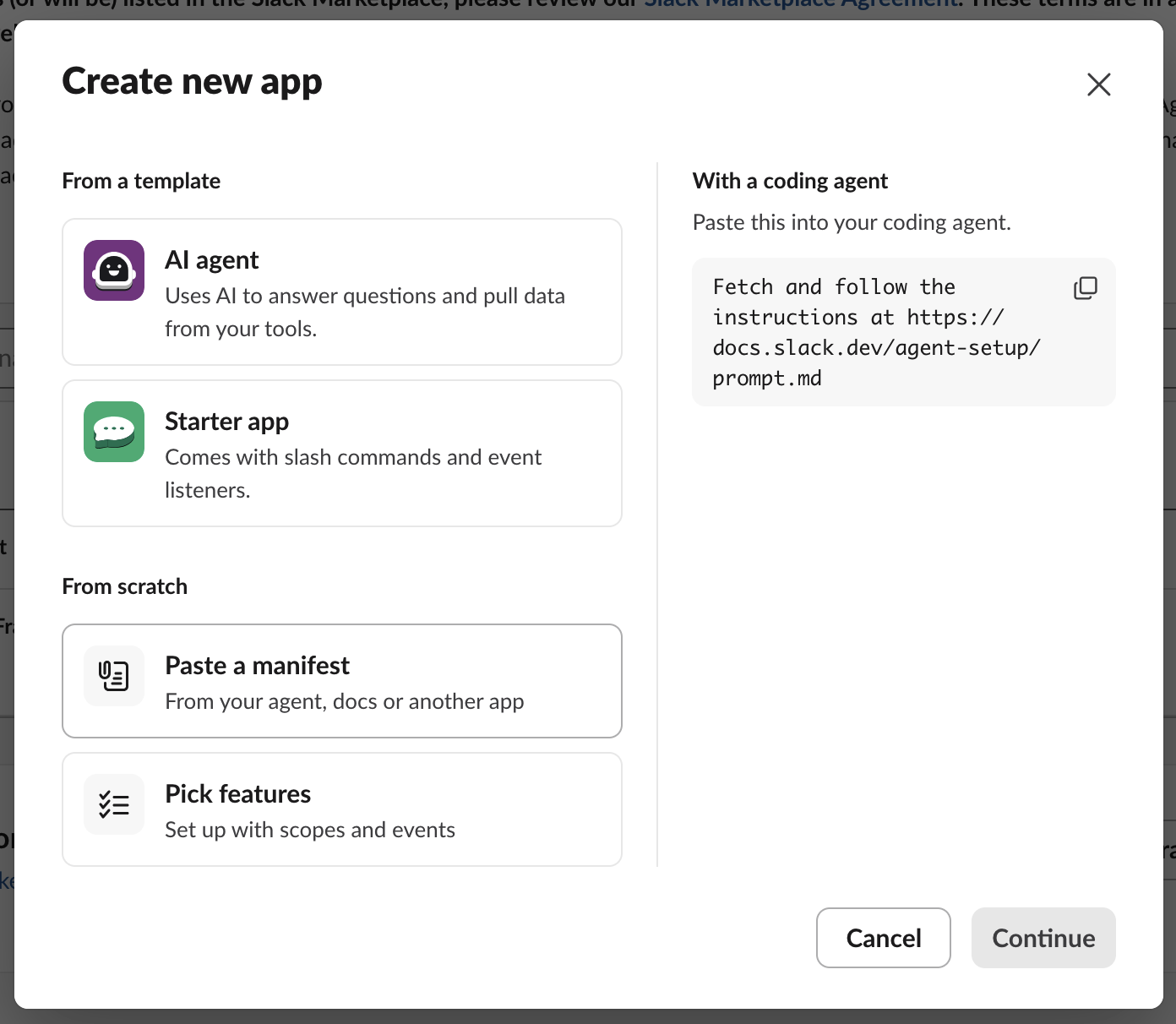
The Create new app dialog, with Paste a manifest under From scratch.
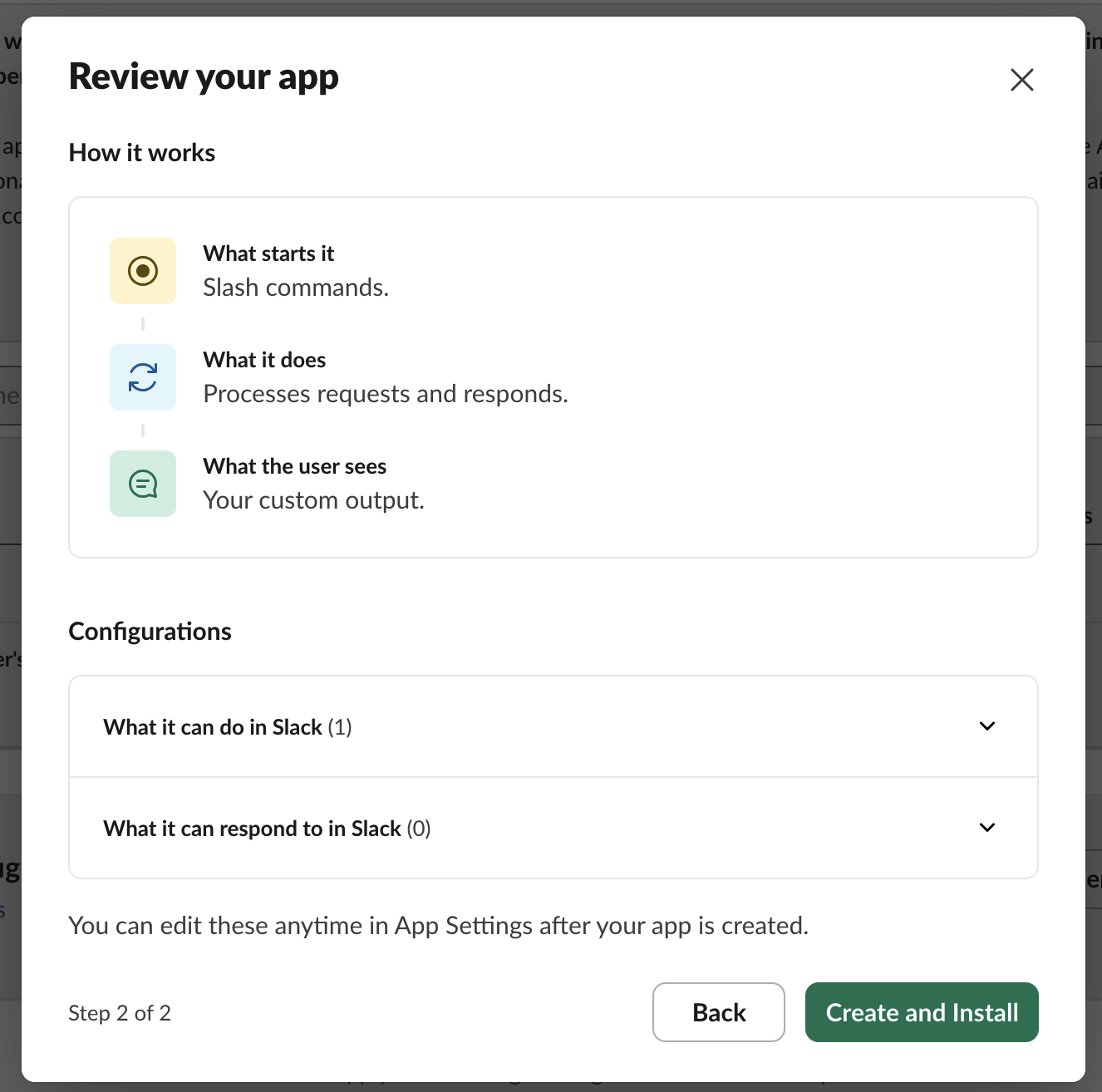
The Review your app step, showing “What starts it: Slash commands”.
Warning: Don’t turn on token rotation later. RSpace doesn’t refresh Slack tokens, so
/rs-save-conversationstops working after 12 hours, and Slack doesn’t let you turn rotation off again.
2. Copy the app credentials
In the Slack app’s left menu, under Settings, click Basic Information and under App Credentials, you need three values:
Slack field | RSpace property |
Client ID |
|
Client Secret |
|
Signing Secret |
|
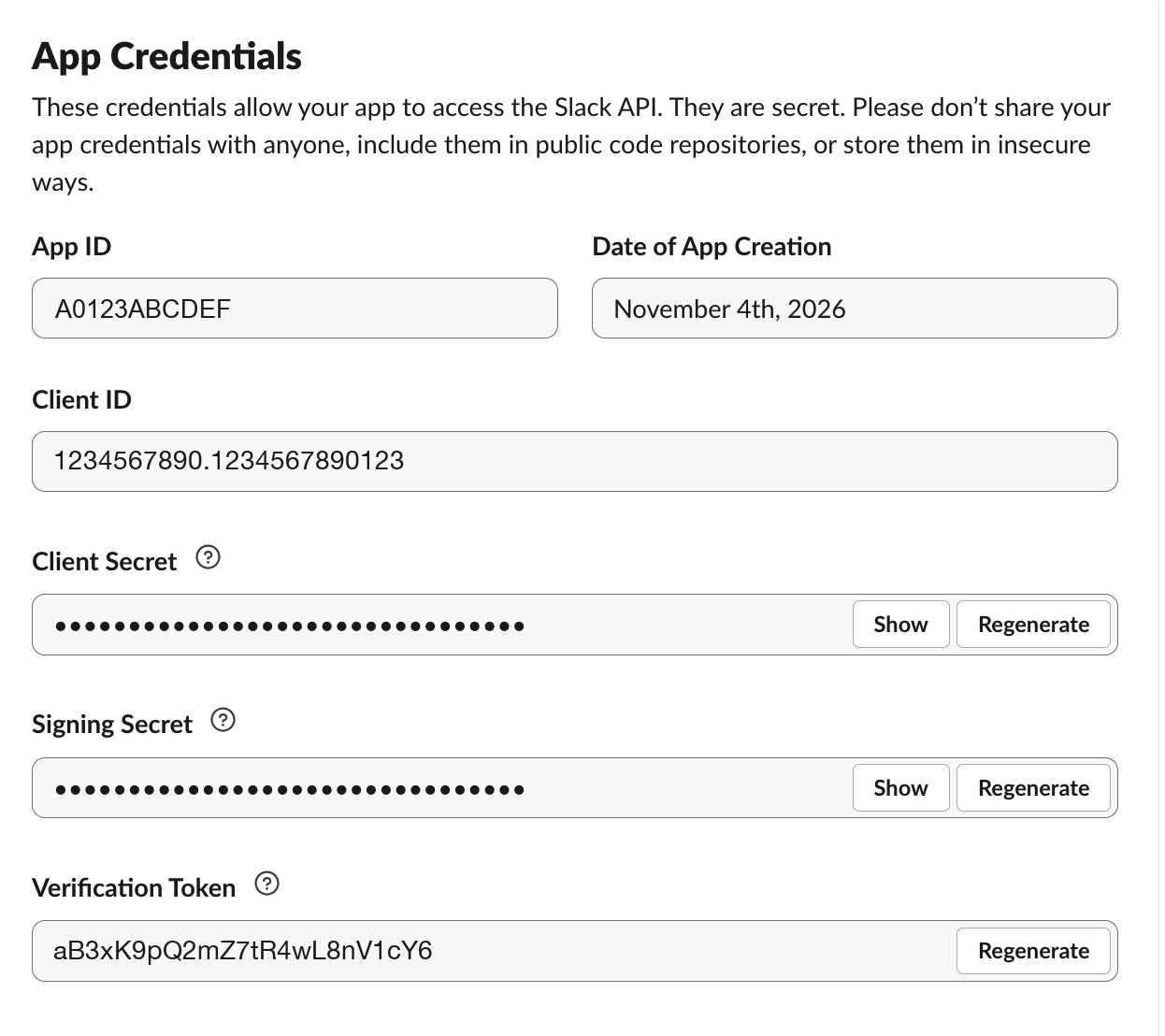
The App Credentials section, showing the Client ID, Client Secret and Signing Secret fields.
Important: The Signing Secret and the Client Secret are different values. Copy the Signing Secret into
slack.signing.secret.
3. Configure RSpace
Add these lines to the end of the deployment.properties file, using the values from step 2:
slack.client.id=MY CLIENT ID
          slack.secret=MY CLIENT SECRET
          slack.signing.secret=MY SIGNING SECRET
Delete any slack.verification.token line, then restart RSpace.
4. Allow Slack in RSpace
- Log in to RSpace as a System Admin.
- Go to System > Configuration > System Settings and find slack.available.
- Click its value, for example DENIED.
- Choose Allowed and click Save.
Users can now turn on Slack from their RSpace Apps page.
5. Test the setup
Log in to RSpace as a normal user and follow Slack Integration to:
- Connect a channel.
- Type
/rs-search helpin Slack. RSpace replies with its help text. - Post a document to that channel.
If posting works but /rs-search fails, see Troubleshooting.
Troubleshooting
Slash commands fail
If Slack shows an error instead of a reply from RSpace, RSpace may have rejected the request. Check that:
slack.signing.secretholds the Signing Secret, not the Client Secret, and RSpace was restarted after the change.- Any proxy in front of RSpace passes Slack’s request through unchanged, with no added query parameters.
- Socket Mode is off.
Slack also shows an error when it can’t reach RSpace, so check the Request URLs too.
“redirect_uri did not match any configured URIs”
The Redirect URL in the Slack app must be exactly https://<your RSpace address>/slack/redirect_uri, and server.urls.prefix in deployment.properties must be that same address.
Upgrading from an earlier version
From RSpace 2.28, RSpace checks every Slack slash command with your Slack app’s Signing Secret. Add slack.signing.secret as described in 3. Configure RSpace and restart RSpace, or /rs-search and /rs-save-conversation stop working. RSpace no longer uses slack.verification.token.
Connected channels keep working. The upgrade moves their Slack credentials to encrypted storage, so users don’t need to connect them again.
If your Slack app was set up by hand, check that Socket Mode is off and that the slash command Request URLs match the ones in step 1.
Related articles
- Slack Integration (for users)
Further reading (Slack)
How did we do?