Work offline and Update RSpace Documents using Create > From Word
This feature was briefly removed in RSpace 1.124/2.24, and restored in RSpace 1.128/2.28. With RSpace's import and export functionality, you can export RSpace documents as Word files, work on the Wor…
This feature was briefly removed in RSpace 1.124/2.24, and restored in RSpace 1.128/2.28.
With RSpace's import and export functionality, you can export RSpace documents as Word files, work on the Word files offline, and update the RSpace source documents when back online using the “save into selected document” option.
Updating Existing Documents in the Workspace
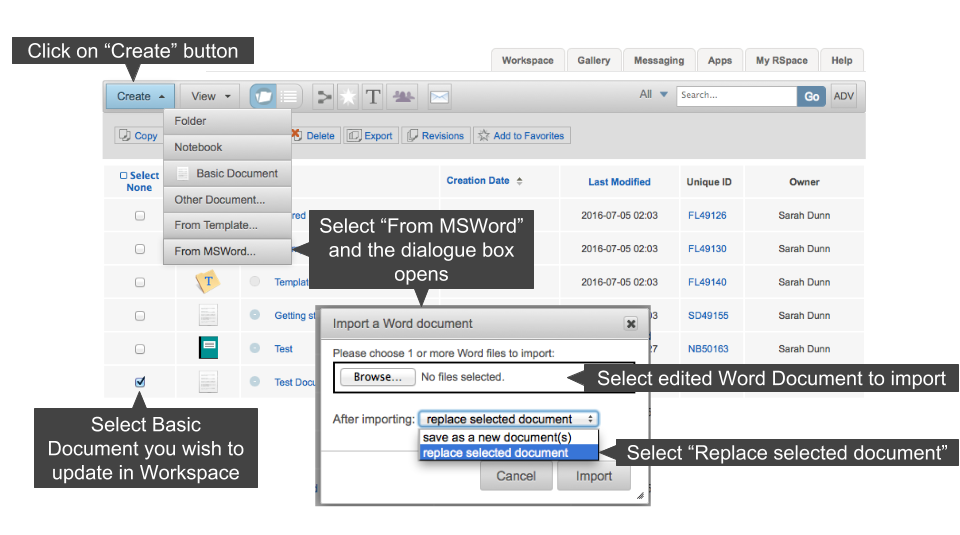
In order to update existing documents from the Workspace:
- Go to the Workspace tab
- Select the Basic Document you wish to import the updated content to (only Basic Document types support this at present)
- Click “Create” -> “From MSWord”
- In the dialogue box select the single updated Word file you wish to import (updating Word files must be done one at a time)
- Change the “After importing:” option to “save into selected document”
- Click “Import”
- The edited document from your device will now replace the Document selected in RSpace
Updating Existing Entries in a Notebook
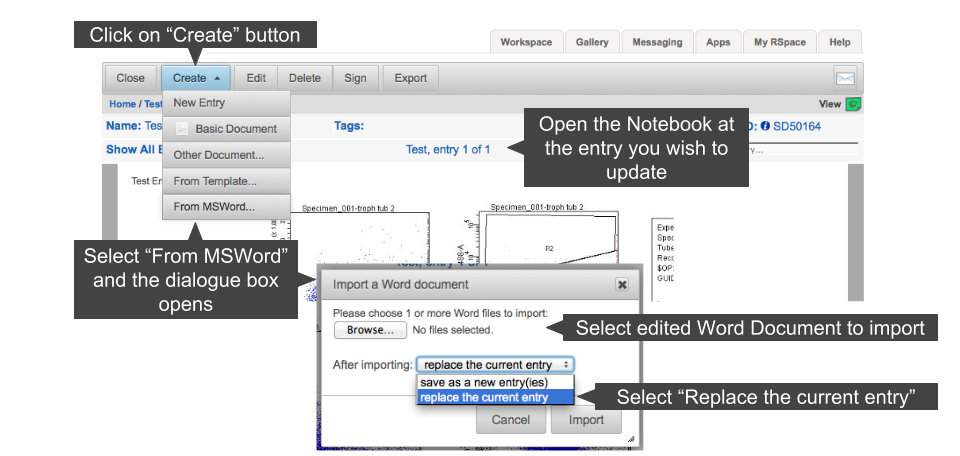
In order to update an existing entry in a Notebook:
- From the Workspace, open the Notebook containing the entry you wish to update
- Select the entry to update
- Click “Create” -> “From MSWord”
- In the dialogue box select the single Word file containing the updated entry you wish to import
- Change the “After Importing:” option to “save into the current entry”
- Click “Import”
- The selected entry will now be updated
How did we do?
Import New Documents from Word
Import from Evernote (disabled since RSpace 2.26/1.126)