Operate as another user (for System Admins)
You can perform actions on behalf of users to assist them in using RSpace.
The following information is only applicable to a Team or Enterprise instance of RSpace.
Overview
When a user needs help, you might want to see the exact page that the user is seeing in order to investigate and help. This can be especially useful in the following situations:
- Resetting a user's password (on non-SSO servers)
- You need to help a user change their email address, or other profile information
- At the request of a PI, you need to change the sharing and data access setup for a user who has left your organization.
To perform these sorts of tasks, you can temporarily operate as that user, with exactly the same rights and permissions that they have.
Note that to operate on a disabled user's inventory items, you may need to temporarily re-enable that user.
Operate as another user
Please be very careful about editing anything while operating as another user – although any changes will be attributed to you in the audit trail and revision history, it may cause concern to the user that you’re operating as if they're not aware of it.
- Go to the System page and click on Operate As.

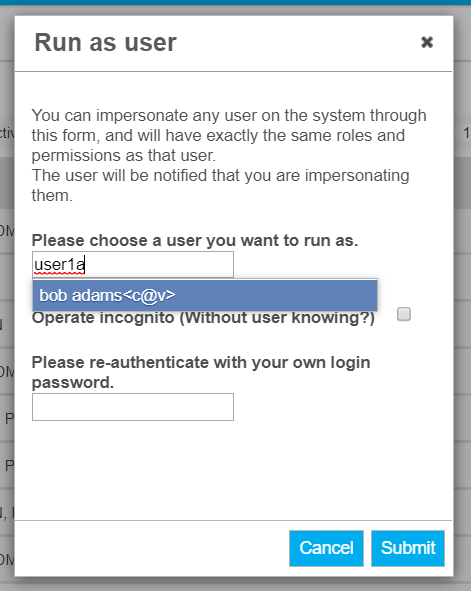
- In the popup panel that appears, fill in the name of the user you wish to operate as, and select them from the dropdown options that appear.
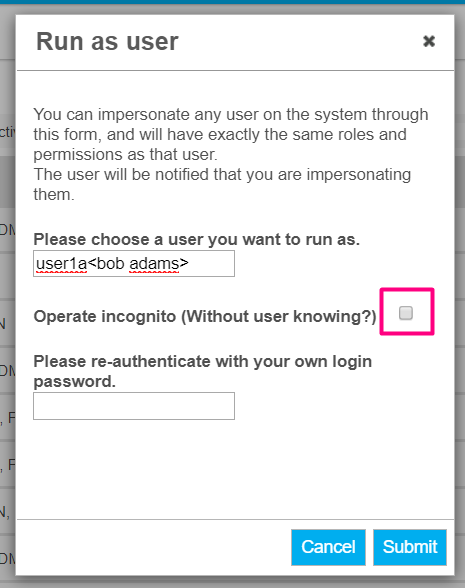
- You can choose whether the user will receive an email informing them that you are operating as them – the default is for the system to notify the user. If you wish to operate without the user knowing, check the checkbox for Operate incognito.
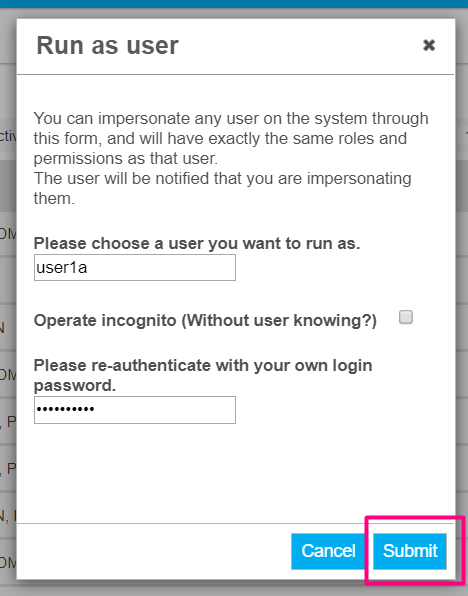
- Fill in your own sysadmin password, then click on Submit.
If your server is using an institutional SSO authentication system, then you will need to use NOT your login password but instead, your system admin verification password.
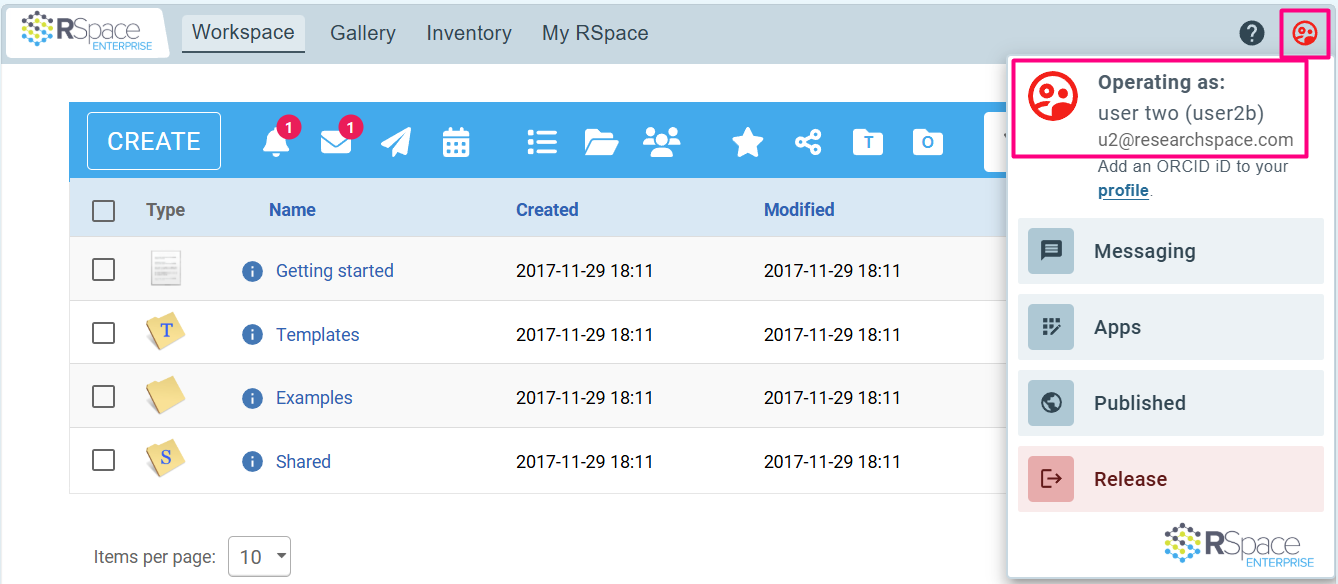
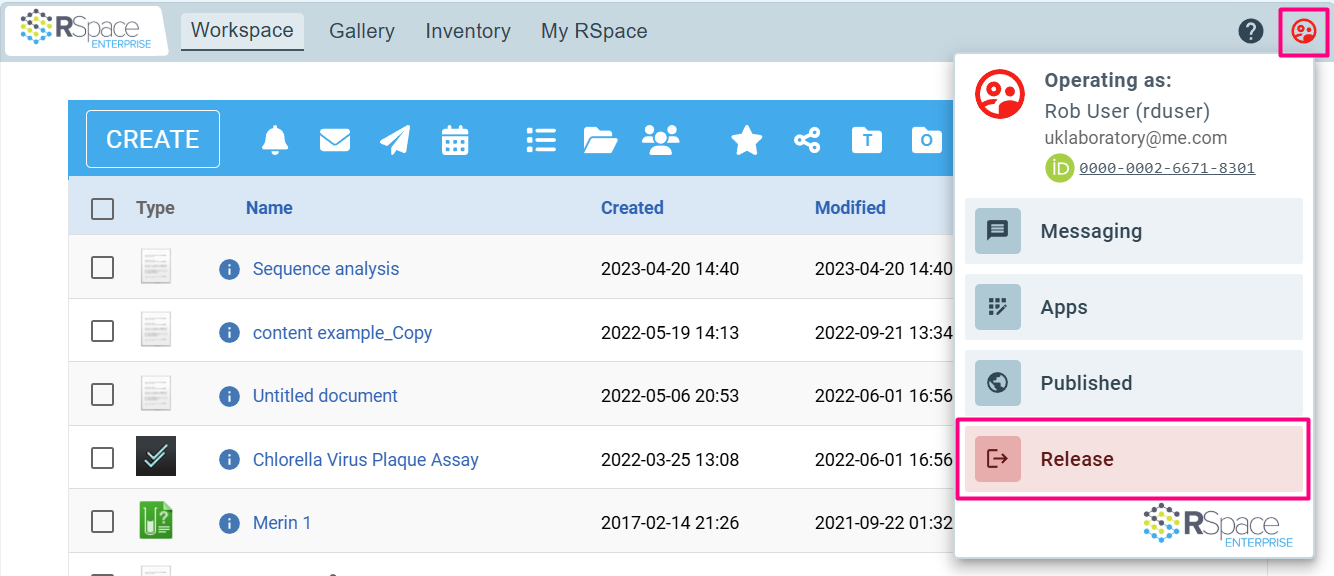
- The page will redirect to the user’s home page. The account menu icon and dropdown will update to remind you that you're using someone else's account.
- You can now perform actions on the behalf of the user (e.g. Resetting a user's password), as if you were logged directly onto their account.
- Once you are done, open the Account Menu from the navigation bar and select Release to stop operating as that user.
How did we do?
System-Wide Search (for System Admins)
Resetting a user's password (for System Admins)