Operations Wizard
The Operations Wizard adds to RSpace Inventory so researchers can run standard lab operations (such as aliquot, derive, pool, cryopreserve, revive, passage, dispose ) directly on subsamples with line…

With a subsample selected, a new 'process' button is available above the subsample details pane:
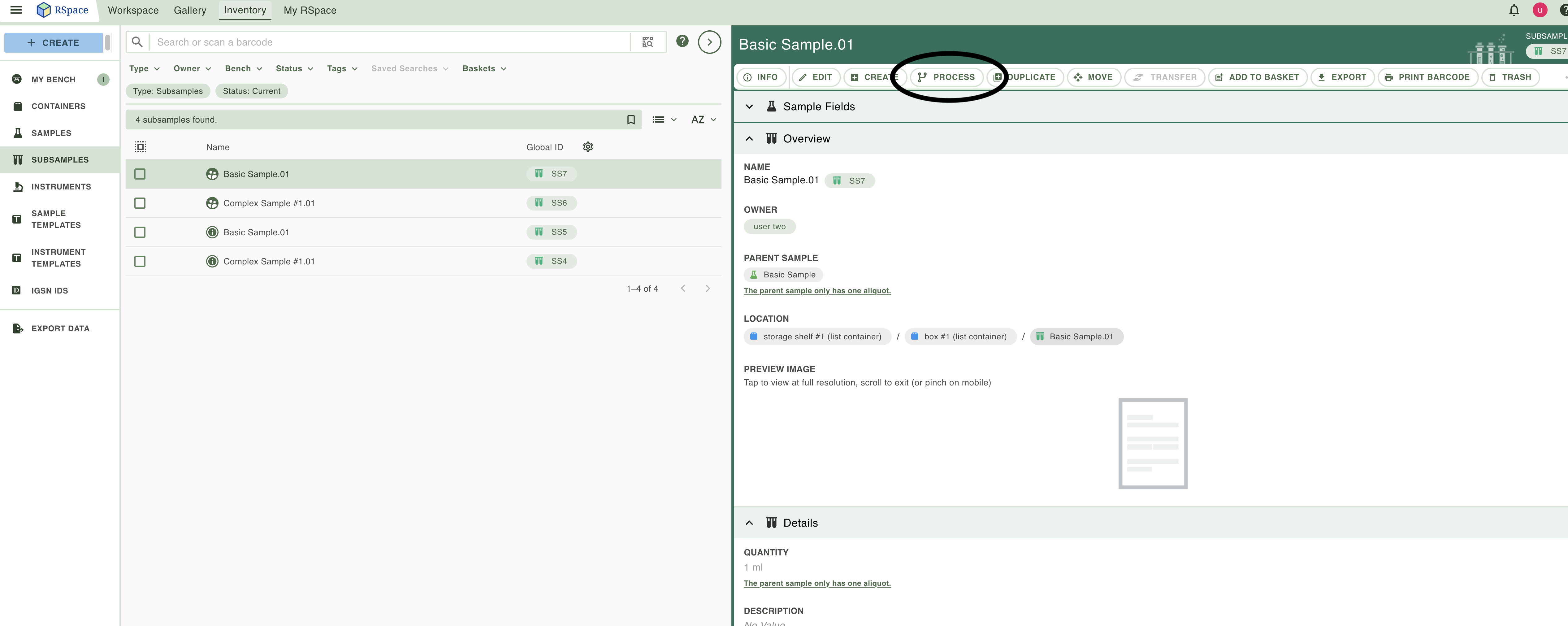
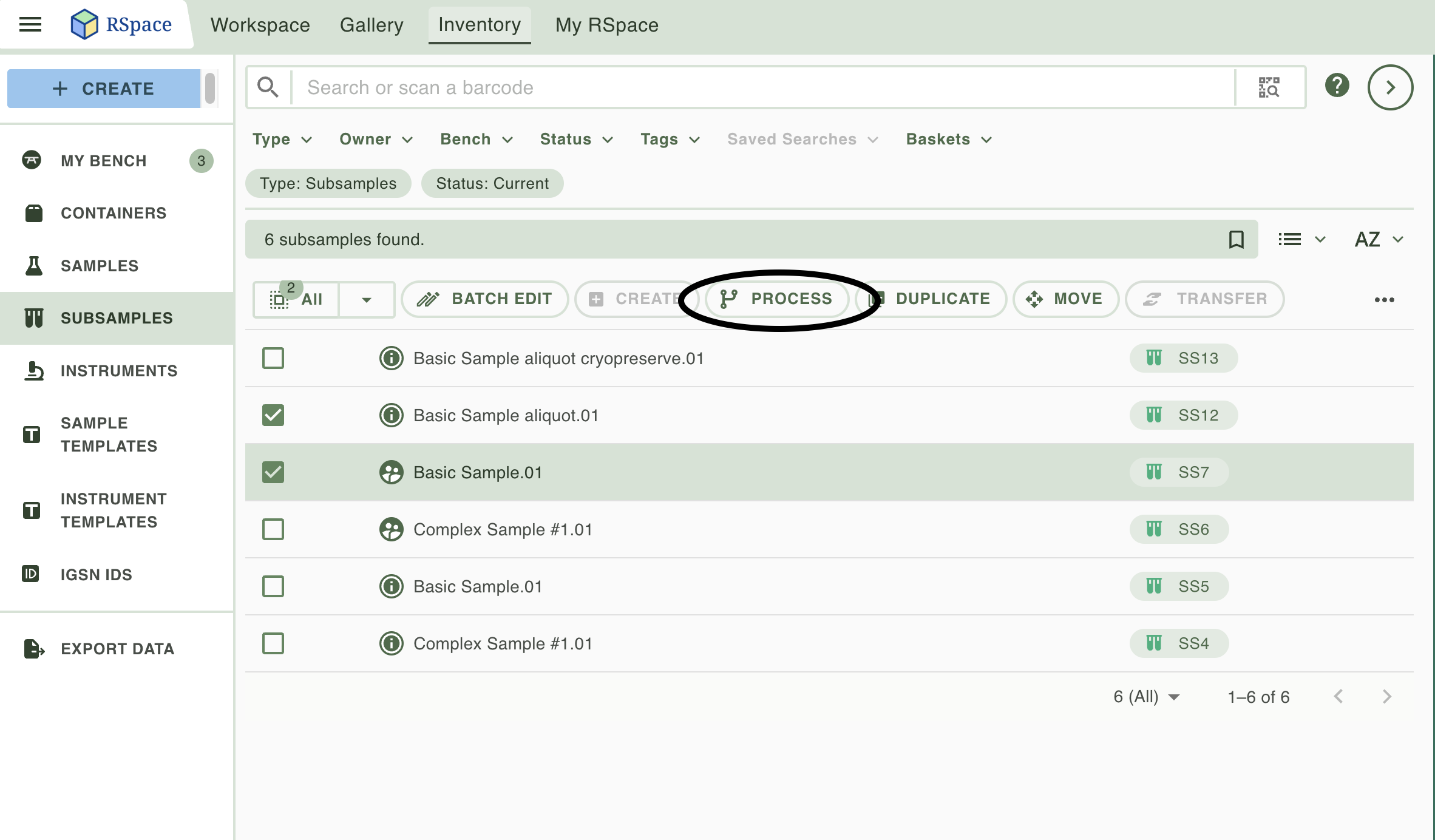
There are currently 7 operatios and 6 are available on a single subsample: 'Aliquot', 'Passage', 'Derive', 'Cryopreserve', 'Revive', 'Destroy'. If you select two samples on the left hand pane, a process button is available on the left hand pane which will open to the 7th operation type: 'pool'.
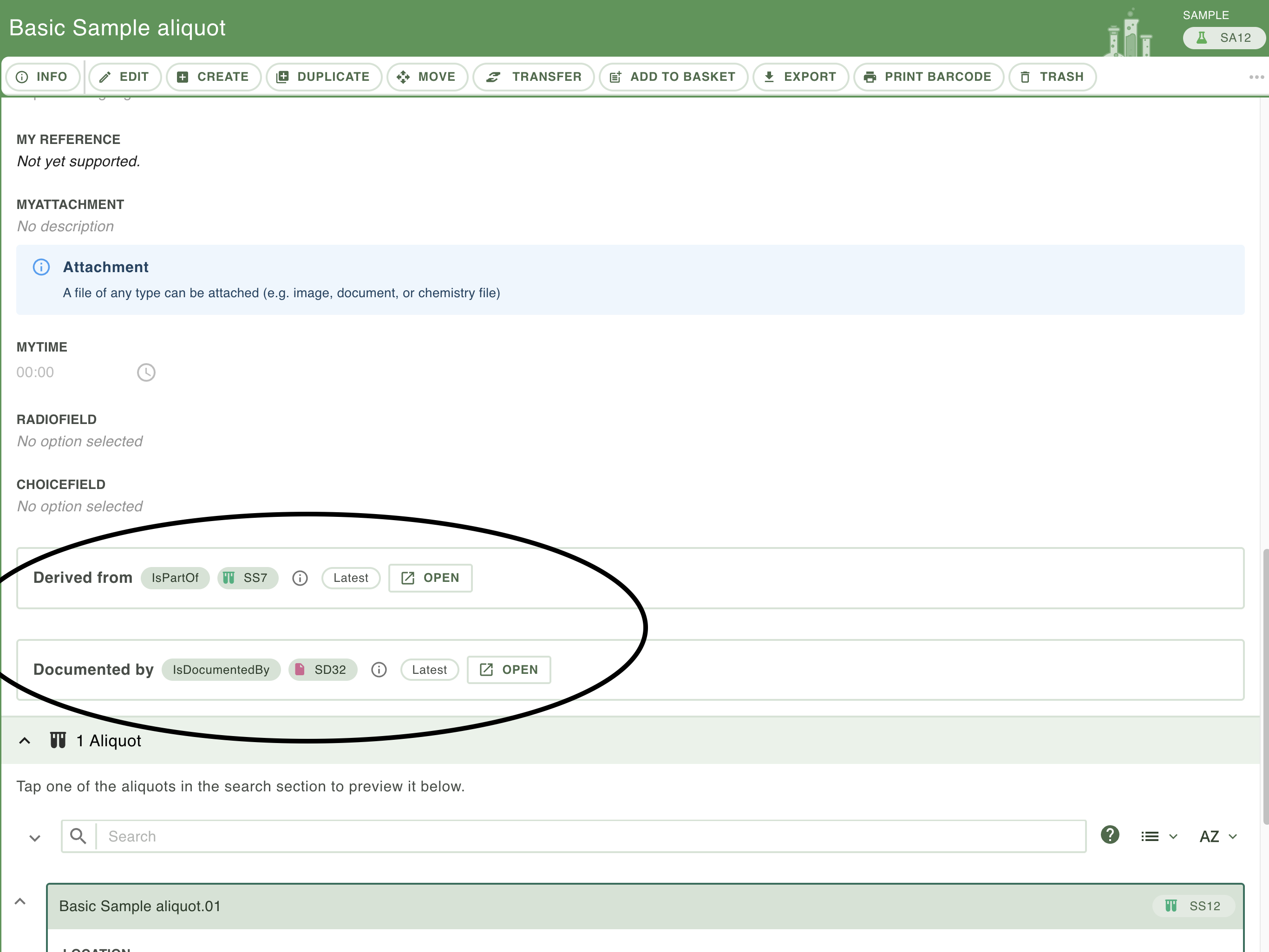
The operations are described in detail below. Briefly, each operation create a new Sample with 'N' subsamples (you choose in the Wizard). The Sample will contain a link back to its 'origin' (the subsample it was created from). The link will give a relation type that is intrinsic to the operation - for example the 'Aliquot' operation has links that are always 'IsPartOf' on the created Sample, those links point back to the origin subsample.
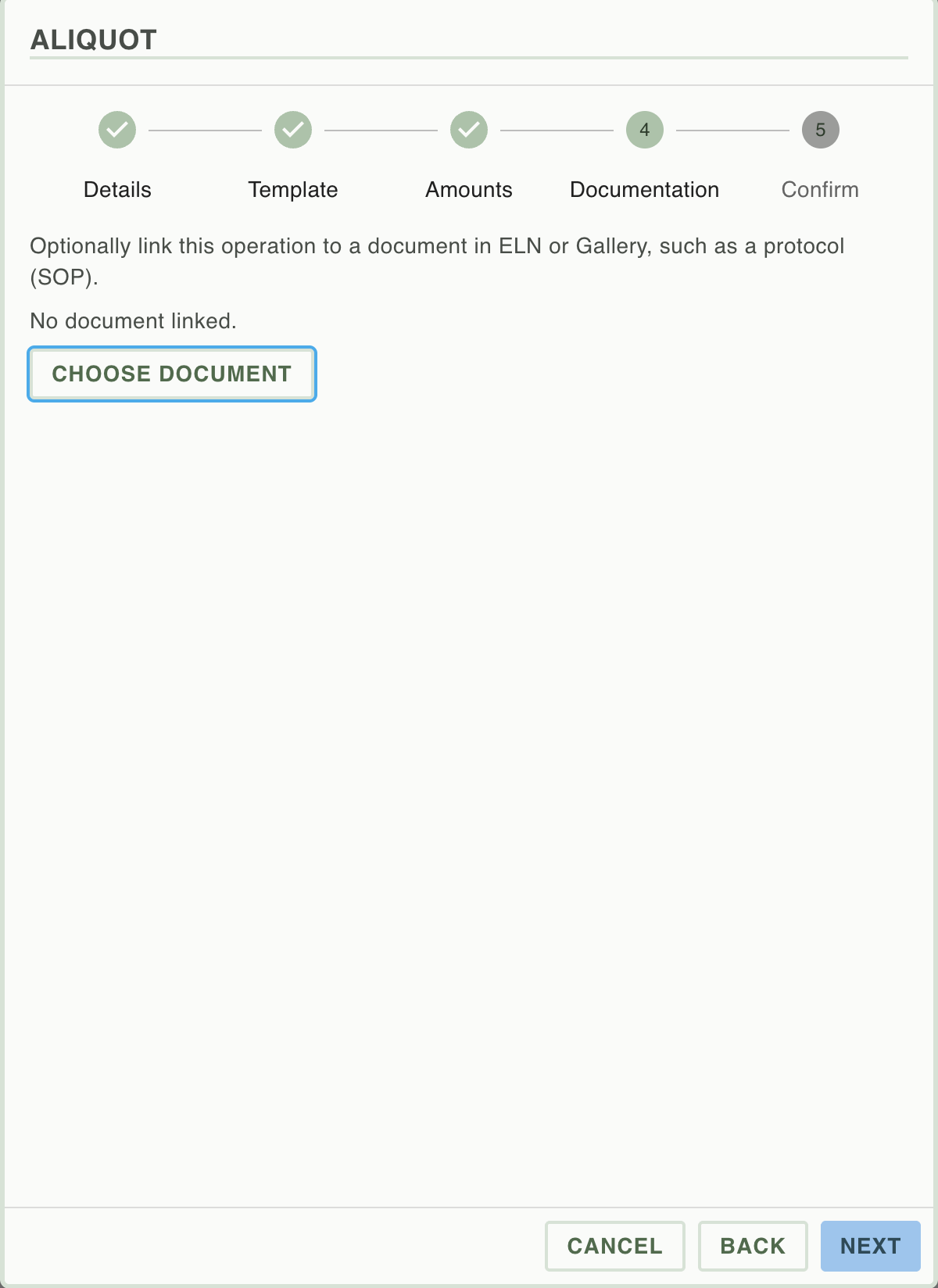
The operations Wizard also allows a 'documentation' link. This can be to any item in the ELN or Gallery.
Operation | What it does | Origins | Request fields | Creates | Restrictions |
aliquot | Splits one subsample into | exactly 1 |
| New sample with |
|
passage | Creates the next passage, numbering it from the parent sample | exactly 1 |
| New sample linked | Takes nothing from the origin. Omit |
pool | Combines several subsamples into one new sample | 2 to 100 |
| New sample linked | The only multi-origin operation, and the only one using the plural |
derive | Records a named process producing a new sample | exactly 1 |
| New sample linked |
|
cryopreserve | Freezes material into a new stored sample | exactly 1 |
| New sample linked |
|
revive | Brings a frozen sample back into use | exactly 1 |
| New sample linked | Omit |
destroy | Empties the origin and creates nothing | exactly 1 |
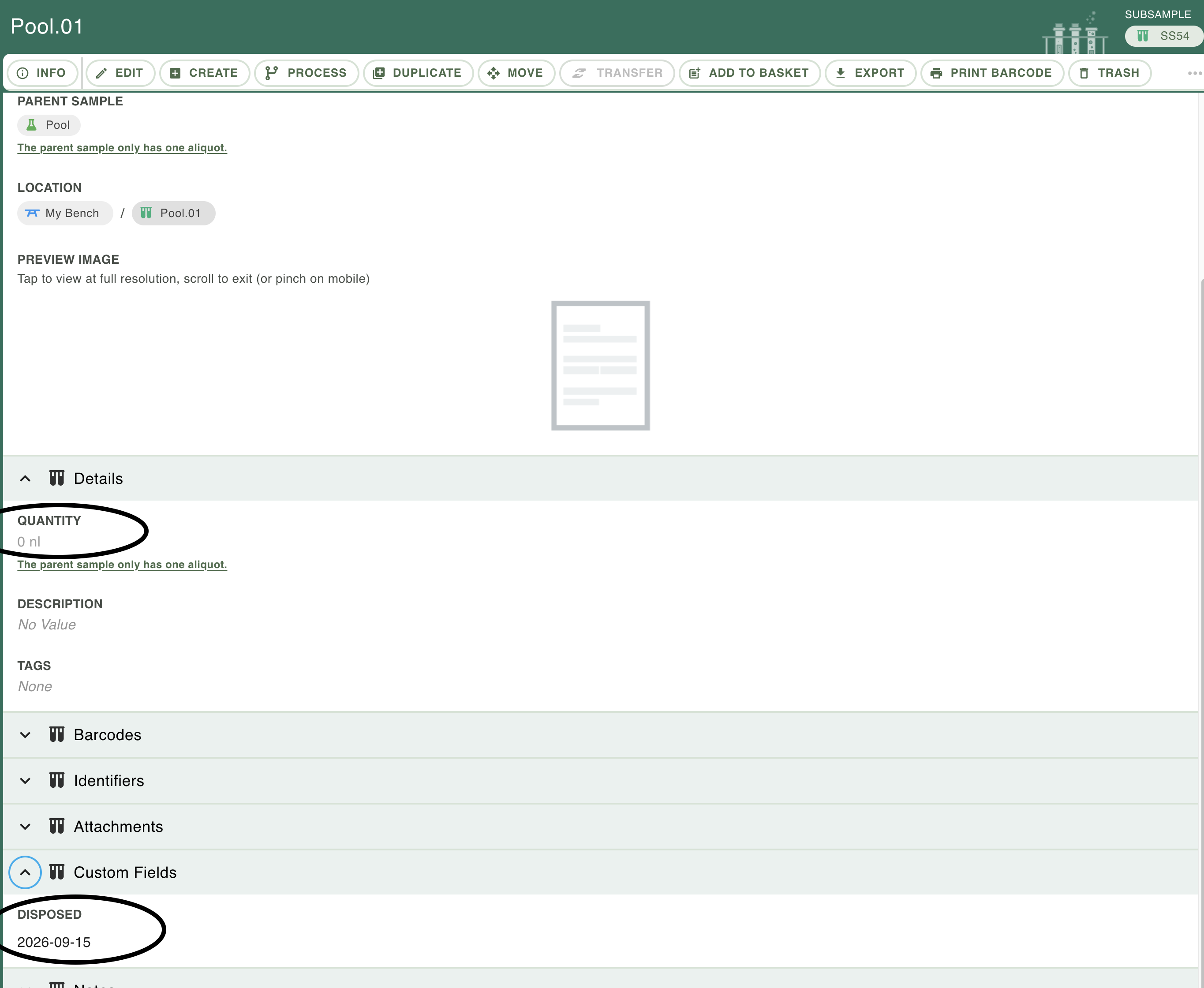
| Nothing. Writes a Disposed date field on the origin, set to today in the session's timezone | Takes the whole origin. |
After the wizard has run, it produces a sample with 'N' subsamples. The sample will have links back to the origin, any linked documents and any additional details such as 'passage number' or 'storage temperature'.
Below is the 'pool' subsample after is has been subsequently 'destroyed'. The subsample name does not change.
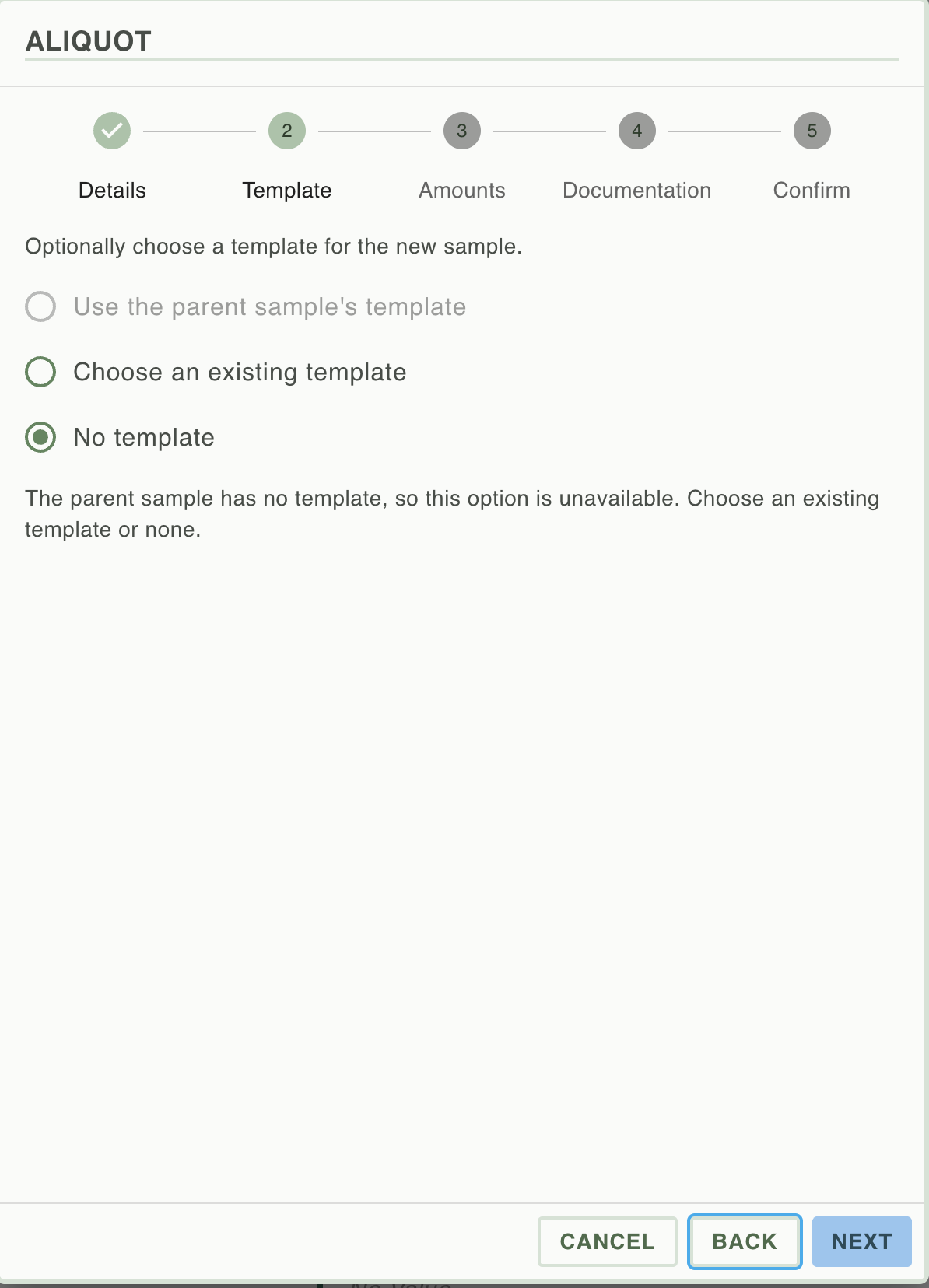
Step one is choosing a template. You must make a choice, even if it is 'no template'. If a template is already chosen it will be displayed on this page and no further choice need be made.
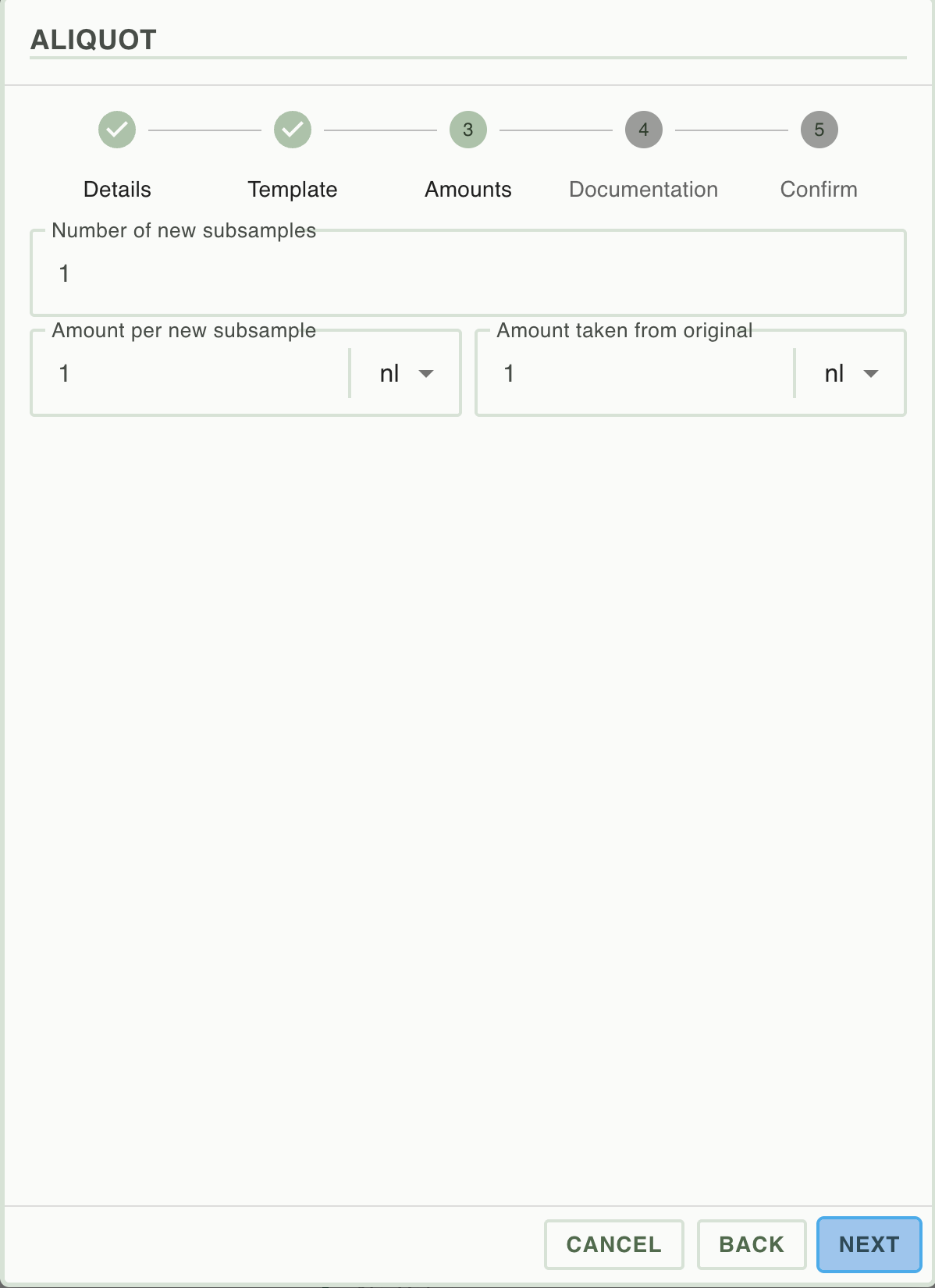
Step two is choosing amounts. These are chosen with defaults that reflect the units and amounts of both the origin subsample and any chosen templates.
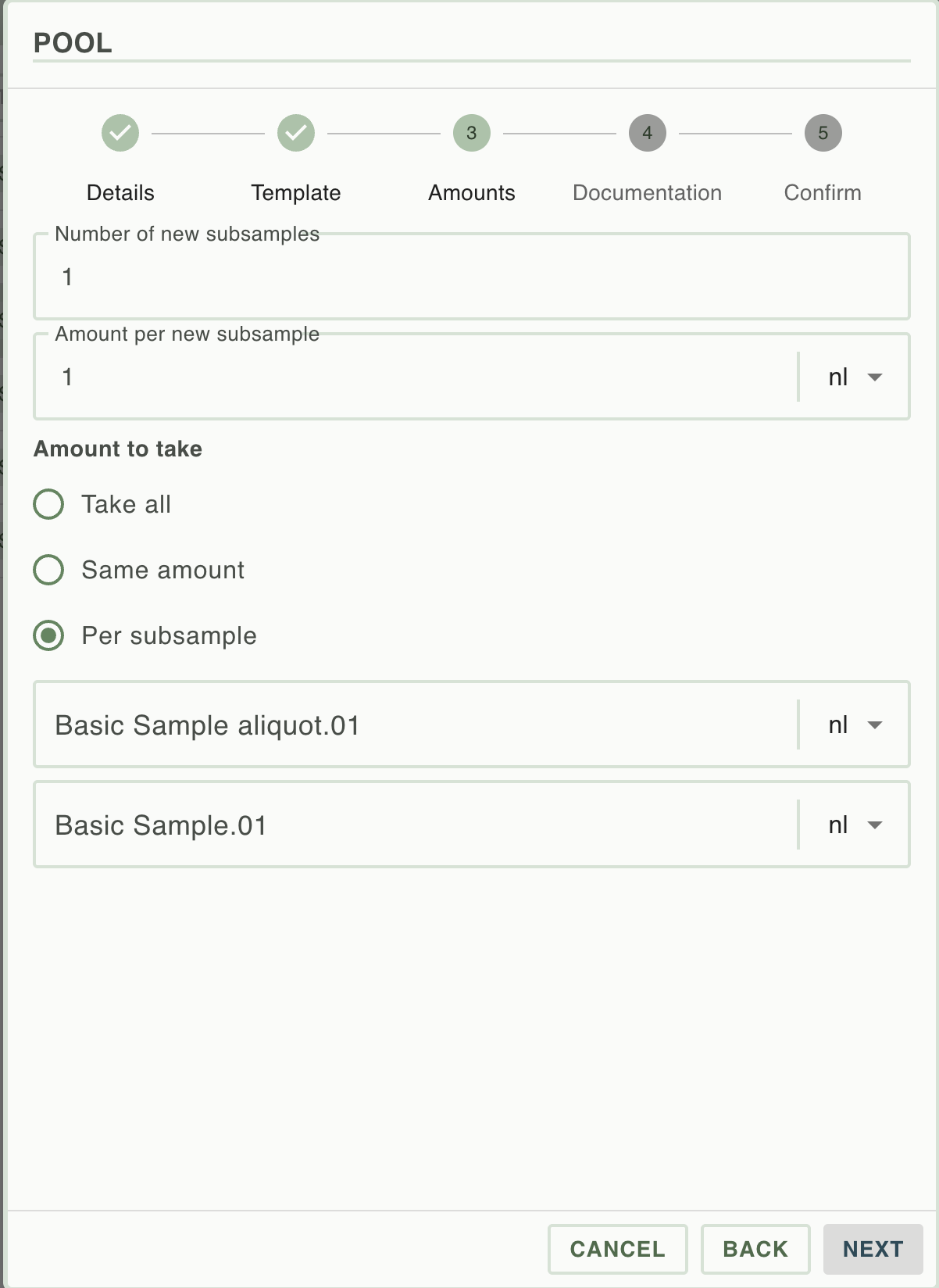
For the 'pool' operation the choice is to take all from all origins, to take the same amount from all or to define an amount for each origin:
Step three is choosing an (optional) document to link to. The created Sample will have links back to this document.
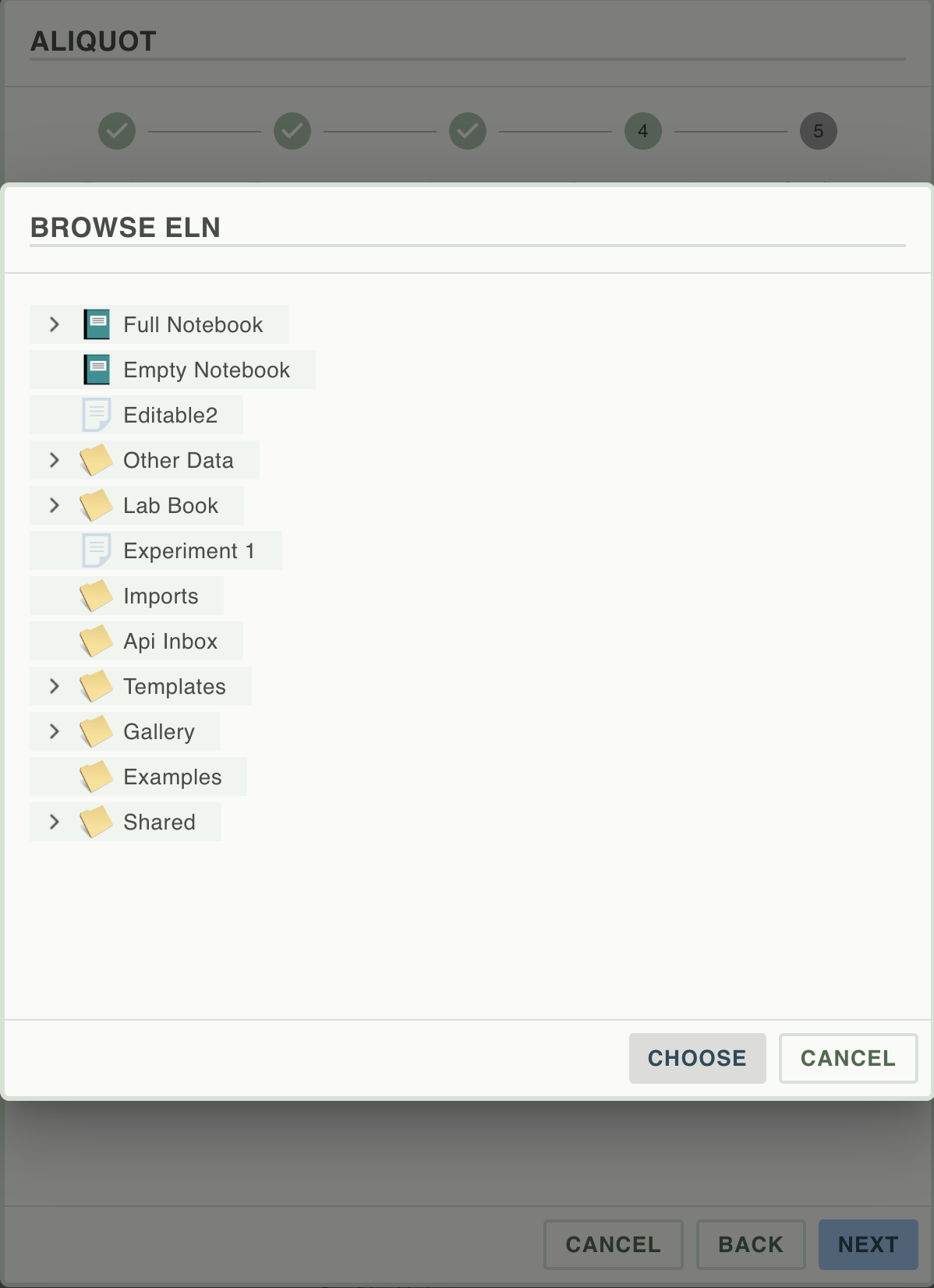
Step four is the subsample placement step.
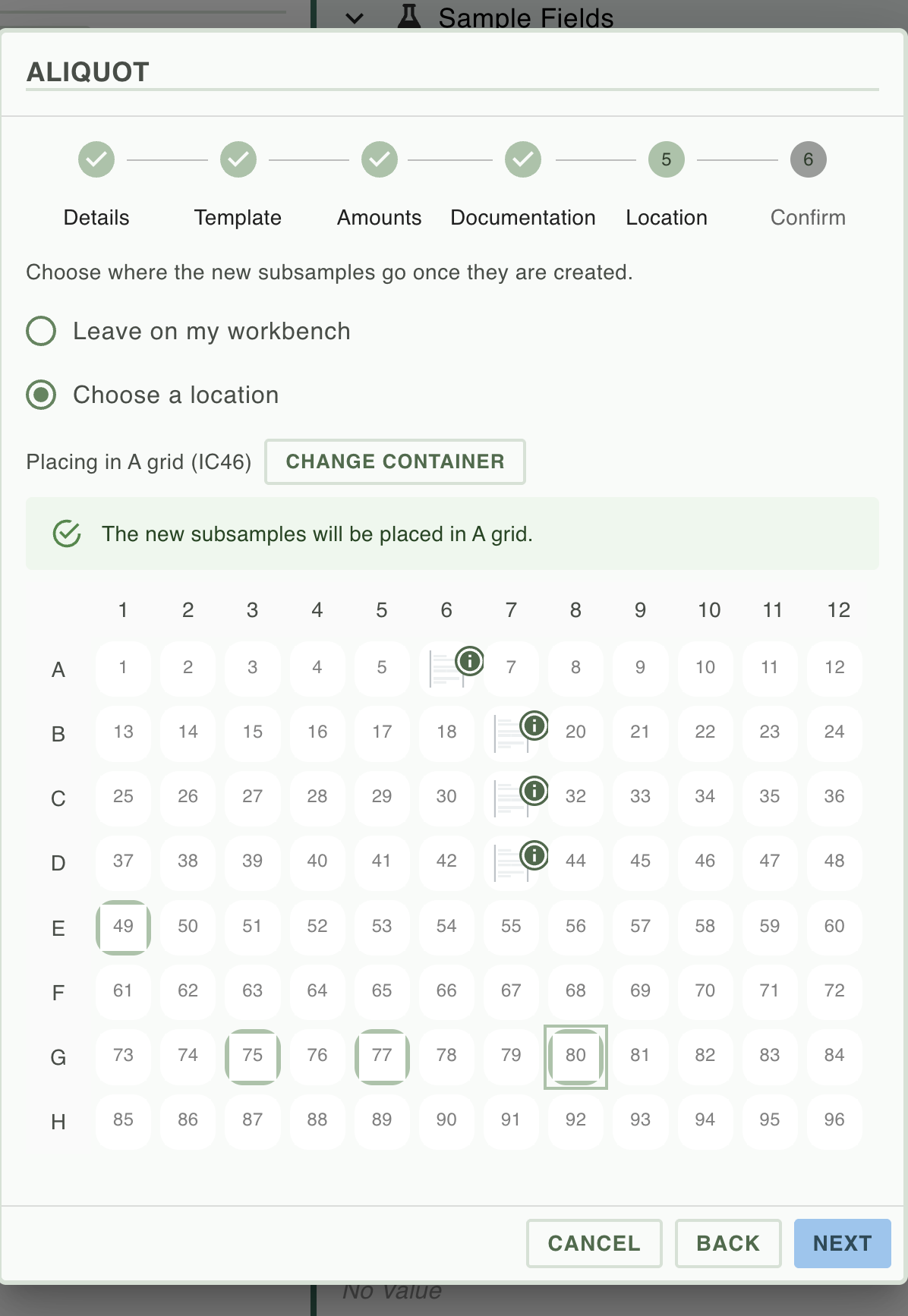
- List containers dont have internal location choices so the placement step can be skipped.
- Subsamples cannot be placed inside an image container.
Notes for keyboard users:
- Arrow keys move focus only.
- Space toggles the focused slot. Occupied slots and picks beyond the number needed are refused.
- Shift with an arrow adds a range from the anchor.
- Escape clears the picks and keeps the dialog open. Escape after tabbing out of the grid still closes it.
- A mouse click on a slot also gives it keyboard focus, so the arrows carry on from where you clicked.
- Deselecting a previewed item in the Move dialog keeps focus in the grid instead of dropping it.
- A short keyboard hint appears on entering the grid and disappears on the first key press.
- Drag and drop is off in these grids, so an existing item cannot be moved by accident while picking.
- With one item to place, a second Space moves the pick.
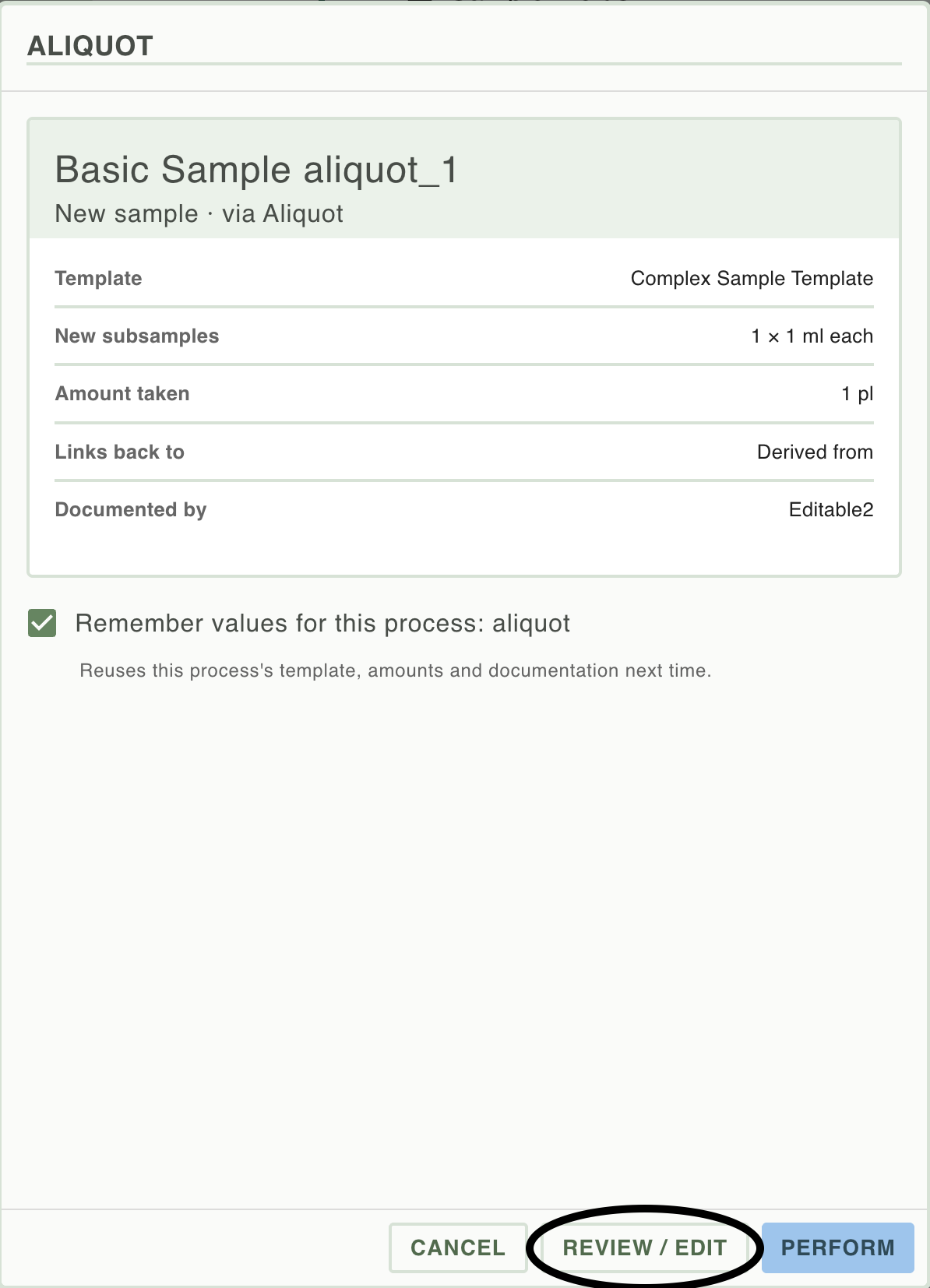
Step five is the summary and confirmation step and also the choice to remember these values to speed future use of that operation.
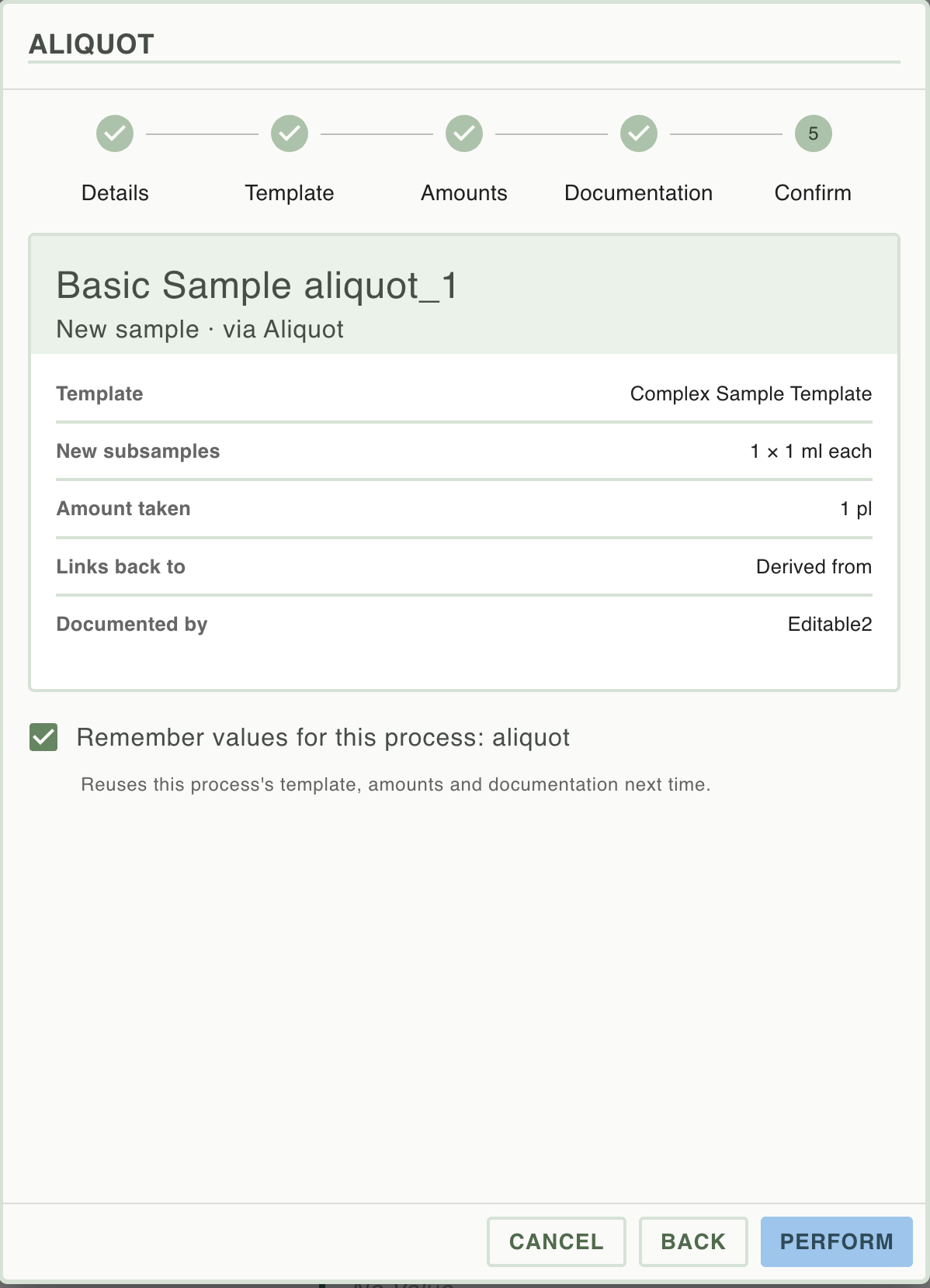
The Wizard can remember default choices for an operation and allow one click processing:
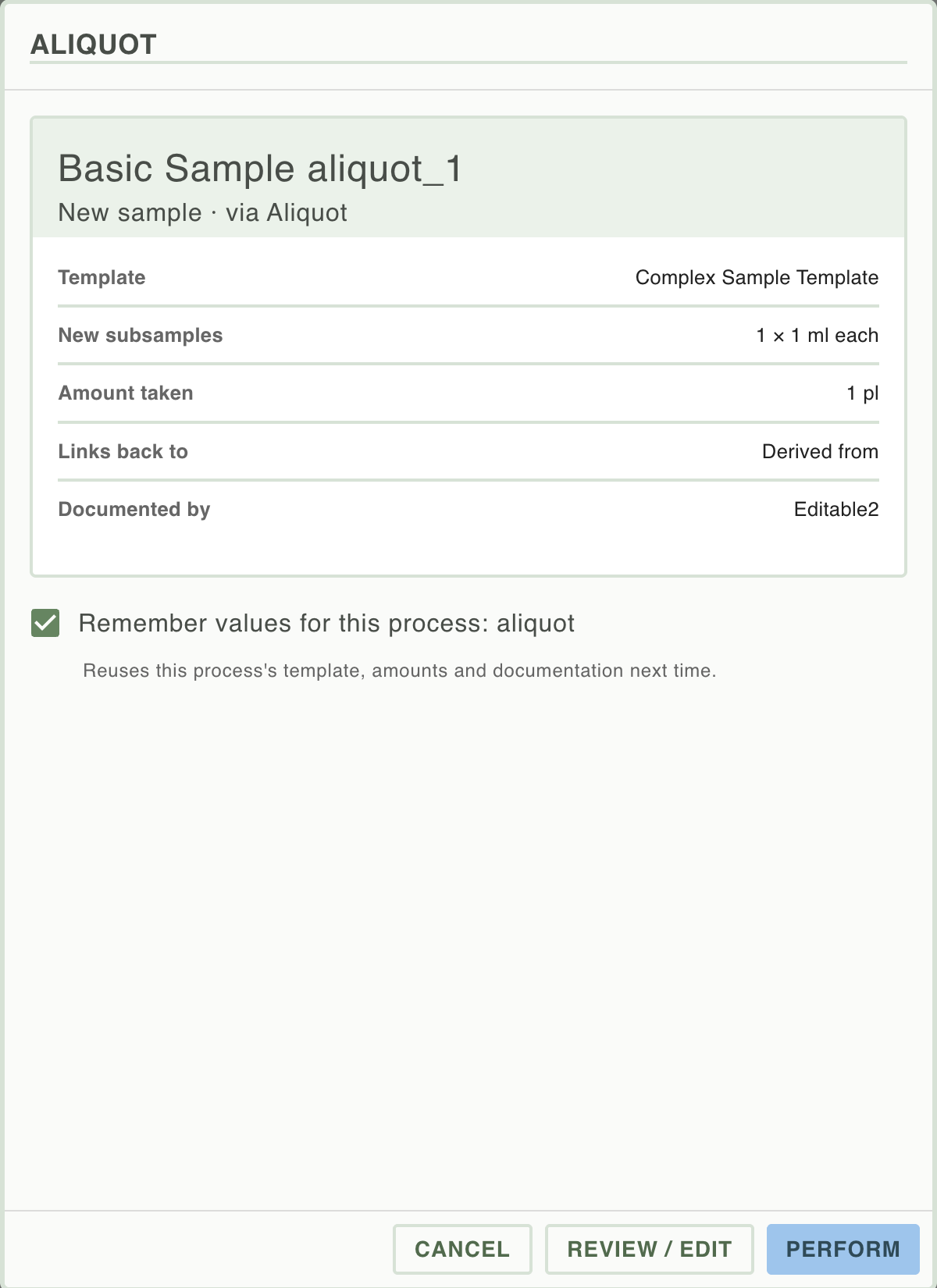
Click on 'review/edit' to choose different values to remember. Or untick the 'remember' checkbox to use different values (which will not be remembered).
How did we do?
Relationship Linking in Inventory 🧪
RSpace Inventory (RSINV) Glossary 🧪