You can create a one-off Instrument without using a Template, or you can create Instruments with consistent structured metadata fields by basing it on an Instrument Template. If the instrument alread…
You can create a one-off Instrument without using a Template, or you can create Instruments with consistent structured metadata fields by basing it on an Instrument Template.
If the instrument already has a published PIDINST ID, you can create the Instrument directly from its registry record instead, with its metadata filled in and the PID linked, by clicking on Create > From PIDINST registry. See Search and Import PIDINST Instruments into your Inventory 🧪.
To create an Instrument:
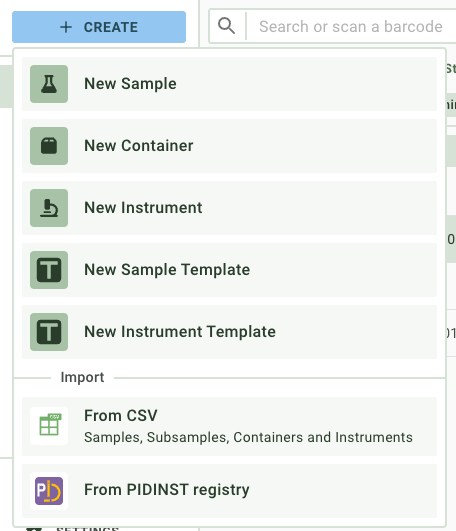
In the sidebar, click on Create > New Instrument. You can open the sidebar on mobile using the top-left menu icon.
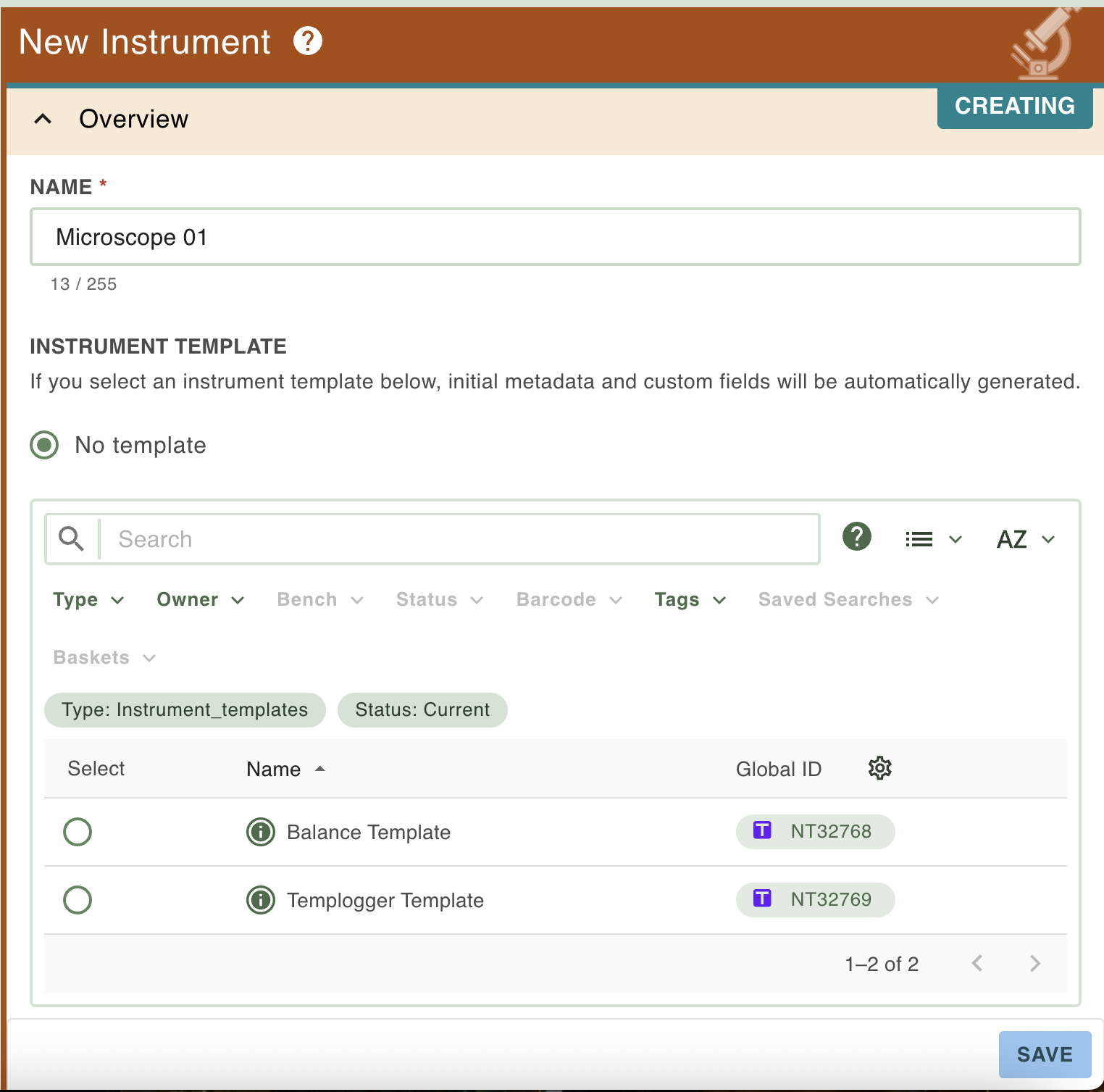
The right panel will open the Instrument creation wizard, which you can advance through by scrolling. Give your Instrument a Name, and optionally select an InstrumentTemplate to base the Instrument on. For more information on creating your own Instrument Templates, see Create and Use Sample and Instrument Templates 🧪.
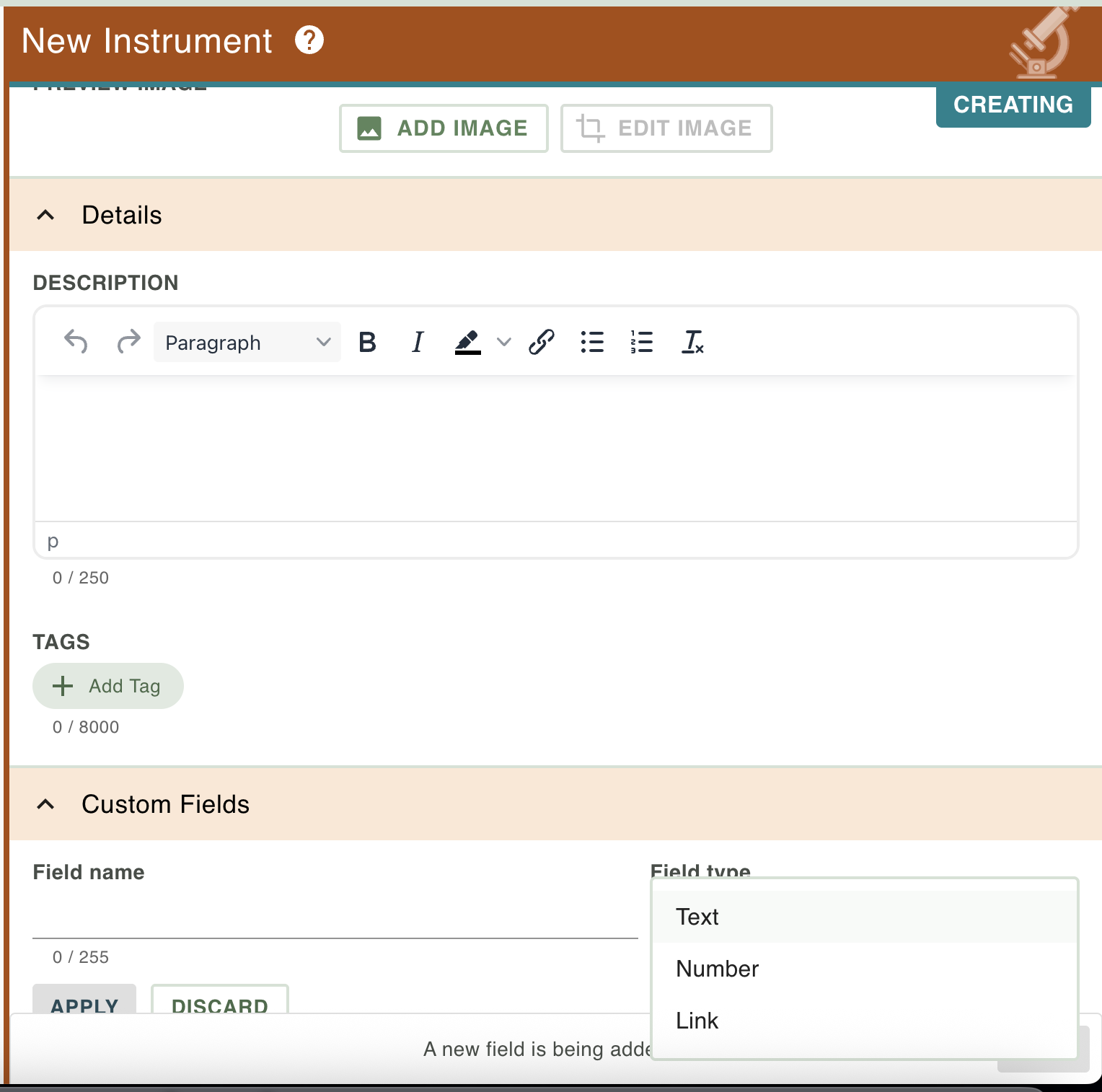
You can also add an image, description, tags and custom data fields, by scrolling to the bottom of the page.
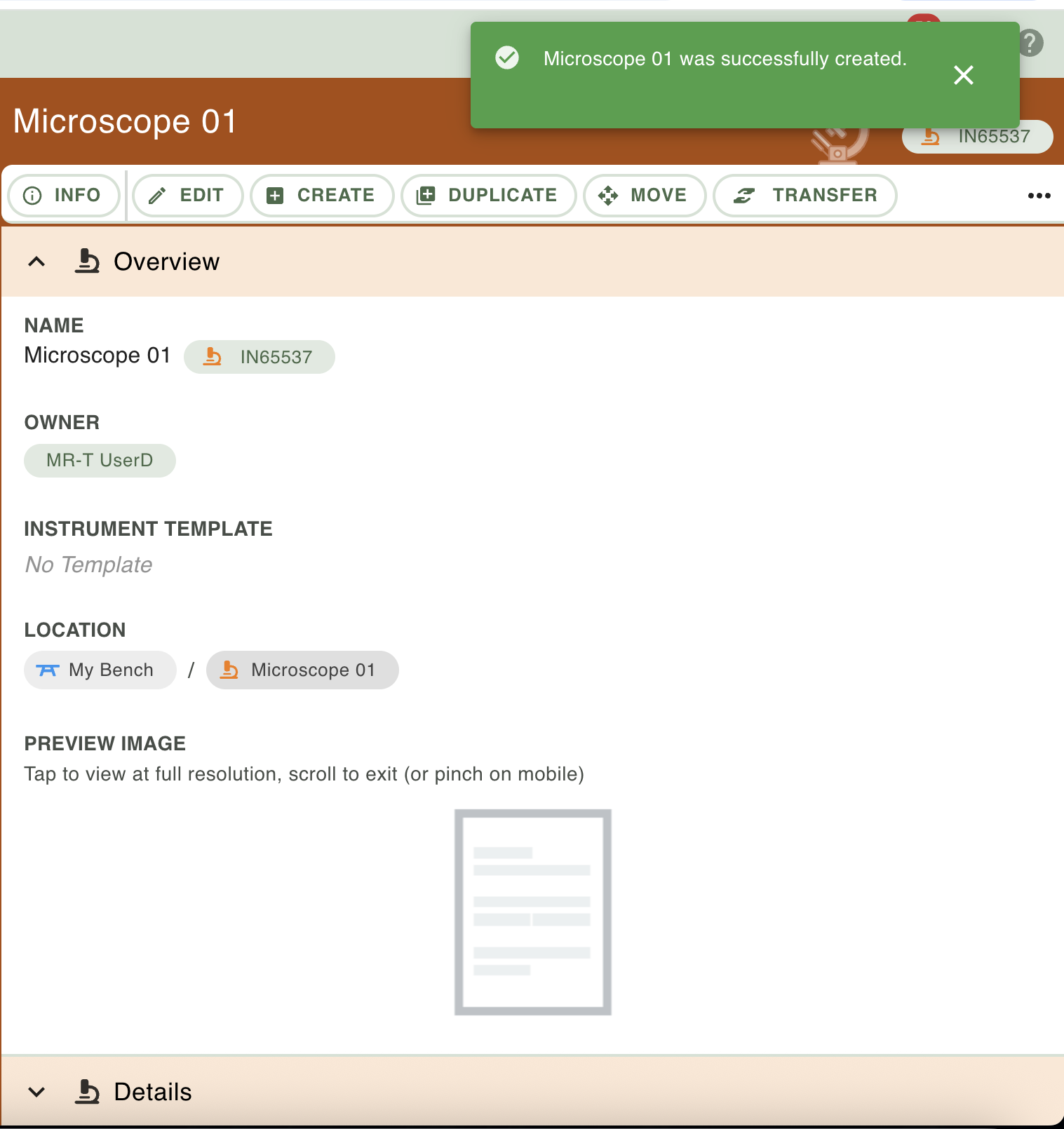
When done, click on Save. You will get confirmation that your Instrument has been created.
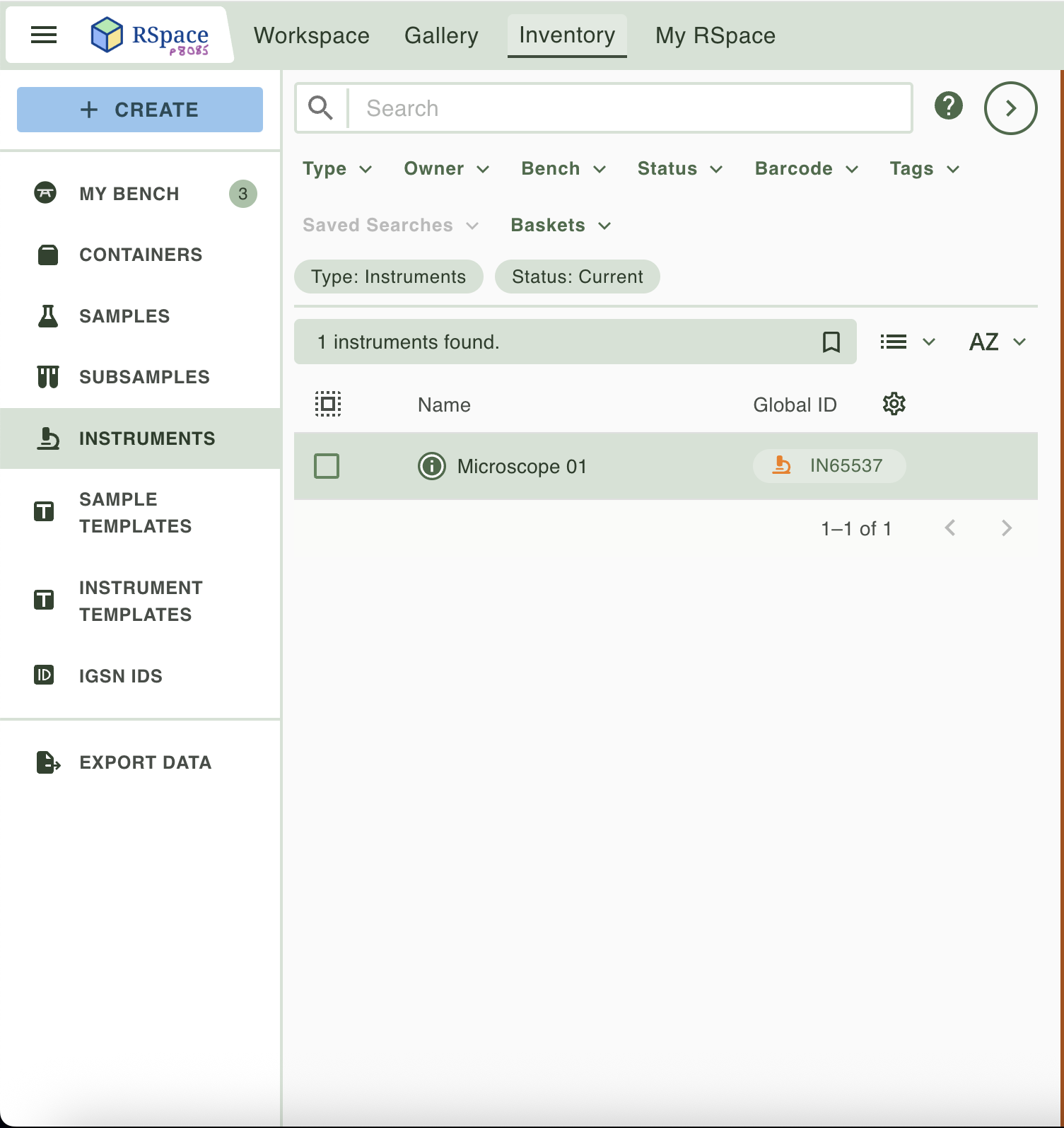
The navigation panel will refresh so you can view your newly created Instrument. If you don't see it there, make sure the "Instruments" category is selected in the sidebar.On a mobile device, you may need to click on the left arrow to go back to the navigation panel to view your Instruments.
If you did not specify a location for the new Instrument, you will find it on your Bench. You might want to move it to a suitable container - to achieve this, see Move Inventory Items.