Search and Import PIDINST Instruments into your Inventory 🧪
Introduction. Importing existing PIDINST IDs. Many instruments already have a PIDINST ID: a persistent identifier that has been published by a registry such as DataCite or B2INST. Instead of typing i…
Introduction
Importing existing PIDINST IDs
Many instruments already have a PIDINST ID: a persistent identifier that has been published by a registry such as DataCite or B2INST. Instead of typing in the details of such an instrument yourself, you can search the registry from RSpace Inventory and create an Instrument from the published record in a single step. RSpace fills in the new Instrument's fields from the record's metadata and links the PIDINST ID to it, so it is always clear which published record the Instrument corresponds to.
RSpace only reads the record from the registry. It never creates, changes or deletes anything there. If you would rather have RSpace register a new PIDINST ID for one of your instruments, see Add PIDINST IDs to your Inventory Items 🧪.
Before you start
There are a few things worth knowing before you search:
- Your System Administrator needs to enable a PIDINST registry (DataCite or B2INST) for your RSpace instance. If no registry is enabled, the From PIDINST registry option is not shown in the Create menu. See Configure DataCite PIDINST IDs in Inventory (for System Administrators).
- RSpace only searches the registry that is enabled for your instance. As only one registry can be enabled at a time, an instrument registered with the other registry will not be found.
- Only published records can be found and imported: Findable DOIs at DataCite, and Accepted records at B2INST. Records that are still a draft, under review or declined are not listed, and this includes records you have registered yourself. They become available to import once they have been published.
Search the PIDINST registry
To search for an instrument record:
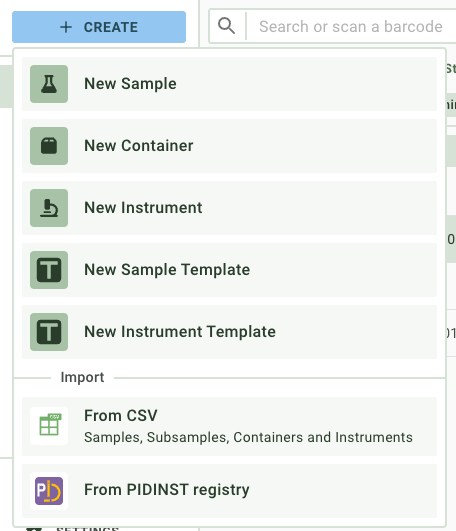
- In the sidebar, click on Create, and then click on From PIDINST registry in the import section of the menu.
- The Import Instrument from PIDINST dialog opens. In the Search the registry field, enter the instrument's name, its manufacturer or owner, or its DOI or Handle. You can enter the whole value or just part of it.
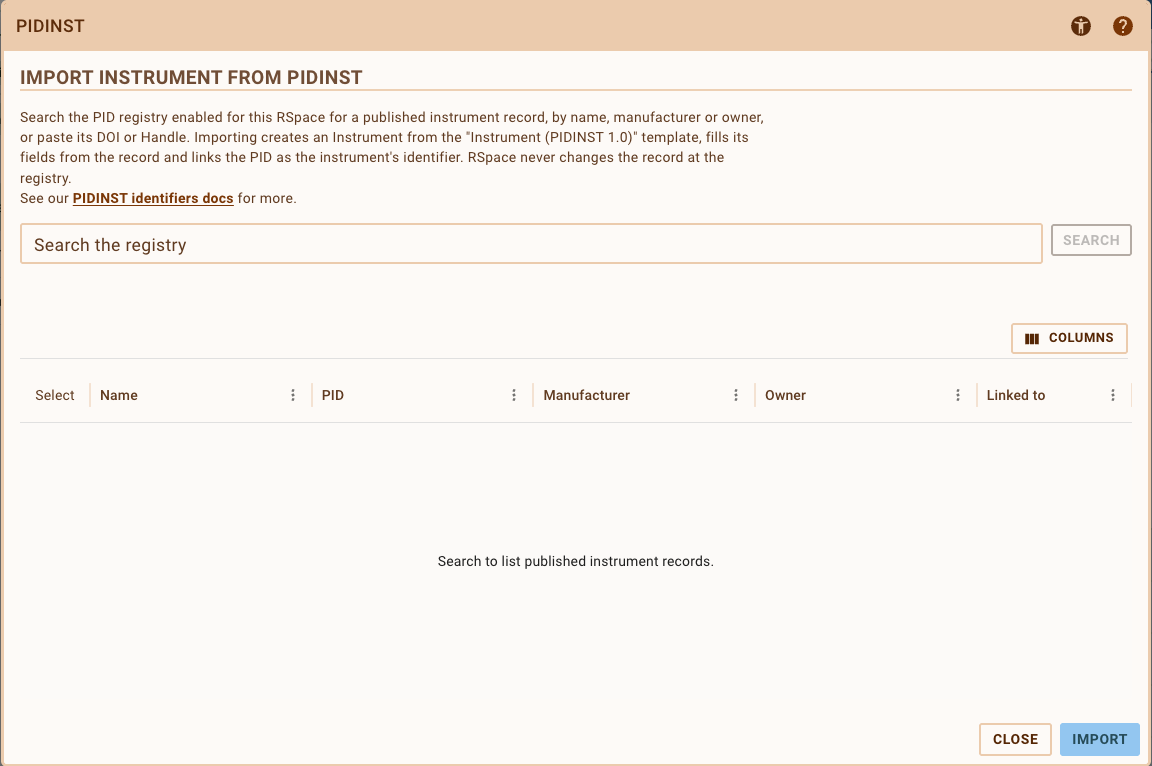
- Click on Search. The button is only enabled once you have entered at least 4 characters.
- The matching records are listed in a table. The line above the table tells you how many records were found, and at which registry; for example, "2 of 128 records found at B2INST".
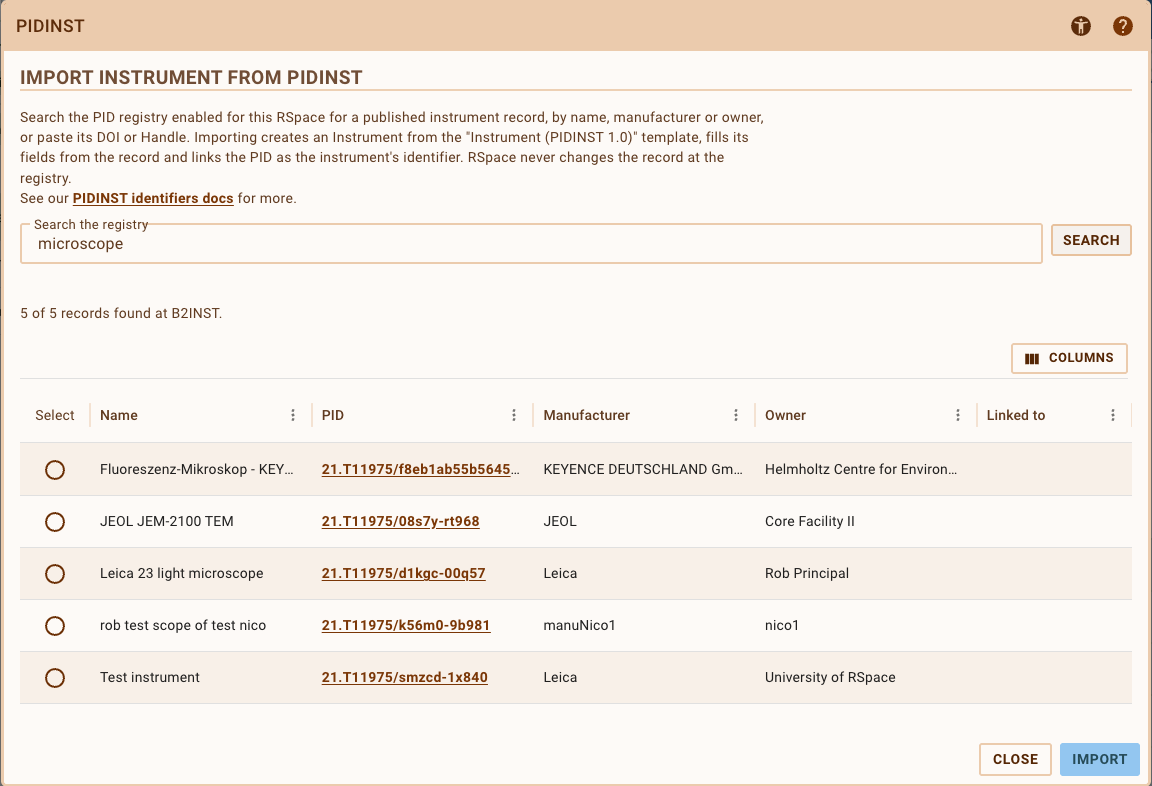
By default, the results table shows each record's Name, PID, Manufacturer and Owner, and whether it is already Linked to an Instrument in your RSpace. You can also show the Model, Instrument type, Commissioned and Registry state columns by using the Columns button above the table. On a narrow screen, such as a mobile device, only the Name and PID columns are shown.
Tips for searching
- If you know the instrument's DOI or Handle, pasting it into the search field is the quickest way to find its record.
- With B2INST, any part of the text can match. A fragment of a name, or the last few characters of a Handle, is enough to find a record.
- With DataCite, the search matches whole words, in the same way as DataCite's own search does, so part of a word may not find anything. If a search returns no results, RSpace automatically tries it again as part of a DOI, so you can also find a record by entering the part of its DOI after the slash, or just a piece of it.
- The text you enter is always searched as plain text. Quotes, brackets and words such as AND or OR are not treated as search operators.
Import an Instrument
Before importing a record, you can check its details to make sure it describes the instrument you are looking for.
To import an instrument:
- Click on a row in the results table to select that record. A Selected record preview appears below the table. It shows the record's PID, a link to the record at the registry, and its metadata: owners, manufacturers, model, instrument types, measured variables, alternate identifier, commissioned and decommissioned dates, landing page, measurement technique, calibration and description.
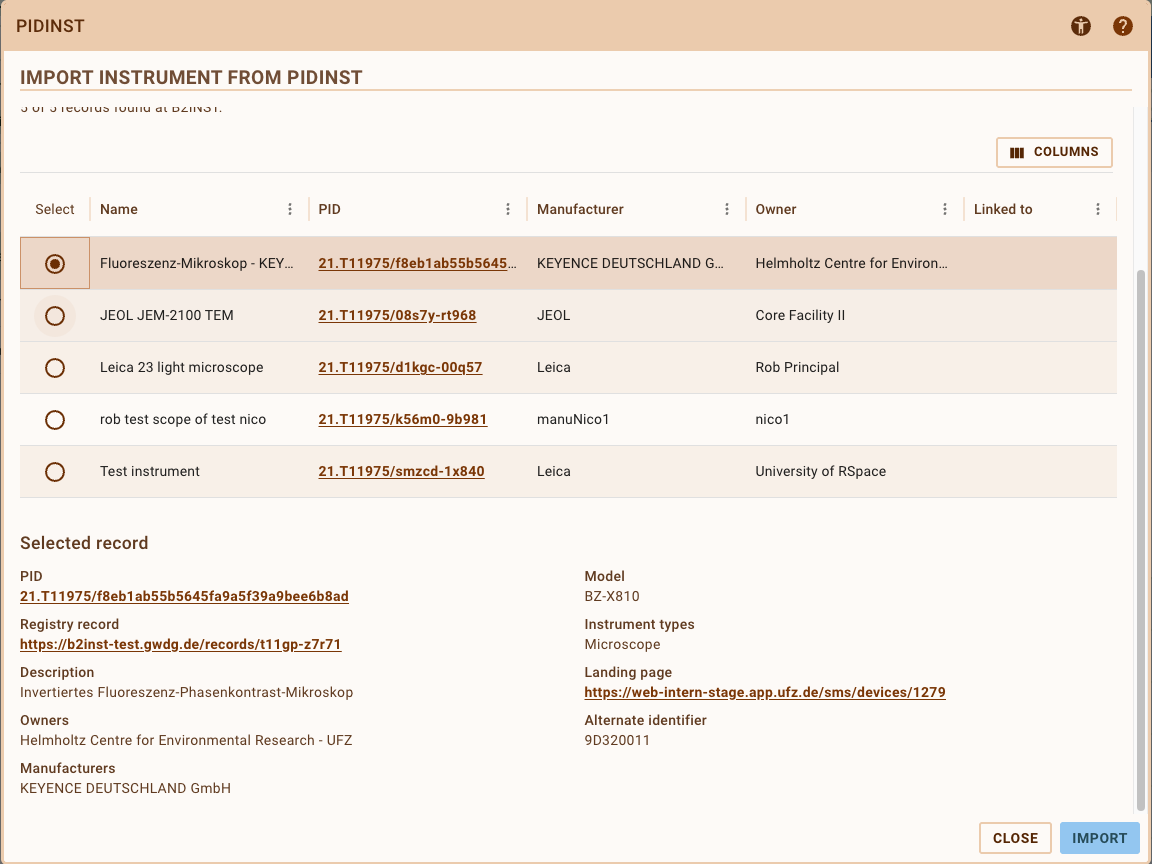
- Once you have checked the record, click on Import.
- An Importing instrument message is shown while RSpace fetches the record from the registry again and creates the Instrument. If you close the dialog during the import, RSpace asks you to confirm first; the import still completes, and the confirmation message still links to the new Instrument.
- When the import is complete, RSpace shows the message Successfully imported the instrument. with a link to the new Instrument, and opens it for you.
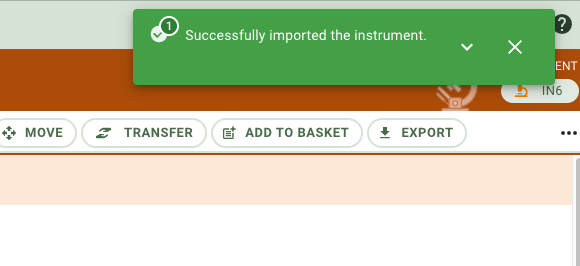
As with any Instrument created without a location, you will find the new Instrument on your Bench. You might want to move it to a suitable container; to do so, see Move Inventory Items.
What the new Instrument contains
The new Instrument is based on the default Instrument (PIDINST 1.0) template, and its fields are filled in from the registry record as follows:
- Name: the record's name. If the record has no name, its PID is used instead.
- Description: the record's description, shortened to 250 characters if it is longer.
- Owner: the record's owners. For a DataCite record that does not name an owner, the publisher is used instead.
- Manufacturer: the record's manufacturers.
- Model: the record's model.
- Instrument type: the record's instrument types.
- Measured quantity: the record's measured variables.
- Alternate Identifier: the record's alternate identifier.
- Commissioned and Decommissioned: the record's commissioning and decommissioning dates.
- Landing page: the record's landing page.
- Measurement technique and Calibration: see the Measurement technique and Calibration section below.
- Identifiers: the record's PIDINST ID, linked to the new Instrument.
When a record has several values for the same field, for example two manufacturers, they are combined into that one field and separated by semicolons. The Last calibrated field is left empty, for you to fill in if you need it.
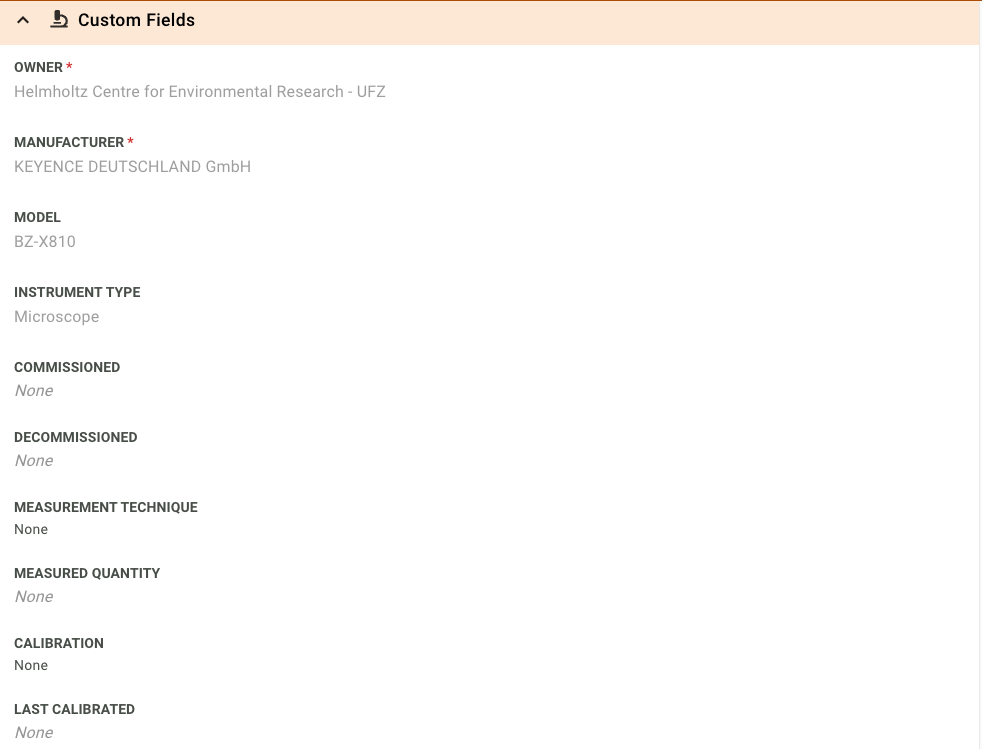
Once the import is complete, the Instrument's fields hold ordinary values that you can edit, just like those of any other Instrument. Changes you make in RSpace are not sent to the registry, and later changes to the record at the registry are not copied into RSpace.
Measurement technique and Calibration
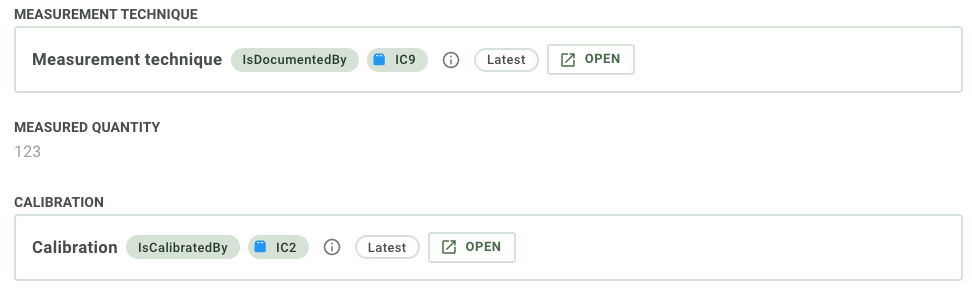
In RSpace, the Measurement technique and Calibration fields link to other items stored in the same RSpace, for example a document describing a method, or a sample used for calibration. A registry record can list the web addresses of such items, but RSpace can only link to items in your own RSpace instance. For each of these entries, the import therefore does one of the following:
- If the address points at an item in this RSpace that you have access to, the item is linked in the matching field, just as if you had linked it yourself.
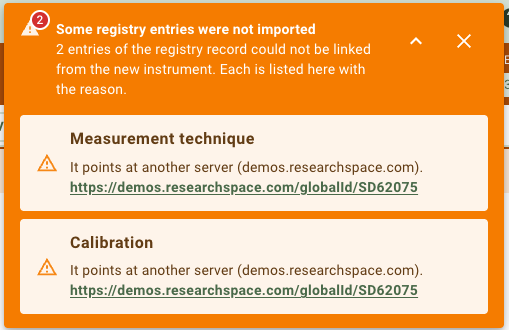
- If the address points at another server, or at an item that is not available to you, the field is left empty, and the rest of the import goes ahead as normal.
The new link uses the field's own relation: IsDocumentedBy for Measurement technique and IsCalibratedBy for Calibration. If the address names a specific version of the item, the link is pinned to that version.
Whenever an entry could not be linked, a Some registry entries were not imported message stays on screen until you close it. It lists each entry together with the field it was meant for, the reason it could not be imported, and its address, so that you can still follow it. The registry record itself keeps all of these entries.
The reason given for each entry is one of the following, and the entry's address is shown straight after it:
- "It points at another server (...):", with the name of that server in the brackets.
- "The item it points at is not available to you:", given both when you cannot see the item and when it no longer exists.
- "It is not the address of an item in this RSpace:"
Records that are already linked to a PIDINST ID
Each PIDINST ID can only be linked to one Instrument in your RSpace. If a record in your search results is already linked to an Instrument:
- The Linked to column shows a link to that Instrument if you have access to it, or No access if you don't.
- The preview below the table tells you that the PID is already linked to an Instrument in RSpace, and links to that Instrument if you have access to it.
- You can still select the record and read its details, but RSpace will not import it, and tells you why.
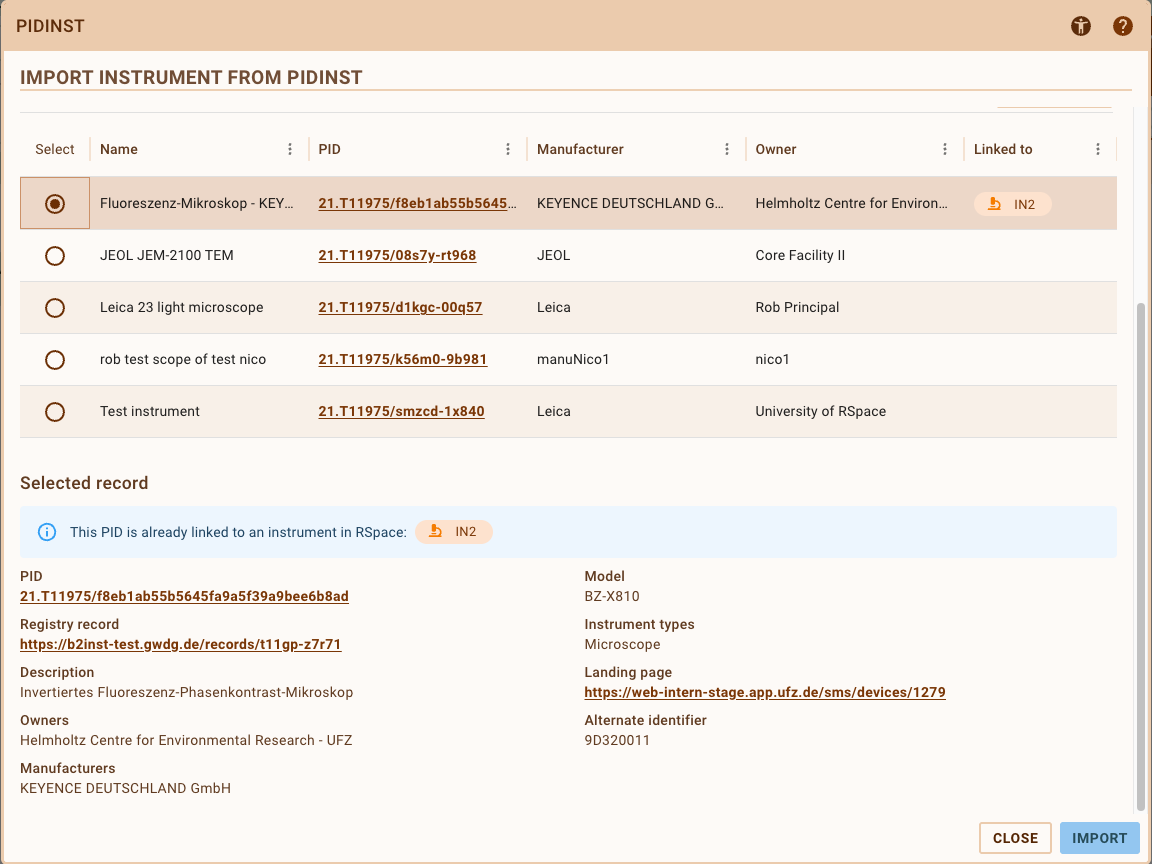
If you need the PID on a different Instrument, the link first has to be removed from the Instrument that holds it; see the Remove the link to a PIDINST ID section below.
Work with an imported Instrument
In the imported Instrument's Identifiers section, the PIDINST ID is shown with the state it has at the registry: Findable for DataCite, or Accepted for B2INST. The explanation next to it reminds you that the PIDINST was minted outside RSpace, that it resolves at its own registry rather than on an RSpace page, and that RSpace does not publish or update it.
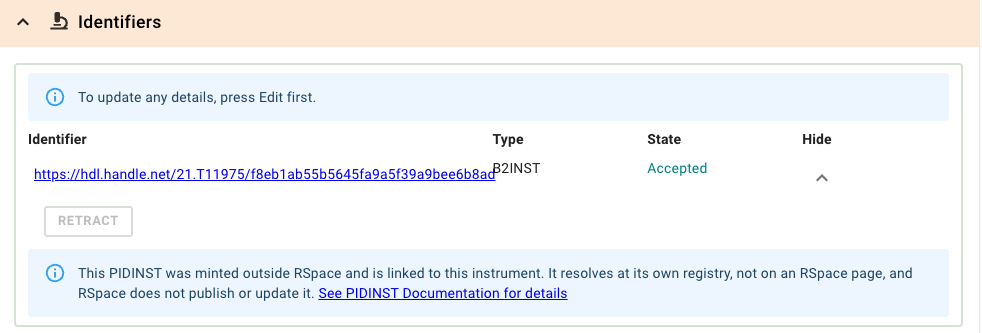
Because the registry record belongs to someone else, RSpace treats a linked PIDINST ID differently from one it has registered itself:
- The Publish, Preview and Refresh buttons are not available, and Retract is disabled.
- RSpace does not create a public landing page for the PIDINST ID, as it already resolves at its registry.
- A new PIDINST ID cannot be registered for the Instrument while the link is in place.
- Saving the Instrument never sends its metadata to the registry.
If you duplicate an imported Instrument, the copy does not get the PIDINST ID, and its Landing page field starts empty. The copy is an ordinary Instrument, so you can register a new PIDINST ID for it or import a different record.
Remove the link to a PIDINST ID
There is no button in the Identifiers section for removing a linked PIDINST ID from an Instrument. To release the PID so that it can be imported again, move the Instrument that holds it to the trash. The link is removed straight away, and nothing changes at the registry.
Developers can also remove the link without trashing the Instrument, by deleting the identifier through the RSpace Inventory API.
Troubleshooting
These are the messages you might see while searching and importing, and what you can do about them:
- "Enter at least 4 characters to search." The search text is too short. Enter a few more characters.
- "No published instrument records match this search." No published record at your registry matches the text you entered. Check the spelling, or try pasting the DOI or Handle. Remember that unpublished records, and records held by the other registry, cannot be found.
- "Only the first 50 records are shown. Refine the search to find a specific instrument." Your search matched a large number of records. Add more words, or paste the PID.
- "Could not search the PID registry." The registry could not be reached, or returned an error. Please try again later, and contact your System Administrator if the problem persists.
- "This PID is already linked to instrument ..." Another Instrument in your RSpace already holds this PID. Open that Instrument instead.
- "This PID is already linked to an instrument in RSpace that you cannot access." As above, but the Instrument is not shared with you. Ask its owner, your PI or your System Administrator for help.
- "The registry record has no Owner, which the "Instrument (PIDINST 1.0)" template requires, so it cannot be imported." The record is missing a required value (the same message names the Manufacturer if that is the value missing). Ask the record's owner to complete it at the registry, or create the Instrument manually.
- "No published instrument record was found for ... at the enabled PIDINST provider." The record may have stopped being public since you searched for it. Search for it again.
- "Could not import the instrument." Something else went wrong; the details shown with the message explain why. Please try again, and contact your System Administrator if the problem persists.
- "This RSpace has no "Instrument (PIDINST 1.0)" template, which importing an instrument requires. Ask your system administrator to check the installation." The default instrument template is missing from your RSpace. Please contact your System Administrator.
How did we do?
Create an Instrument
Samples vs Subsamples 🧪