Table of Contents
- Overview
- Introduction to RSpace ELN
- Two examples of previously recorded, full length training sessions (60 - 90 minutes):
- First steps
Getting Started with RSpace ELN
All you need to get started with the RSpace Electronic Laboratory Notebook, and where to find further documentation.
Table of Contents
- Overview
- Introduction to RSpace ELN
- Two examples of previously recorded, full length training sessions (60 - 90 minutes):
- First steps
- Overview
- Introduction to RSpace ELN
- Two examples of previously recorded, full length training sessions (60 - 90 minutes):
- First steps
Overview
RSpace ELN is a versatile and flexible electronic laboratory notebook, that integrates with RSpace Inventory and many other tools and services researchers already use. It provides a collaborative digital environment for individuals and research groups powered by a data management platform that maintains the integrity of your laboratory notes and research data according to international standards for scientific data management.
Introduction to RSpace ELN
To get started, you can get a brief or more thorough introduction to RSpace ELN by watching the following videos. If you prefer reading, skip to the next section.
- A longer version is available here: [Video] Full Introduction to RSpace (17 min)
- RSpace YouTube playlists: https://www.youtube.com/@Researchspace/playlists
Two examples of previously recorded, full length training sessions (60 - 90 minutes):
1) https://youtu.be/8V0bjRh7Pxs?si=cWa3s-TVMjkPagPU
2) Courtesy of University College London: https://mediacentral.ucl.ac.uk/Play/92124
First steps
New users can think of RSpace as an operating system for your lab that enables collaborative research and protects the integrity of your research data. Your research notes, data, records and protocols are stored as Documents that you can flexibly organise and collaboratively work on with your peers using familiar concepts such as Folders, Notebooks, Files and Tags. Here are a few things you can do to get started with RSpace ELN.
Access
RSpace for institutions
Each institutional RSpace is hosted on a separate server, so make sure to use the correct link to your organisation's RSpace to log in; the link will usually take the form of [custom-institution-name].researchspace.com. If your institution has set up RSpace with Single Sign-On, you'll see a familiar interface that you can enter your institutional credentials into. Otherwise, you will either be able to create an account directly, or your institution will generate an account for you.
Please communicate with your institutional ELN project lead or System Administrator if you are unclear on how to sign up or log in.
RSpace Community
Research Space also hosts a public Community server that features the RSpace ELN. To sign up for the Community server, simply go to https://community.researchspace.com/signup, then you can directly log in from https://community.researchspace.com/login.
The Workspace
After logging into RSpace you will arrive in your Workspace, the main place where you organise and access your research documents and the documents shared with you. The Workspace view can be conveniently filtered, sorted and searched, so that you can easily find all relevant documents.
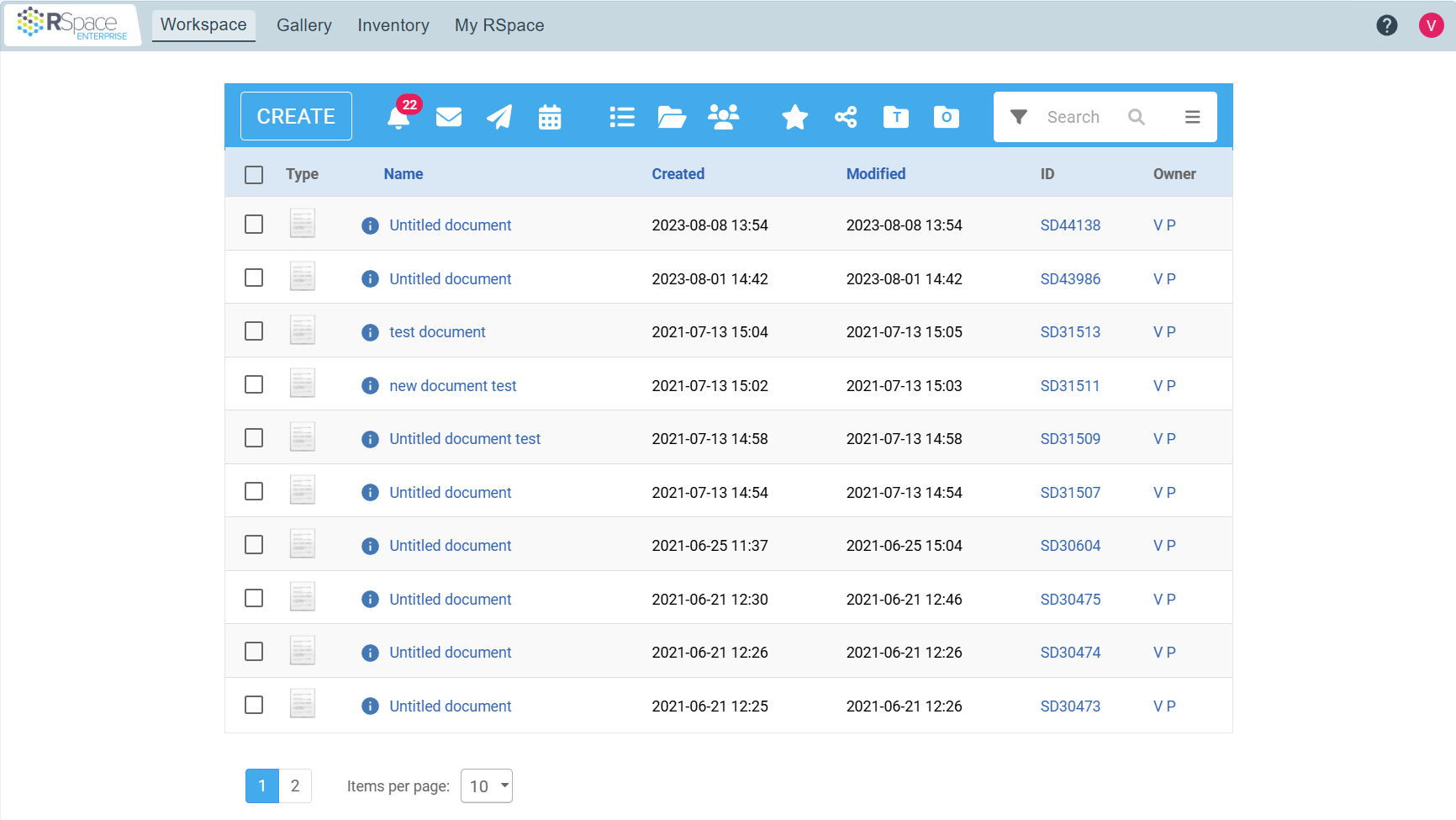
Documents
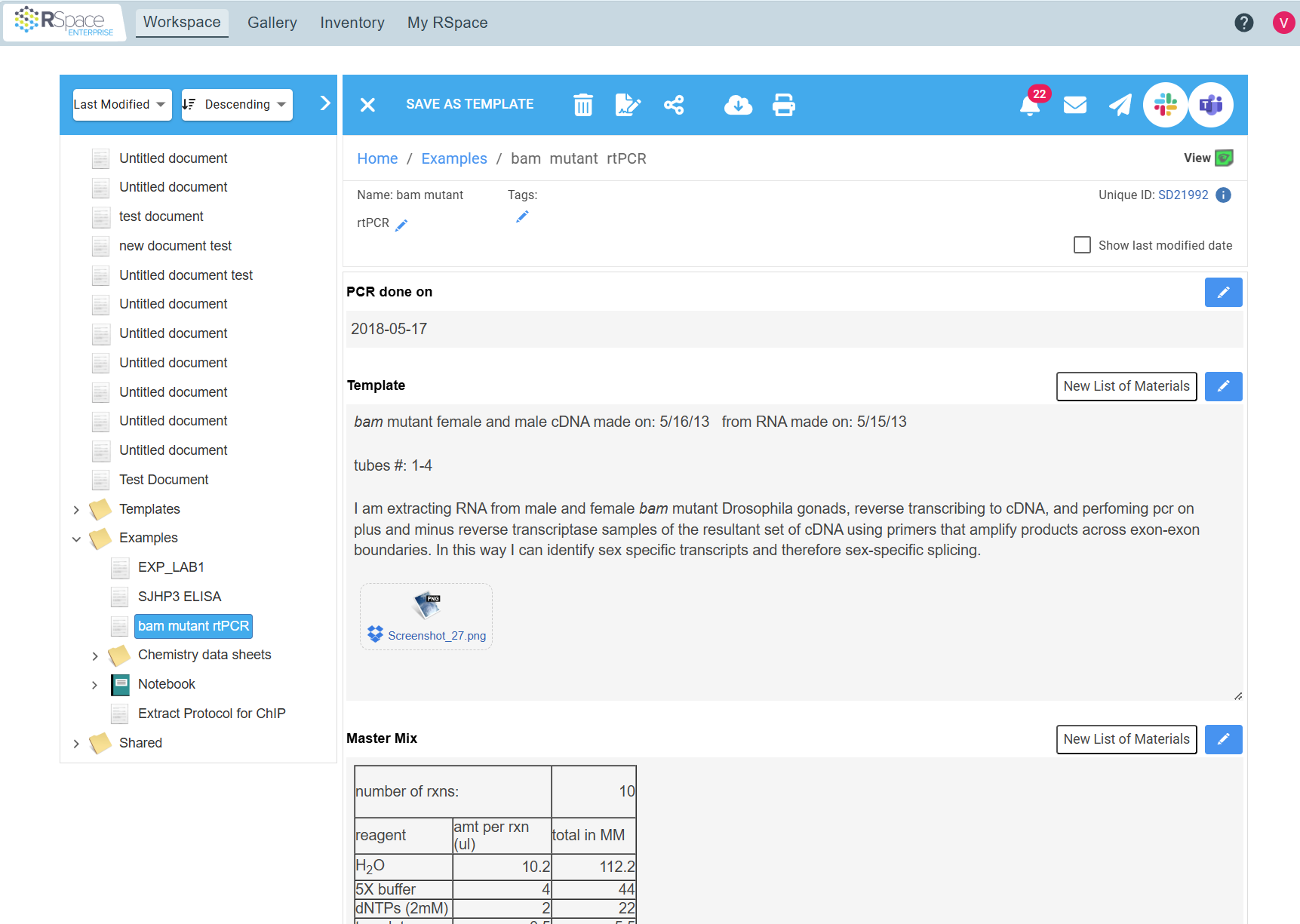
Create your first Document via the Create button in your Workspace. Documents in RSpace can contain or link to virtually any type of content that you work with in your research, using the document editor. You can also create documents containing structured content, e.g. for standard experiments or procedures, using Forms, or you can create a document from a Template you or your peers created earlier.
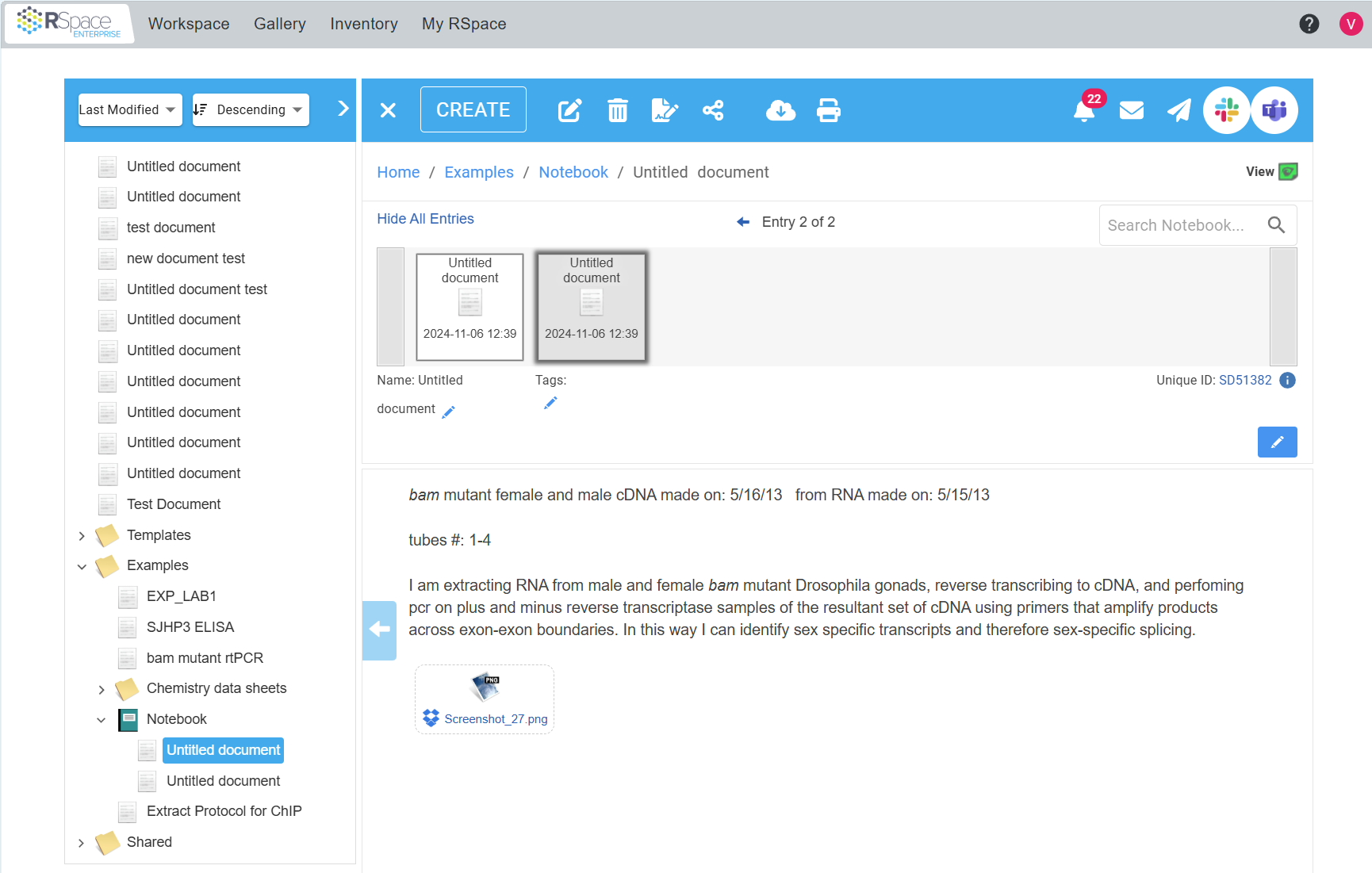
Notebooks
Create a Notebook via the Create button in your Workspace to chronologically record your research progress and keep track of your project(s). A notebook is the electronic equivalent of a paper laboratory journal and keeps your documents in chronological order. If you only need a place to store related documents, you can also create Folders in your Workspace.
Gallery
The Gallery is where RSpace stores files. Think of the Gallery as a 21CFR11 compliant replacement for your personal computer hard drive, or a replacement for non-compliant file store systems such as Drobox, OneDrive, Sharepoint, Google Drive or other shared file servers. You can add any file in any format from any source to the Gallery. You can add files to the Gallery directly via drag and drop, or using a standard file chooser, or programmatically via the API, or by adding files to your RSpace documents, in which case they automatically also appear in your Gallery. Each user has their own personal Gallery which is visible only to them and their PI. To share files with other users, add them to an RSpace document, then share the document with target groups or individuals. RSpace tracks and displays which files are used in which documents making it easy to trace data use throughout the system.
Sharing
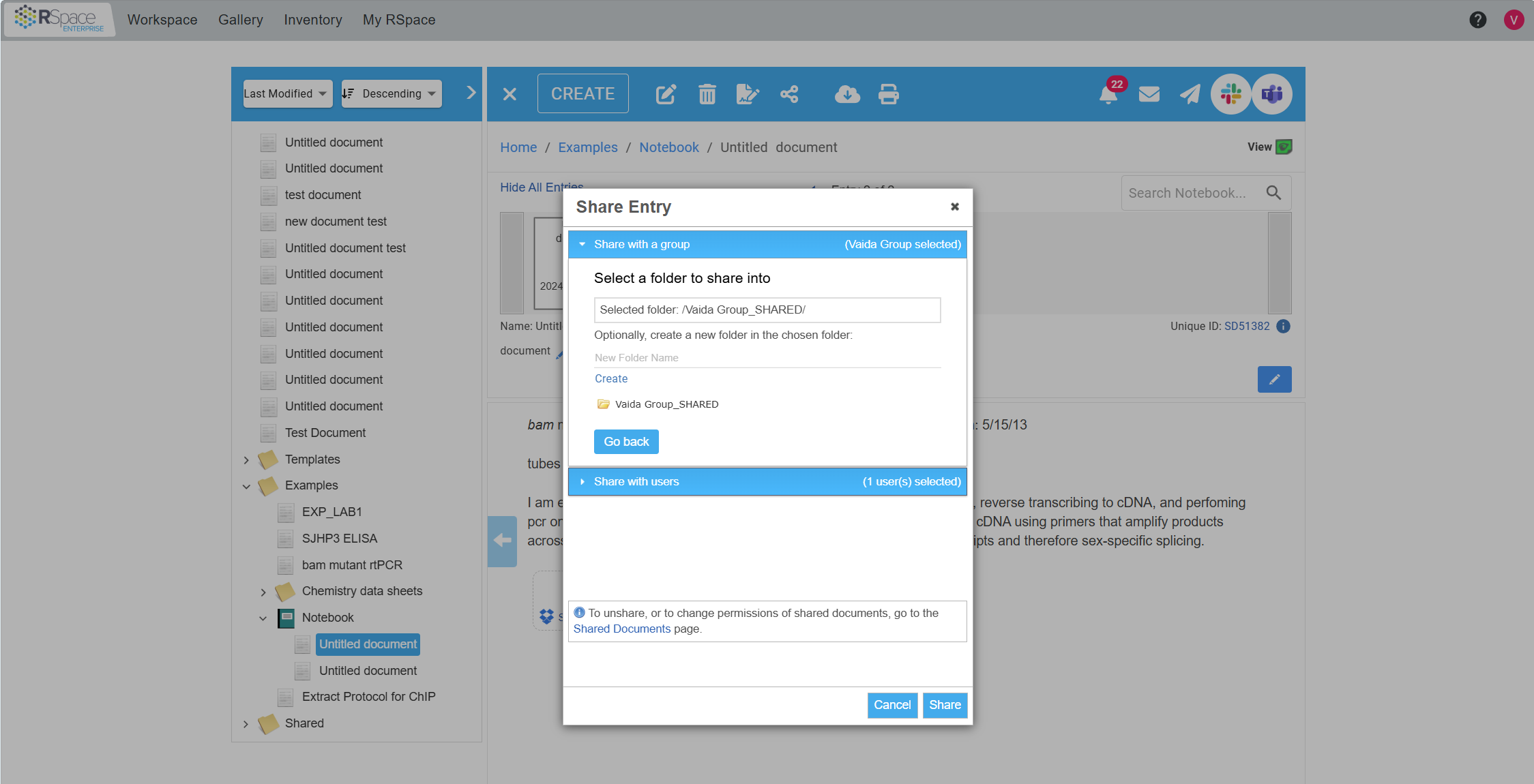
Once you've created a Document or Notebook, you can share it with your peers to work on collaboratively. Simply select the item(s) you want to share from the Workspace and click on Share. Whom you can share your content with depends on which RSpace groups you belong to. You can collaborate on RSpace through LabGroups and Project Groups, as well as individual sharing.
Apps & Integrations
Enable third party integrations to integrate RSpace into your workflows, by connecting RSpace to the tools and services you already use.
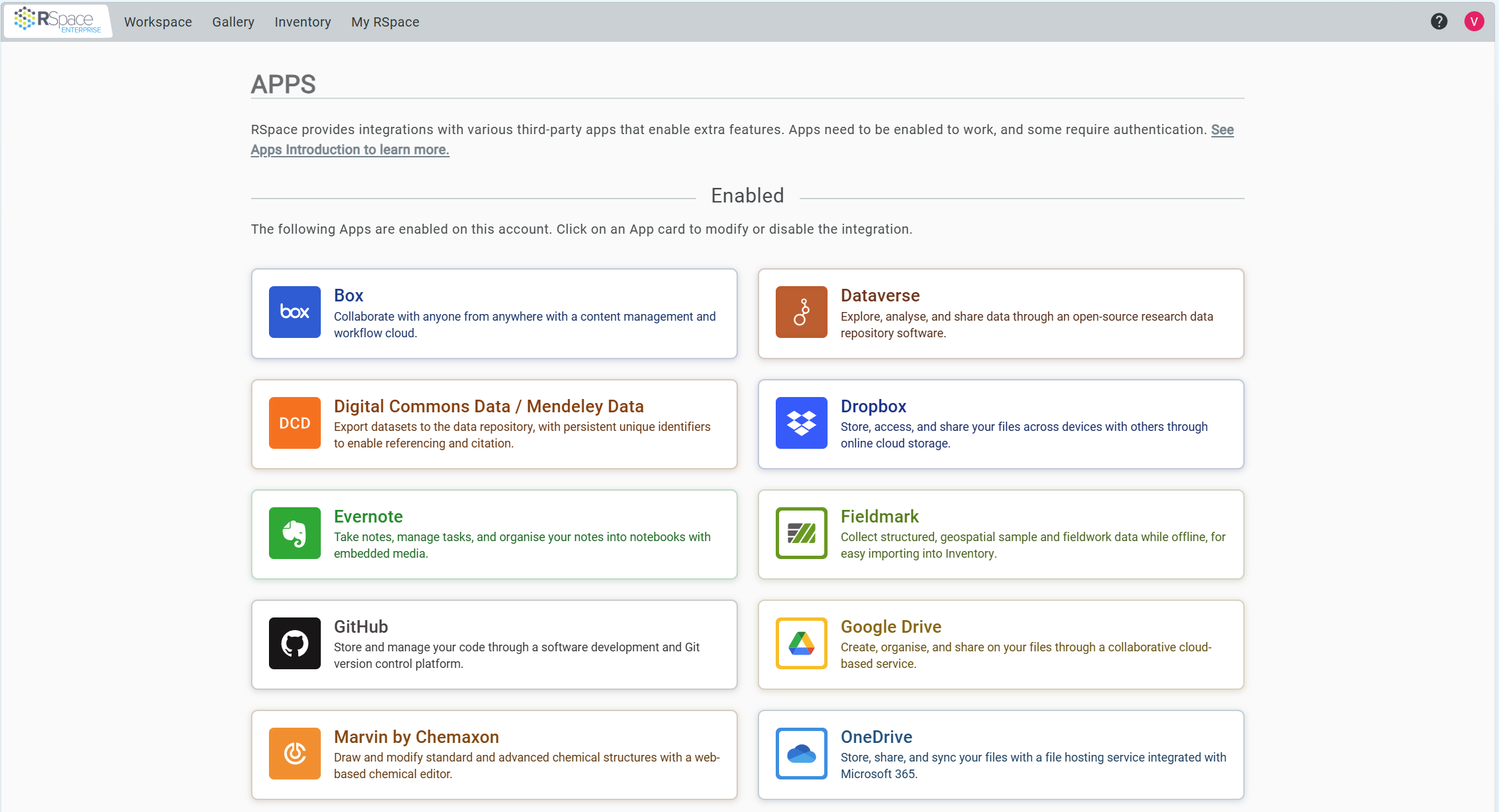
Import & Export
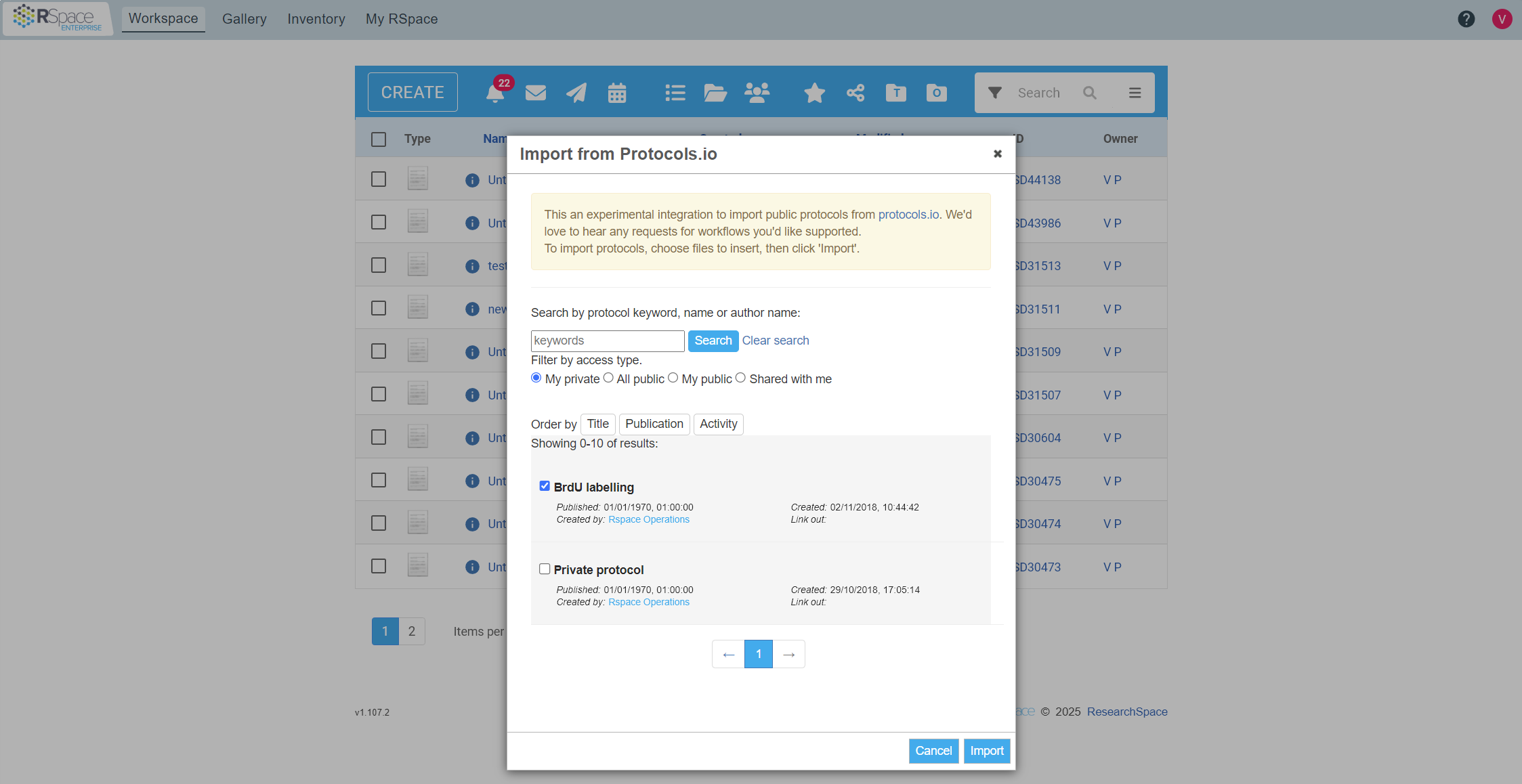
If you already have a lot of your research documentation in electronic form a great first step is to import your data into RSpace. We support a wide variety of formats for importing (and exporting) of data, including export to repositories such as Dataverse, Zenodo and Figshare.
Further introductory documentation
Topic | Relevant articles |
Main RSpace interfaces | |
Recording your research | |
Importing & Exporting research notes and data | |
Collaborating with your peers | |
Organising your research | |
RSpace Inventory |
Where can I get further support?
- Browse our documentation articles at https://documentation.researchspace.com, or search for specific articles using the search bar at the top of the page
- From within RSpace, click on the question mark button on the bottom-right of the screen to access and search the documentation, as well as chat with us (see Support Panel)
- Email us with any questions at support@researchspace.com, we're happy to help!
How did we do?
Getting Started with Inventory 🧪